NHTSA ID Number: 10214755
Manufacturer Communication Number: TSB 22-2226
Summary
This article supersedes TSB 21-2310 to update the Issue, Action, Service Procedure. Some 2021 Mach-E/F-150 vehicles may experience at least one of the following symptoms: audio settings resetting after a key cycle, Android Auto connection concerns, Sirius presets missing more than three pages after a key cycle, touchscreen freezing/locking up, Pro-Power Onboard messaging confusion after a tripped circuit breaker (F-150 only), Wi-Fi keyboard defaulting to UK English, windows media audio (WMA) files not playing properly from a universal serial bus (USB) device, intermittent blank touchscreen, Apple CarPlay connection concerns, Bluetooth® connectivity concerns, Sirius XM loading concerns and/or unable to change Sirius XM channels. This may be due to the software in the accessory protocol interface module (APIM). To correct the condition, follow the Service Procedure to reprogram the APIM. The APIM software update that addresses the symptom listed in this article may have been sent via Ford Power-Up software updates delivered over-the-air (OTA) to connected vehicles that have automatic updates enabled

This bulletin supersedes 21-2310.
Model:
Ford
2021 F-150
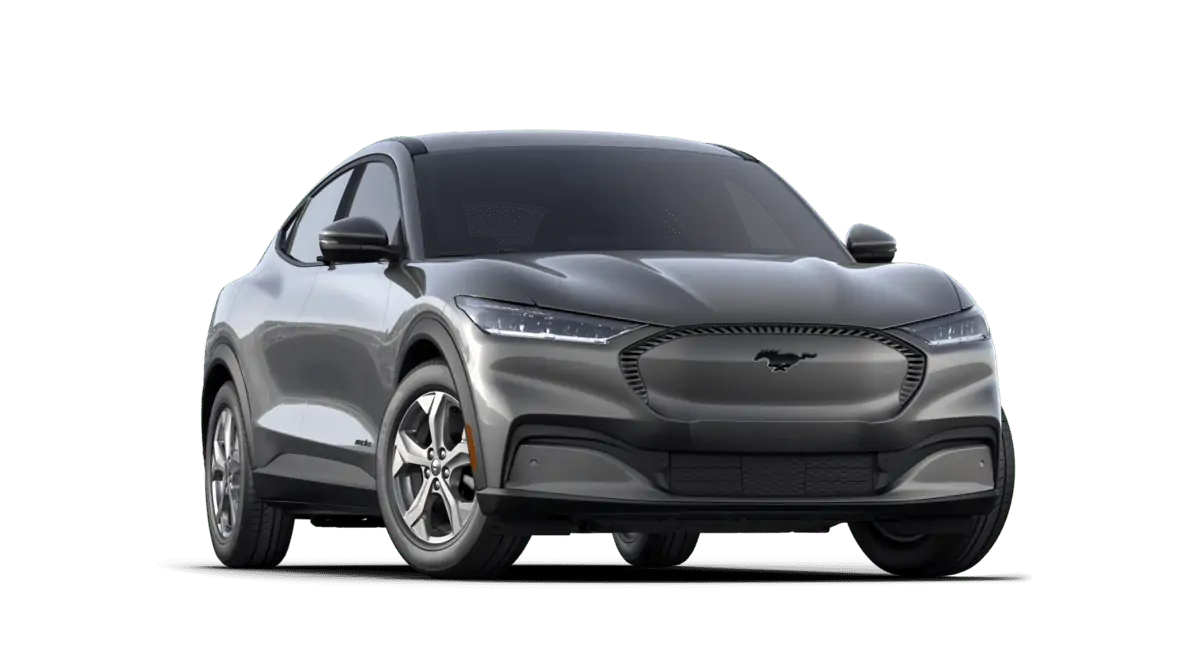
2021 Mustang Mach-E
Summary
This article supersedes TSB 21-2310 to update the Issue, Action, Service Procedure.
Issue: Some 2021 Mach-E/F-150 vehicles may experience at least one of the following symptoms: audio settings resetting after a key cycle, Android Auto connection concerns, Sirius presets missing more than three pages after a key cycle, touchscreen freezing/locking up, Pro-Power Onboard messaging confusion after a tripped circuit breaker (F-150 only), WiFi keyboard defaulting to UK English, windows media audio (WMA) files not playing properly from a universal serial bus (USB) device, intermittent blank touchscreen, Apple CarPlay connection concerns, Bluetooth® connectivity concerns, Sirius XM loading concerns and/or unable to change Sirius XM channels. This may be due to the software in the accessory protocol interface module (APIM). To correct the condition, follow the Service Procedure to reprogram the APIM.
NOTE: The APIM software update that addresses the symptom listed in this article may have been sent via Ford Power-Up software updates delivered over-the-air (OTA) to connected vehicles that have automatic updates enabled through the SYNC 4 screen. Enter the vehicle identification number (VIN) in Professional Technician System (PTS) and check the OTA Dashboard under the Connected Vehicle tab for OTA update history. If an update to the APIM has been successfully completed recently and the customer is reporting the symptoms are no longer present, this article may not apply.
Action: Follow the Service Procedure to correct the condition on vehicles that meet all of the following criteria:
- 2021 Mustang Mach-E/F-150
- One or more of the following customer symptoms:
-
- Audio settings resetting after a key cycle
-
- Android Auto connection concerns
-
- Sirius presets missing more than three pages after a key cycle
-
- Touchscreen freezing/locking up
-
- Pro-Power Onboard messaging confusion after a tripped circuit breaker (F-150 only)
-
- Wi-Fi keyboard defaulting to UK English
-
- WMA files not playing properly from a USB device
-
- Intermittent blank touchscreen
-
- Apple CarPlay connection concerns
-
- Bluetooth® connectivity concerns
-
- Sirius XM loading concerns
-
- Unable to change Sirius XM channels
Service Procedure
NOTE: Ask the customer to bring their spare key fob to assist in the Ford Diagnosis and Repair System (FDRS) programming. The time required to complete this procedure will vary depending on several factors including the number of module software updates required, available internet bandwidth, universal serial bus (USB) flash drive variability, and the potential that controller area network (CAN) flashing (software update via the data link connector [DLC] with FDRS) may be required. It is recommended to connect to the internet with an ethernet cable and use a USB 3.0 capable flash drive when performing software updates.
NOTE: The following modules may each require more than one software update: gateway module (GWM), telematic control unit (TCU), accessory protocol interface module (APIM), instrument panel cluster (IPC) and/or image processing module A (IPMA).
1. Start an FDRS session and navigate to Toolbox tab > Datalogger > body control module (BCM) and select the “BATT_SOC” PID. Verify the PID reads 80% or higher. If state of charge (SOC) is less than 80%, charge the battery then navigate back to Toolbox tab > BCM > Reset Battery Monitor Sensor Learned Values application. Perform the battery monitor sensor (BMS) reset.
(1). If the battery is unable to achieve an 80% SOC then a new battery may be required. Use the Rotunda GR-190, GRX-3590 or DCA-800 tester to verify if replacement is required. If the battery is replaced, fully recharge the new battery. Then disconnect the Rotunda charger and perform a BMS reset using the FDRS scan tool.
2. Reconnect the battery charger and set it to maintain a vehicle voltage of 12.6 – 13.6 volts. A low battery state of charge while performing a software update to any module may result in a repeat Restart Required message in the vehicle center screen or a message on the FDRS saying Part Number Validation Failed or DID Validation Failed.
3. Close all the doors on the vehicle. If a door must be left open during the service procedure, the door latch should be mechanically latched to simulate a closed door.
4. Are there any updates available for the GWM, TCU, APIM, IPC and/or IPMA modules?
(1). Yes – proceed to Step 5.
(2). No – this article does not apply. Refer to Workshop Manual (WSM), Section 415-00.
NOTE: IPC software updates are only required on F-150 vehicles equipped with the High-Level IPC, 12-Inch Display and all Mustang Mach-E vehicles.
5. Perform the Module Software Updating Procedures outlined below for the following modules: GWM, TCU, APIM, IPC and IPMA. Perform a network test after each software update using the latest software level of the FDRS scan tool. This will refresh the list of modules that have available software updates based current module software levels. Continue performing software updates to the GWM, TCU, APIM, IPC and IPMA until all available software updates for those modules are complete. If any error conditions are experienced during programming, refer to WSM Section 418-01A > General Procedures > Module Programming for the Error Condition Table.
6. If the in-vehicle SYNC screen does not indicate that the USB flash drive has started to download, this may require recovery of the APIM module. Refer to related Technical Service Bulletins (TSB) or Special Service Messages (SSM) for APIM recovery using the FDRS service tool.
Module Software Updating Procedure
The following instructions apply when performing a software update on any of the following modules:
- GWM
- TCU
- APIM
- IPC
NOTE: A blank 64GB or larger USB flash drive is required, and a USB 3.0 USB flash drive is recommended for fastest software installation. Make sure the USB flash drive being used is formatted as exFAT file system. To confirm the USB flash drive is formatted as exFAT, hold down the Windows icon keyboard key and press the E keyboard key. Right click on the USB flash drive, then select Properties. If File System under the General tab is not exFAT, the drive must be formatted. To format the USB flash drive, right click on the USB flash drive, select Format, select exFAT for the File System, and select Default Allocation Size for the Allocation Unit Size. De-selecting Quick Format is not necessary and results in a more lengthy operation.
1. Using the FDRS, begin module programming by selecting the SW Updates tab. Download and run the application for desired module. Follow all on-screen instructions carefully.
2. When prompted, connect the USB flash drive to the FDRS.
NOTE: It may take up to 5 minutes for the vehicle to recognize the USB flash drive.
3. When prompted by the FDRS, safely remove/eject the USB flash drive from the FDRS and connect it to the USB hub to install the software into the module. When the USB software update begins the touchscreen displays a message stating Do Not Remove USB. The update starts automatically and may take 10 minutes or longer to complete. If the message stating Do Not Remove USB does not display on the touchscreen within 5 minutes of the USB drive being connected to the vehicle’s USB hub select Did The Update Install Successfully > No on the FDRS and follow the on-screen instructions to either attempt USB programming again or perform CAN programming for the module.
4. When the pop-up stating Restart Required appears on the touchscreen, turn the ignition OFF, open and close the driver’s door, and wait for 10 minutes. Restart the engine (key-on engine running [KOER]). The update is still in process at this time.
NOTE: It may take up to 5 minutes before the touchscreen displays Update Successful pop-up. After 5 minutes if the Update Successful pop-up does not display on the touchscreen, remove the USB and select yes on the FDRS Was the USB Update Successful prompt (FDRS verifies if the module software update was successfully installed on the module).
5. Once the pop-up stating Update Successful appears on the touchscreen, select Close, remove the USB flash drive from the USB hub and connect it to the FDRS, and select Yes on FDRS indicating the update installed successfully. This initiates the remaining automated configuration steps and reports the module assembly, vehicle interface processor (VIP), calibration, customer interface processor (CIP), and application software levels to the Ford online database. Failure to follow this step results in an inaccurate database as well as omitted, improperly installed, or improperly configured applications (features) such as navigation (if equipped). It is normal for the module to reset during this step.
IPMA Software Updating Procedure
When performing the IPMA software update, additional modules will receive software updates. Depending on vehicle features, the coordinated software update includes the IPMA, power steering control module (PSCM), cruise control module (CCM) and/or camera module – rear (CMR).
1. Reprogram the IPMA using the latest FDRS software level. Follow all on-screen instructions carefully to complete all coordinated module software updates.
2. Perform the FDRS Image Processing Module A (IPMA) Alignment procedure.
3. Perform the appropriate FDRS camera alignment procedure.
(1). For vehicles equipped with 360 degree cameras, perform the IPMA – 360 Degree View Camera Alignment procedure.
(2). For all other vehicles, perform the IPMA – Pro Trailer Backup Assist Camera Alignment procedure. This procedure should be performed on all vehicles without 360 degree cameras, even if the vehicle is not equipped with Pro Trailer Backing Assist™ (PTBA).
2 Affected Products
Vehicles
1 Associated Document
Manufacturer Communications
22-2226
20 June 2022
NHTSA ID Number: 10202700
Manufacturer Communication Number: TSB 21-2310
Summary
Some 2021 Mach-E/F-150 vehicles may experience at least one of the following symptoms: audio settings resetting after a key cycle, Android Auto connection concerns, Sirius presets missing more than three pages after a key cycle, Information and Entertainment screen freezing/locking up, Pro-Power Onboard messaging confusion after a tripped circuit breaker (F-150 only), WiFi keyboard defaulting to UK English, windows media audio (WMA) files not playing properly from a universal serial bus (USB) device, intermittent blank Information and Entertainment screen, Apple CarPlay connection concerns, and/or Bluetooth connectivity concerns. This may be due to the software in the accessory protocol interface module (APIM). To correct the condition, follow the Service Procedure steps to reprogram the APIM.
1 Associated Document
Manufacturer Communications
21-2310
11 October 2021
Reprogramming
Service Information & Reprogramming
Module Reprogramming
| Diagnostic Software | Interface Device | Complete Vehicle Diagnostics | Module Programming | ||
| 1996-2017 Model Year |
2018-Present Model Year |
1996-2017 Model Year |
2018-Present Model Year |
||
| IDS/FDRS | VCM, VCM II , VCMM , VCMM |
X | X | X | X |
| FJDS/FDRS | Compatible J2534 Devices (Including VCM II and VCMM) |
X | X | X | |
Detailed system requirements, installation, and support information for each product is located under the diagnostics tool support tab for each product.
Integrated Diagnostic Software (IDS) / Ford Diagnosis & Repair System (FDRS)
For use with VCM I, VCM II, VMM and VCMM hardware devices only. The complete factory Ford Motor Company vehicle diagnostic tool that provides complete dealership level vehicle diagnostic coverage for all 1996 to present Ford, Lincoln and Mercury vehicles. The IDS software includes time based access to the IDS software, software updates and calibration files.
Ford J2534 Diagnostic Software (FJDS) / Ford Diagnosis & Repair System (FDRS)
For use with compatible J2534 hardware devices. FJDS software provides Ford Module Programming functionality that covers 1996 to present Ford, Lincoln and Mercury module reprogramming functions, plus complete dealership level vehicle diagnostic software for all 2018 to present Ford and Lincoln vehicles. The FJDS software license includes time based access to the FJDS software, software updates and calibration files.
Latest Calibration Information
Module Build Data (As-Built)
Use VIN to obtain As-Built data

- J2534 Pass-Thru Programmer: TOPDON RLink J2534 is an advanced diagnostic and reprogramming tool that support all J2534 protocols, as well as D-PDU, CAN-FD and DoIP, ensuring compatibility with a wide range of modern vehicles. It offers extensive versatility with support for over 18 major automotive brands, including Chrysler, Ford, GM, Nissan, Toyota, Honda, Subaru, Land Rover/Jaguar, Volvo, Wuling, Volkswagen/Audi, Mercedes-Benz, and BMW. NOTE: Not compatible with Ford IDS diagnostic software
- All-in-One OEM Diagnostics: This J2534 ECU programming tool elevates your automotive repair capabilities to new heights by delivering complete OEM diagnosis. Boasting comprehensive full-system diagnostics, intuitive repair guides, advanced ECU programming and coding, common reset services, a vast library of repair information and more, this all-in-one solution empowers technicians to effortlessly tackle complex vehicle issues with ease. *Not compatible with 24V vehicles
- Proven Performance You Can Trust: Backed by over 10000 real vehicle tests and benefit from a wealth of practical experience, this OEM reprogramming tool guarantees stable and exceptional performance. Supported by TOPDON's dedicated technical experts with in-depth knowledge of both auto repair and J2534 Pass-Thru programming, the RLink J2534 provides prompt and professional assistance, ensuring a smooth setup and reliable compatibility
- Integrated Excellence, Always Up-to-Date: Featuring the exclusive RLink Platform to provide a streamlined experience with one-click driver installation and management, ensuring flawless integration with your OE software, maintaining the original performance quality. The built-in operation guide makes mastering OE software quick and easy, so you can get started right away. Plus, with lifetime free updates, your diagnostics will stay current with the latest drivers and innovations
- Efficiency Meets Versatility: Engineered to support three CAN channels simultaneously - CAN FD and CAN-CC included, giving you the edge in fast troubleshooting. To perfectly synchronized with the OE software, please diagnose with active subscriptions and make sure your computer system is running a compatible 64-bit Windows version (7, 8, 10 or later) to fully leverage the power of RLink J2534. *We don't provide extra OE software

- Advanced VCI Box, Industry-leading J2534 Pass-Thru Technology: This J2534 Pass-Thru Programmer is designed espically for technicians, independent shop owners, and DIY enthusiasts, enables fast, reliable computer-based programming. It supports all J2534 protocols—including the latest DoIP and CAN FD—ensuring full compatibility with both legacy and next-generation vehicles.
- High-Speed OEM-Level Diagnostics & Programming: Unlock true OEM functionality with comprehensive system diagnostics, guided troubleshooting, coding, adaptations, resets, and programming—all designed to slash repair time. This all-in-one tool eliminates the need for multiple OEM devices, boosting efficiency and cutting costs. Equipped with High-Speed USB, it delivers 10x more data per second than competing solutions
- Coverage for 17 Car Brands & Ultra Reliability: Works seamlessly for Chrysler, for Ford(Forscan), for GM, for Nissan, for Toyota, for Honda, for Subaru(SSM4), for Land Rover/Jaguar, for Volvo, for Wuling, for Volkswagen, for Mercedes-Benz, and for BMW. Backed by over 10000 real vehicle tests and benefit from a wealth of practical experience, this OEM reprogramming tool guarantees stable and exceptional performance
- User-Friendly RLink Platform & Expert Support: TOPDON’s proprietary driver management platform offers a clean interface and lifetime free updates. Access a rich library of real-world case studies to stay ahead of the curve. Backed by a support team with 10+ years of J2534 and automotive repair experience, we provide one-on-one assistance to resolve any technical issue.
- 6.6 ft USB-C Cable & Portable Storage Case: The RLink J2534 diagnostic tool features a 6.6ft USB 2.0 Cable and a 1.2 ft OBDII Extension Cable, allows to connection your computer easily outside the vehicle. The included handled carry case offers easy portability, storage, and hanging options—keeping your gear clean and ready to go, anywhere.
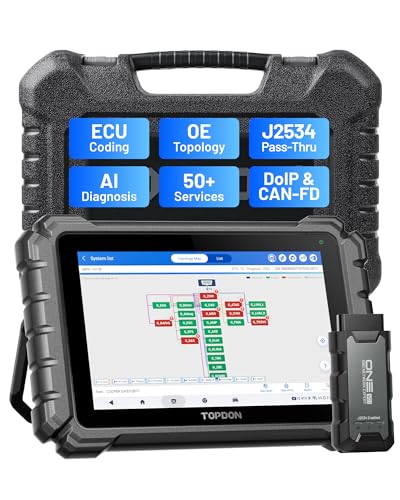
- Dual WiFi & 10.1" Touchscreen: Provides a stable, high-speed wireless link 3x faster than bluetooth, and a responsive, professional interface. Topdon ONE obd2 scanner diagnostic tool ensures smooth, non-lagging diagnostic scan, boosting mechanic efficiency
- J2534 Pass-Thru Support: The included ONE VCI supports the J2534 standard, allowing it to function as a pass-thru device when paired with OEM diagnostic software.Through TOPDON’s RLink platform, technicians can perform dealer-level coding, expanding in-house capabilities without investing in multiple factory automotive scan tools
- OE Topology Mapping: Visualize the vehicle’s ECU network exactly as it’s built.Zoom, pan, and highlight specific modules to pinpoint component issues with precision.Topology mapping displays real-time communication between modules
- 50+ Service Functions: Covers high-demand services like ADAS calibration, DPF regen, TPMS reset, ABS bleed, and throttle adaptation.Expands your service menu, allows you to charge premium rates, and turns away zero jobs due to lack of tooling. Vehicle-specific functionality may vary
- Advaned ECU Coding: 10 of the most serviced brands in North America, including full ECU coding and flash hidden support for BMW, VW, Au-di, Benz, Porsche, Toyota, Ni ssan and more. Enables module replacement, feature customization, and personal settings with automatic backup or restore.Lets your shop safely offer high-margin customization services, attracting more customers and boosting profit

- [J2534 Pass-Thru Programmer] - TOPDON RLink J2534 is engineered for professional technicians, delivering OEM diagnostic and reprogramming capabilities. It supports all J2534 protocols, CAN-FD, DoIP, D-PDU. Compatible with 17 vehicle brands—such as Chrysler, Ford, GM, KIA, Hyundai, Nissan, Toyota, Honda, Subaru, Mitsubishi, MAZDA, Land Rover/Jaguar, Volvo, Volkswagen/Audi, Mercedes-Benz, and BMW. RLink J2534 can help reduce the cost of purchasing equipment from different brands.
- [All-in-One OEM Reprogramming and Diagnostics] - When seamlessly integrated with OEM diagnostic software, this dongle enables you to perform a wide range of functions, including ECU programming and coding, DTC reading and clearing, active tests, component matching, adaptations, rewriting, guided troubleshooting, and more. This all-in-one tool eliminates the need for multiple OEM devices, significantly boosting work efficiency.
- [Tested, Trusted, and Proven for Accuracy] - TOPDON RLink J2534 is renowned for its reliability, having successfully completed over 10,000 real-vehicle tests. The wealth of data and hands-on experience behind it ensures consistent performance and accurate results. You can trust this tool to deliver optimal performance.
- [One-Click Installation, Continuous Updates] - The exclusive TOPDON RLink platform streamlines installation with a one-click driver setup, allowing you to quickly access OEM software for diagnostic and reprogramming tasks. With lifetime free updates, your RLink J2534 stays current without any additional cost, ensuring reliable performance for the long term. *We don't provide extra OE software.
- [Works with Windows Compatibility and OEM Software Subscription] - The RLink J2534 supports three CAN channels - including CAN FD and CAN-CC, providing advantages in the process of rapid troubleshooting. Compatible with Windows 7, 8 and 10 (64-bit) and higher versions of the system. For full functionality, an active OEM software subscription is required for each supported vehicle brand. Please note that the dongle does not include OEM software, which must be purchased separately to access brand-specific diagnostic and reprogramming features.
- 💯【Conta.ct us for Support Directly】For any issues experienced after purchase, please reach out to: 📞autelsupply@ outlook. com🛣️. Our team will provide perfect solution for you. For tech support or [explore additional accessory], please cont.act our team: 📞autelsupply@ outlook. com🛣️.
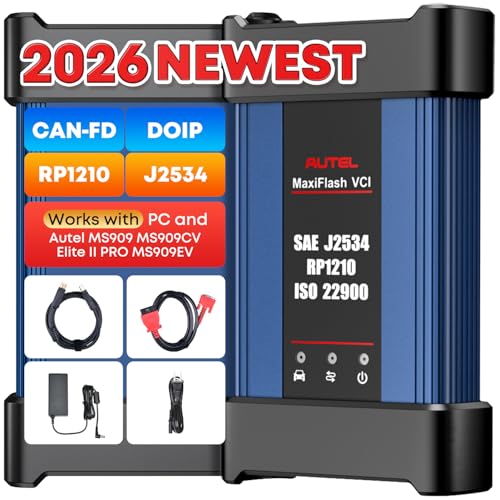
- 🌎【Autel J2534 Pass-Thru Progra.mmer】As an OEM Pass-Thru Progra.mmer Vehicle interface for multiple makes, Autel MaxiFlash J2534 support all J2534 protocols, D-PDU, CAN-FD and DoIP protocols. 2026 newer Autel MaxiFlash J2534 VCI can works with P-C and download OEM vehicle software, seamlessly conduct OE-level diagnostic-progra.mming-c0ding. Also, Work with Elite II Pro/ Ultra Lite/ MS909/ MS909CV/ MS909EV to directly pro.gram on Merce.des-Be.nz & BM.W. Autel J2534 Progr.ammer is a multi-functional device and supports 10+ major brands, including for Hond.a, G.M, LandRo.ver, BM.W, Chrysl.er, For.d, Hyun.dai, Ki.a, Merc.edes B.enz, Toyot.a, Volksw.agen etc.
- 🌎【Enhanced Protocol: J2534/D-PDU/RP1210/CAN FD/DoIP】Autel MaxiFlash JVCI is a blueto.oth communicate device, it supports latest CAN FD DoIP CAN protocols, compliant with automotive D-PDU/ J2534/ RP1210 standards. It can perform standard PassThru J2534 functions: compatible with Toyota Techstream, Volvo VIDA, Honda HDS, Jaguar Land Rover IDS and BM.W 3G for OEM diagnostics. CAN FD protocol is mainly for GM 2019+, DoIP protocol is mainly for Volvo 2018+, for L-and Rover/for Jaguar 2017+, for BM.W F chassis and G chassis.
- 🌎【Compatible with P-C/ WIND.OWS 】The Autel J2534 VCI can be connected to a compu.ter via a data cable; once the corresponding OEM software is installed, it enables do advanced progr.amming and c0ding on your vehicles. Easy Steps: 1) Connect to P-C via a USB cable 2) download OEM vehicle software 3) Start Diagnose. Take For.d for example, you can download OEM software on mot.orcraft.erservi.ce website, such as: For.d Diagnostic Software downloads, As B.uilt Data, Updated Cali.bration information, then use different software do relevant features.
- 🌎【Work with Autel Elite II Pro/ Ultra Lite/ MS909/ MS909CV/ MS909EV】This 2026 latest Autel J2534 Pass-Thru VCI is 100% compatible with Autel Elite II Pro Ultra Lite MS909 MS909CV MS909EV to perform advanced functions from diagnose to progra.mming.
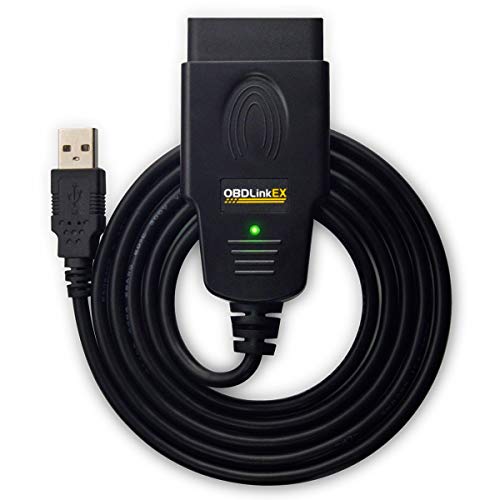
- CUSTOM-DESIGNED FOR USE WITH FORSCAN: Works with all FORScan compatible vehicles and is recommended by the FORScan Team
- DEALERSHIP-LEVEL DIAGNOSTICS: OBDLink EX supports all Ford protocols, modules, and advanced features of FORScan
- ELECTRONIC SWITCH allows FORScan to access all CAN buses simultaneously and enables advanced functions not possible with “toggle switch” adapters
- MAXIMUM THROUGHPUT -- up to 20 times faster than “toggle switch” adapters
- ROCK-SOLID CONNECTION avoids data corruption and dropped packets
SEOCONTENT-START
Warranty Status: Eligible under provisions of New Vehicle Limited Warranty (NVLW)/Service Part Warranty(SPW)/Special Service Part (SSP)/Extended Service Plan (ESP) coverage. Limits/policies/prior approvals are not altered by a TSB. NVLW/SPW/SSP/ESP coverage limits are determined by the identified causal part and verified using the OASIS part coverage tool. Labor Times Description Operation No. Time 2021 F-150/Mustang Mach-E: Reprogram The Appropriate Modules And Any Additional Repairs As Required By The Software Update And Service Procedure (Do Not Use With Any Other Labor Operations) MT222226 Actual Time Repair/Claim Coding Causal Part: 14G670 Condition Code: 04
**************************************************************************************************************
SEOCONTENT-END
This product presentation was made with AAWP plugin.