NHTSA ID Number: 10241963
Manufacturer Communication Number: 23B48
Summary
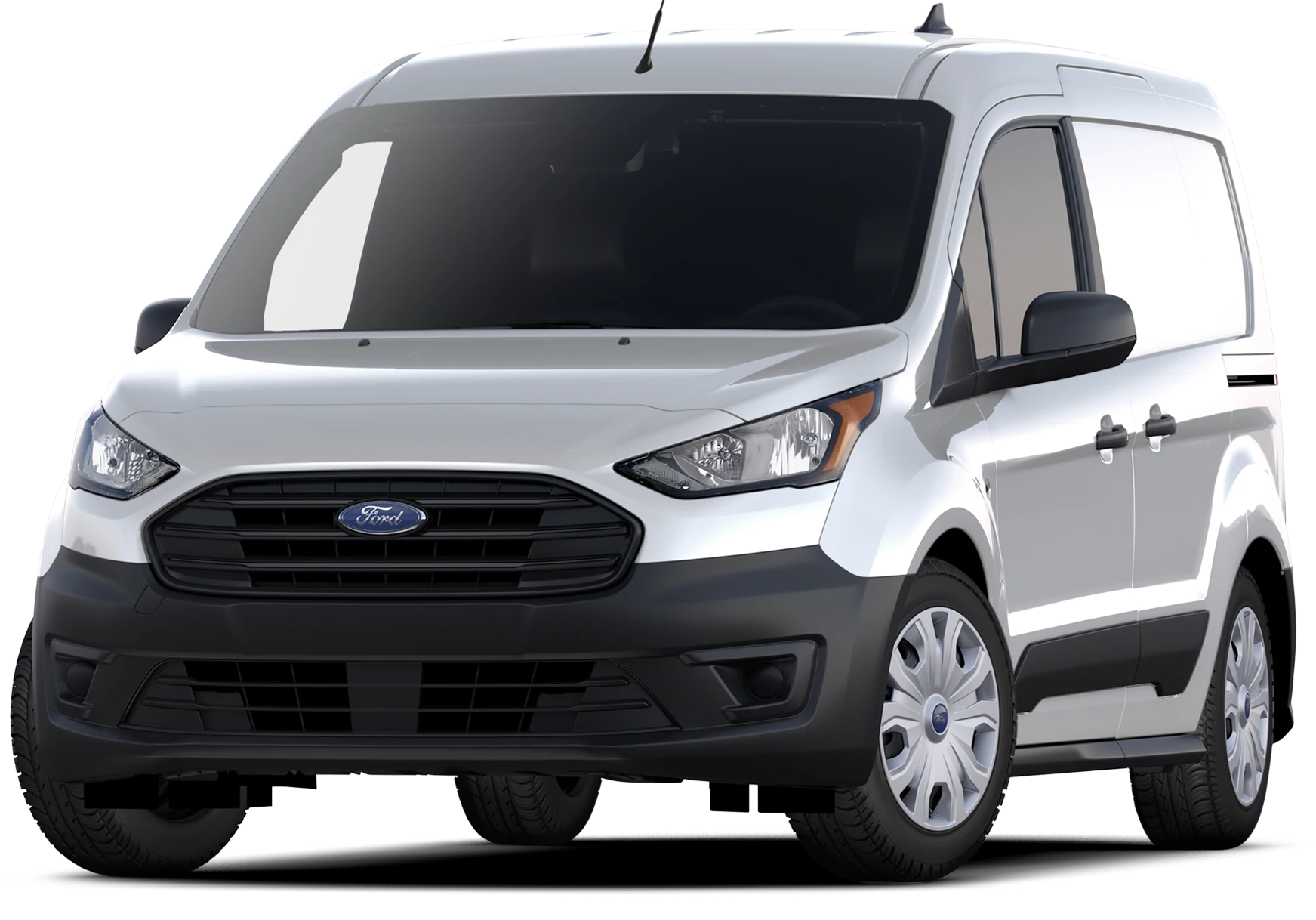
Certain 2023 Model Year Transit Connect Vehicles – SYNC 3 Module Configuration
August 4, 2023
Customer Satisfaction Program 23B48
Certain 2023 Model Year Transit Connect Vehicles
SYNC 3 Module Configuration
PROGRAM TERMS
This program will be in effect through August 25, 2024. There is no mileage limit for this program.
AFFECTED VEHICLES
| Vehicle | Model Year | Assembly Plant | Build Dates |
| Transit
Connect | 2023 | Valencia | October 30, 2022 through February 13, 2023 |
US population of affected vehicles: 478. Affected vehicles are identified in OASIS and FSA VIN Lists.
REASON FOR THIS PROGRAM
In all of the affected vehicles, the FordPass app may not function.
SERVICE ACTION
Dealers are to perform a SYNC 3 module configuration update using the Ford Diagnosis and Repair System (FDRS) tool to enable connectivity. This service must be performed on all affected vehicles at no charge to the vehicle owner.
To assist vehicle owners to have this repair completed when parts are available, dealers should:
- Arrange for a mobile repair at the owner’s location, or:
o Arrange to pick up the owner’s vehicle and drive it to the dealership for repairs.
- Re-deliver the owner’s vehicle after repairs have been completed.
- Pick-up and delivery, and mobile service should be made available for all customers. Refer to the Rental and Claiming sections for further details.
OWNER NOTIFICATION AND MAILING SCHEDULE
Owner letters are expected to be mailed the week of August 21, 2023. Dealers should repair any affected vehicles that arrive at their dealerships, whether or not the customer has received a letter.
MOBILE SERVICE REPAIR ASSESSMENT LEVEL
- All repairs in this program have the following assessment level:
– Mobile Reprogramming
MOBILE REPAIR RECOMMENDATIONS
- Confirm with the customer a mobile repair is feasible.
- Check OASIS before going to the customer’s home or business to confirm if any other outstanding FSA needs to be completed.
- Transportation – due to the simplicity of this repair, a specialty vehicle is not required.
MOBILE REPAIR ADDITIONAL INFORMATION
Please ensure the technician brings the following to the mobile repair destination:
- Printed Technical Instructions
- Printed Repair/Work Order or any other necessary documentation as customer copy(s) o Documents could also be emailed to the customer.
- Shirt/uniform and vehicle graphic with the dealership or Ford
 logos are recommended.
 - Recommended specialty tools: FDRS
MOBILE REPAIR QUESTIONS AND ASSISTANCE
- For questions and assistance, contact the Special Service Support Center (SSSC) via the SSSC Web Contact Site. Work with Dealership warranty administrator to create a SSSC contact ID#.
- Once an SSSC agent responds to the new contact ID#, you may opt to call the SSSC hotline: (800) 325-5621.
SOLD VEHICLES
- Owners of affected vehicles will be directed to dealers for repairs.
- Immediately contact any of your affected customers whose vehicles are not on your VIN list but are identified in OASIS. Give the customer a copy of the Owner Notification Letter (when available) and schedule a service date.
- Correct other affected vehicles identified in OASIS which are brought to your dealership.
- Dealers are to prioritize repairs of customer vehicles over repairs of new and used vehicle inventory.
STOCK VEHICLES
- Correct all affected units in your new vehicle inventory before delivery.
- Use OASIS to identify any affected vehicles in your used vehicle inventory.
BRANDED / SALVAGED TITLE VEHICLES
Affected branded / salvaged title vehicles are eligible for this service action.
OWNER REFUNDS
Refunds are not approved for this program.
RENTAL VEHICLES
Rental vehicles are not approved for this program.
PICK-UP AND DELIVERY- Participating Dealers
Dealers participating in the Remote Experience Program:
- Refer to EFC12071, 2023 Remote Experience Program, Pickup & Delivery (PDL) Offset section for additional details.
PICK-UP AND DELIVERY- Non-participating Dealers
Dealers not participating in the 2023 Remote Experience Program for Pick-up & Delivery are authorized to claim unique services for completing this program.
- Dealers are authorized to claim one-half labor hour per repair for vehicle pick-up & delivery services. Refer to Labor Allowances for details.
- Dealers must retain a Vehicle Pick-up & Delivery Record with the repair order documentation.
PARTS REQUIREMENTS
Parts are not required to complete this repair.
CERTAIN 2023 MODEL YEAR TRANSIT CONNECT VEHICLES — SYNC 3 MODULE CONFIGURATION
SERVICE PROCEDURE
Module Programming
NOTE: Program appropriate vehicle modules before performing diagnostics and clear all Diagnostic Trouble Codes (DTCs) after programming. For DTCs generated after programming, follow normal diagnostic service procedures.
1. Connect a battery charger to the 12 Volt (V) battery.
NOTE: Verify that the negative cable of the charger is installed on a chassis or engine ground and not the 12V battery negative terminal to prevent the battery saver mode from activating on the vehicle.
NOTE: If the diagnostic software does not load or if the vehicle cannot be identified properly, make sure there is a good internet connection and the Vehicle Communication Module (VCM) is properly connected to the Data Link Connector (DLC).
2. Log into Ford Diagnostic and Repair System (FDRS).
NOTE: Vehicle information is automatically retrieved by the diagnostic software and a Network Test is run. Vehicle identification data appears on the screen when this is complete.
3. Click “Read VIN from Vehicle” or manually enter the VIN.
NOTE: Available modules are shown on the left hand (LH) side of the screen and available procedures are listed on the right hand (RH) side of the screen. Modules that are communicating are highlighted in green.
4. From the list on the RH side of the screen, select Self-Test and click RUN.
5. Click the Run Selected Tests button in the lower right.
6. Click the Clear & Retest button at the top of the screen to clear DTCs in all modules.
7. Select Toolbox tab.
8. From the list on the LH side of the screen, select the APIM – Accessory Protocol Interface Module.
9. From the list on the RH side of the screen, select APIM – SYNC Module (APIM) Configuration.
10. Click Download and then click RUN. Follow all on-screen instructions carefully.
11. From the list on the RH side of the screen, select Self-Test and click RUN.
12. Click the Run Selected Tests button in the lower right.
13. Click the Clear & Retest button at the top of the screen to clear DTCs in all modules.
14. Disconnect the battery charger from the 12V battery once the programming has completed.
15. Verify FordPass Application is now available for selection on the SYNC menu. See Figure 1.
Important Information for Module Programming
NOTE: When programming a module, use the following basic checks to ensure programming completes
without errors.
- Make sure the 12V battery is fully charged before carrying out the programming steps and connect FDRS/scan tool to a power source.
NOTE: A good internet connection is necessary to identify the vehicle and to load the diagnostic software.
- Inspect the Vehicle Communication Module II (VCM II)/Vehicle Communication Module III (VCM III) or the Vehicle Communication and Measurement Module (VCMM) and the cables for any damage. Make sure scan tool connections are not interrupted during programming.
- A hardwired connection is strongly recommended.
- Turn off all unnecessary accessories (radio, heated/cooled seats, headlamps, interior lamps, HVAC system, etc.) and close doors.
- Disconnect/depower any aftermarket accessories (remote start, alarm, power inverter, CB radio,etc.). Follow all scan tool on-screen instructions carefully.
- Disable FDRS/scan tool sleep mode, screensaver, hibernation modes.
- Create all sessions key on engine off (KOEO). Starting the vehicle before creating a session will cause errors within the programming inhale process.
Recovering a module when programming has resulted in a blank module
1. Disconnect the VCM II/VCM III or the VCMM from the data link connector (DLC) and your PC.
2. After ten seconds, reconnect the VCMII/VCMIII or the VCMM to the DLC and the PC. Launch FDRS. The VCMII/VCMIII or the VCMM icon should turn green in the bottom right corner of the screen. If it does not, troubleshoot the FDRS to VCM connection.
3. If you are using the same FDRS as the initial programming attempt, select the appropriate VIN from the Vehicle Identification menu. If you are using a different FDRS, select “Read VIN from Vehicle” and proceed through the Network Test.
4. In the Toolbox menu, navigate to the failed module and Download/Run Programmable Module Installation (PMI). Follow the on-screen prompts. When asked if the original module is installed, select “No” and continue through the installation application.
5. Once programming has completed, a screen may list additional steps required to complete the programming process. Make sure all applicable steps are followed in order.
1 Affected Product
Vehicle
| MAKE | MODEL | YEAR |
| FORD | TRANSIT CONNECT | 2023 |
1 Associated Document
Manufacturer Communications
August 4, 2023
Customer Satisfaction Program 23B48
MC-10241963-0001.pdf 610.418KB
Reprogramming
Service Information & Reprogramming
Module Reprogramming
| Diagnostic Software | Interface Device | Complete Vehicle Diagnostics | Module Programming | ||
| 1996-2017 Model Year |
2018-Present Model Year |
1996-2017 Model Year |
2018-Present Model Year |
||
| IDS/FDRS | VCM, VCM II, VCMM |
X | X | X | X |
| FJDS/FDRS | Compatible J2534 Devices (Including VCM II and VCMM) |
X | X | X | |
Detailed system requirements, installation, and support information for each product is located under the diagnostics tool support tab for each product.
Integrated Diagnostic Software (IDS) / Ford Diagnosis & Repair System (FDRS)
For use with VCM I, VCM II, VMM and VCMM hardware devices only. The complete factory Ford Motor Company vehicle diagnostic tool that provides complete dealership level vehicle diagnostic coverage for all 1996 to present Ford, Lincoln and Mercury vehicles. The IDS software includes time based access to the IDS software, software updates and calibration files.
Ford J2534 Diagnostic Software (FJDS) / Ford Diagnosis & Repair System (FDRS)
For use with compatible J2534 hardware devices. FJDS software provides Ford Module Programming functionality that covers 1996 to present Ford, Lincoln and Mercury module reprogramming functions, plus complete dealership level vehicle diagnostic software for all 2018 to present Ford and Lincoln vehicles. The FJDS software license includes time based access to the FJDS software, software updates and calibration files.
Latest Calibration Information
Module Build Data (As-Built)
Use VIN to obtain As-Built data

- J2534 Pass-Thru Programmer: TOPDON RLink J2534 is an advanced diagnostic and reprogramming tool that support all J2534 protocols, as well as D-PDU, CAN-FD and DoIP, ensuring compatibility with a wide range of modern vehicles. It offers extensive versatility with support for over 18 major automotive brands, including Chrysler, Ford, GM, Nissan, Toyota, Honda, Subaru, Land Rover/Jaguar, Volvo, Wuling, Volkswagen/Audi, Mercedes-Benz, and BMW. NOTE: Not compatible with Ford IDS diagnostic software
- All-in-One OEM Diagnostics: This J2534 ECU programming tool elevates your automotive repair capabilities to new heights by delivering complete OEM diagnosis. Boasting comprehensive full-system diagnostics, intuitive repair guides, advanced ECU programming and coding, common reset services, a vast library of repair information and more, this all-in-one solution empowers technicians to effortlessly tackle complex vehicle issues with ease. *Not compatible with 24V vehicles
- Proven Performance You Can Trust: Backed by over 10000 real vehicle tests and benefit from a wealth of practical experience, this OEM reprogramming tool guarantees stable and exceptional performance. Supported by TOPDON's dedicated technical experts with in-depth knowledge of both auto repair and J2534 Pass-Thru programming, the RLink J2534 provides prompt and professional assistance, ensuring a smooth setup and reliable compatibility
- Integrated Excellence, Always Up-to-Date: Featuring the exclusive RLink Platform to provide a streamlined experience with one-click driver installation and management, ensuring flawless integration with your OE software, maintaining the original performance quality. The built-in operation guide makes mastering OE software quick and easy, so you can get started right away. Plus, with lifetime free updates, your diagnostics will stay current with the latest drivers and innovations
- Efficiency Meets Versatility: Engineered to support three CAN channels simultaneously - CAN FD and CAN-CC included, giving you the edge in fast troubleshooting. To perfectly synchronized with the OE software, please diagnose with active subscriptions and make sure your computer system is running a compatible 64-bit Windows version (7, 8, 10 or later) to fully leverage the power of RLink J2534. *We don't provide extra OE software

- Advanced VCI Box, Industry-leading J2534 Pass-Thru Technology: This J2534 Pass-Thru Programmer is designed espically for technicians, independent shop owners, and DIY enthusiasts, enables fast, reliable computer-based programming. It supports all J2534 protocols—including the latest DoIP and CAN FD—ensuring full compatibility with both legacy and next-generation vehicles.
- High-Speed OEM-Level Diagnostics & Programming: Unlock true OEM functionality with comprehensive system diagnostics, guided troubleshooting, coding, adaptations, resets, and programming—all designed to slash repair time. This all-in-one tool eliminates the need for multiple OEM devices, boosting efficiency and cutting costs. Equipped with High-Speed USB, it delivers 10x more data per second than competing solutions
- Coverage for 17 Car Brands & Ultra Reliability: Works seamlessly for Chrysler, for Ford(Forscan), for GM, for Nissan, for Toyota, for Honda, for Subaru(SSM4), for Land Rover/Jaguar, for Volvo, for Wuling, for Volkswagen, for Mercedes-Benz, and for BMW. Backed by over 10000 real vehicle tests and benefit from a wealth of practical experience, this OEM reprogramming tool guarantees stable and exceptional performance
- User-Friendly RLink Platform & Expert Support: TOPDON’s proprietary driver management platform offers a clean interface and lifetime free updates. Access a rich library of real-world case studies to stay ahead of the curve. Backed by a support team with 10+ years of J2534 and automotive repair experience, we provide one-on-one assistance to resolve any technical issue.
- 6.6 ft USB-C Cable & Portable Storage Case: The RLink J2534 diagnostic tool features a 6.6ft USB 2.0 Cable and a 1.2 ft OBDII Extension Cable, allows to connection your computer easily outside the vehicle. The included handled carry case offers easy portability, storage, and hanging options—keeping your gear clean and ready to go, anywhere.

- [J2534 Pass-Thru Programmer] - TOPDON RLink J2534 is engineered for professional technicians, delivering OEM diagnostic and reprogramming capabilities. It supports all J2534 protocols, CAN-FD, DoIP, D-PDU. Compatible with 17 vehicle brands—such as Chrysler, Ford, GM, KIA, Hyundai, Nissan, Toyota, Honda, Subaru, Mitsubishi, MAZDA, Land Rover/Jaguar, Volvo, Volkswagen/Audi, Mercedes-Benz, and BMW. RLink J2534 can help reduce the cost of purchasing equipment from different brands.
- [All-in-One OEM Reprogramming and Diagnostics] - When seamlessly integrated with OEM diagnostic software, this dongle enables you to perform a wide range of functions, including ECU programming and coding, DTC reading and clearing, active tests, component matching, adaptations, rewriting, guided troubleshooting, and more. This all-in-one tool eliminates the need for multiple OEM devices, significantly boosting work efficiency.
- [Tested, Trusted, and Proven for Accuracy] - TOPDON RLink J2534 is renowned for its reliability, having successfully completed over 10,000 real-vehicle tests. The wealth of data and hands-on experience behind it ensures consistent performance and accurate results. You can trust this tool to deliver optimal performance.
- [One-Click Installation, Continuous Updates] - The exclusive TOPDON RLink platform streamlines installation with a one-click driver setup, allowing you to quickly access OEM software for diagnostic and reprogramming tasks. With lifetime free updates, your RLink J2534 stays current without any additional cost, ensuring reliable performance for the long term. *We don't provide extra OE software.
- [Works with Windows Compatibility and OEM Software Subscription] - The RLink J2534 supports three CAN channels - including CAN FD and CAN-CC, providing advantages in the process of rapid troubleshooting. Compatible with Windows 7, 8 and 10 (64-bit) and higher versions of the system. For full functionality, an active OEM software subscription is required for each supported vehicle brand. Please note that the dongle does not include OEM software, which must be purchased separately to access brand-specific diagnostic and reprogramming features.
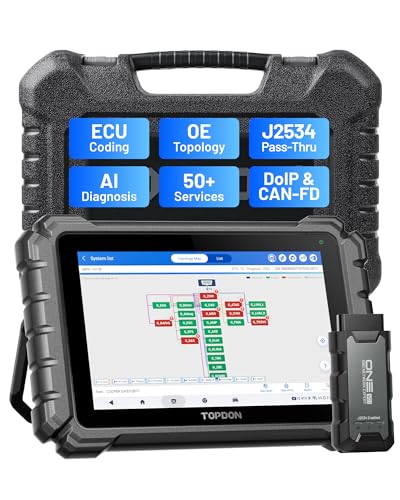
- Dual WiFi & 10.1" Touchscreen: Provides a stable, high-speed wireless link 3x faster than bluetooth, and a responsive, professional interface. Topdon ONE obd2 scanner diagnostic tool ensures smooth, non-lagging diagnostic scan, boosting mechanic efficiency
- J2534 Pass-Thru Support: The included ONE VCI supports the J2534 standard, allowing it to function as a pass-thru device when paired with OEM diagnostic software.Through TOPDON’s RLink platform, technicians can perform dealer-level coding, expanding in-house capabilities without investing in multiple factory automotive scan tools
- OE Topology Mapping: Visualize the vehicle’s ECU network exactly as it’s built.Zoom, pan, and highlight specific modules to pinpoint component issues with precision.Topology mapping displays real-time communication between modules
- 50+ Service Functions: Covers high-demand services like ADAS calibration, DPF regen, TPMS reset, ABS bleed, and throttle adaptation.Expands your service menu, allows you to charge premium rates, and turns away zero jobs due to lack of tooling. Vehicle-specific functionality may vary
- Advaned ECU Coding: 10 of the most serviced brands in North America, including full ECU coding and flash hidden support for BMW, VW, Au-di, Benz, Porsche, Toyota, Ni ssan and more. Enables module replacement, feature customization, and personal settings with automatic backup or restore.Lets your shop safely offer high-margin customization services, attracting more customers and boosting profit
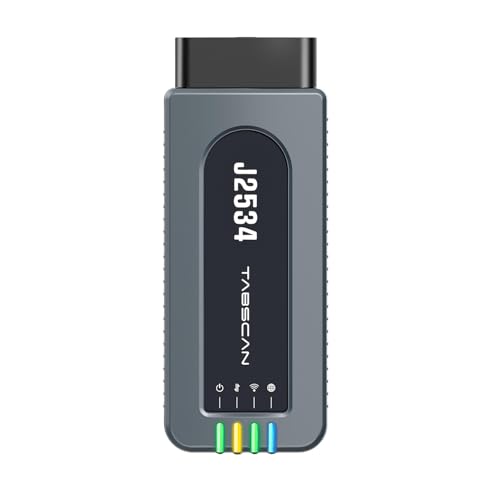
- 【J2534 Pass-Thru Device】 This budget-friendly J2534 pass-thru device delivers OEM diagnostics and reprogramming capabilities for dealerships, repair shops and automotive DIY enthuisasts, enables you diagnose, program and repair the vehicles more efficiently and precisely. Supporting J2534, D-PDU, CAN-FD and DoIP, this J2534 passthru tool ensures wide vehicle coverage. It's compatible with OE software application, ensuring seamless integration and original performance quality
- 【All-in-One Diagnostic Tool】 Simplify your workflow and tackle the complex diagnostics and repairs with confidence! This J2534 passthrough tool provides full system diagnosis, bi-directional control, maintenance reset services, ECU programming and ECU coding to run advanced diagnostics and programming. Equipped with the specialized platform, this J2534 pass-thru tool is fully compatible with OE software that helps technicians confidently handle complicated vehicle repair issues
- 【J2534 Diagnostic Tool】 The Tabscan J2534 pass-thru device is built with a dedicated platform, making it ideal for both professional and personal use. Simply download the driver for your ford vehicle within the platform—ensuring only one driver is installed at a time. Then connect the device to your vehicle’s OBD2 port and link it to your computer using the included USB A to USB C cable. Finally launch your OE software, select Tabscan J2534 VCI as interface, and begin diagnose and program
- 【Universal Compatibility】 Tabscan J2534 reprogramming tool is designed to be compatible with Ford vehicles for advanced diagnostics and programming. It supports J2534 protocols, along with D-PDU, CAN-FD and DoIP, ensuring seamless connectivity with older or modern vehicles. This J2534 diagnostic tool only works with computer running on windows 7/10/11. Vehicle compatibility varies by model or year, please confirm with us before purchase. Note: It's not compatible with 24V vehicles
- 【Professional Technical Support】 Tabscan J2534 pass-thru device provides a stable and seamless connection between your vehicle and computer for diagnostics, programming, and coding. But that's not all—we go beyond hardware. Our dedicated technical support team brings deep expertise in automotive diagnostics and programming. Whether you need help with setup, troubleshooting or latest diagnostic resources and upgrades, we provide fast, professional and reliable support every step of the way

- ALL OF THE J2534 PROTOCOLS - This single unit has all of the protocols you need for your OEM J2534 reprogramming and diagnostics including the latest in DoIP and CanFD
- J2534 TECHNICAL SUPPORT - FREE for the life of the tool. Staffed by technicians who understand vehicle repair and J2534 Pass‑thru
- TOOLBOX WITH OEM APPLICATION DESCRIPTIONS - educational video tutorials and real-time news – Giving you the confidence and up-to-date knowledge to get the job done
- J2534 v05.00 API - The newest version of J2534 to give you the latest in pass-thru technology
- FUTURE PROOF WITH 4 CAN CHANNELS - Going beyond the 3 required by select Chrysler/FCA models, CarDAQ-Plus 3 also provides a 4th to meet the needs of future OEM applications
SEOCONTENT-START
© Copyright 2023 Ford Motor Company
Stacy L. Balzer Ford Motor Company
Operating Director P. O. Box 1904
Service Engineering Operations Dearborn, Michigan 48121
Ford Customer Service Division
August 4, 2023
TO: All U.S. Ford and Lincoln Dealers
SUBJECT: Customer Satisfaction Program 23B48
Certain 2023 Model Year Transit Connect Vehicles
SYNC 3 Module Configuration
PROGRAM TERMS
This program will be in effect through August 25, 2024. There is no mileage limit for this program.
AFFECTED VEHICLES
Vehicle Model Year Assembly Plant Build Dates
Transit
Connect
2023 Valencia October 30, 2022 through February 13, 2023
US population of affected vehicles: 478. Affected vehicles are identified in OASIS and FSA VIN Lists.
REASON FOR THIS PROGRAM
In all of the affected vehicles, the FordPass app may not function.
SERVICE ACTION
Dealers are to perform a SYNC 3 module configuration update using the Ford Diagnosis and Repair
System (FDRS) tool to enable connectivity. This service must be performed on all affected vehicles at
no charge to the vehicle owner.
To assist vehicle owners to have this repair completed when parts are available, dealers should:
• Arrange for a mobile repair at the owner’s location, or:
o Arrange to pick up the owner’s vehicle and drive it to the dealership for repairs.
• Re-deliver the owner’s vehicle after repairs have been completed.
• Pick-up and delivery, and mobile service should be made available for all customers. Refer to
the Rental and Claiming sections for further details.
OWNER NOTIFICATION MAILING SCHEDULE
Owner letters are expected to be mailed the week of August 21, 2023. Dealers should repair any
affected vehicles that arrive at their dealerships, whether or not the customer has received a letter.
ATTACHMENTS
• Administrative Information
• Labor Allowances and Parts Ordering Information
• Technical Instructions
• Mobile Service Repair Assessment
• Mobile Repair/Vehicle Pickup and Delivery Record
• Owner Notification Letter
© Copyright 2023 Ford Motor Company
QUESTIONS & ASSISTANCE
For questions and assistance, contact the Special Service Support Center (SSSC) via the SSSC Web
Contact Site. The SSSC Web Contact Site can be accessed through the Professional Technician
System (PTS) website using the SSSC link listed at the bottom of the OASIS VIN report screen or
listed under the SSSC tab.
Sincerely,
Stacy L. Balzer
© Copyright 2023 Ford Motor Company
Administrative Information
Page 1 of 3
Customer Satisfaction Program 23B48
MOBILE SERVICE REPAIR ASSESSMENT LEVEL
• All repairs in this program have the following assessment level:
– Mobile Reprogramming
MOBILE REPAIR RECOMMENDATIONS
• Confirm with the customer a mobile repair is feasible.
• Check OASIS before going to the customer’s home or business to confirm if any other
outstanding FSA needs to be completed.
• Transportation – due to the simplicity of this repair, a specialty vehicle is not required.
MOBILE REPAIR ADDITIONAL INFORMATION
Please ensure the technician brings the following to the mobile repair destination:
• Printed Technical Instructions
• Printed Repair/Work Order or any other necessary documentation as customer copy(s)
o Documents could also be emailed to the customer.
• Shirt/uniform and vehicle graphic with the dealership or Ford logos are recommended.
• Recommended specialty tools: FDRS
MOBILE REPAIR QUESTIONS AND ASSISTANCE
• For questions and assistance, contact the Special Service Support Center (SSSC) via the
SSSC Web Contact Site. Work with Dealership warranty administrator to create a SSSC
contact ID#.
• Once an SSSC agent responds to the new contact ID#, you may opt to call the SSSC hotline:
(800) 325-5621.
MOBILE REPAIR CLAIMING QUESTIONS
Dealers participating in the Remote Experience Program:
• Refer to Electronic Field Communication – EFC12071 2023 Remote Experience Program.
Dealers NOT participating in the 2023 Remote Experience Program:
• For questions and assistance, contact the Special Service Support Center (SSSC) via the
SSSC Web Contact Site. Work with the Dealership warranty administrator to create an SSSC
contact ID#.
• Once an SSSC agent responds to the new contact ID#, you may opt to call the SSSC hotline:
(800) 325-5621.
OASIS ACTIVATION
OASIS will be activated on August 4, 2023.
FSA VIN LISTS ACTIVATION
FSA VIN Lists will be available through https://web.fsavinlists.dealerconnection.com on August 4,
2023. Owner names and addresses will be available by September 8, 2023.
NOTE: Your FSA VIN Lists may contain owner names and addresses obtained from motor vehicle
registration records. The use of such motor vehicle registration data for any purpose other than in
connection with this program is a violation of law in several states, provinces, and countries.
Accordingly, you must limit the use of this listing to the follow-up necessary to complete this service
action.
© Copyright 2023 Ford Motor Company
Administrative Information
Page 2 of 3
Customer Satisfaction Program 23B48
SOLD VEHICLES
• Owners of affected vehicles will be directed to dealers for repairs.
• Immediately contact any of your affected customers whose vehicles are not on your VIN list
but are identified in OASIS. Give the customer a copy of the Owner Notification Letter (when
available) and schedule a service date.
• Correct other affected vehicles identified in OASIS which are brought to your dealership.
• Dealers are to prioritize repairs of customer vehicles over repairs of new and used vehicle
inventory.
STOCK VEHICLES
• Correct all affected units in your new vehicle inventory before delivery.
• Use OASIS to identify any affected vehicles in your used vehicle inventory.
BRANDED / SALVAGED TITLE VEHICLES
Affected branded / salvaged title vehicles are eligible for this service action.
OWNER REFUNDS
Refunds are not approved for this program.
RENTAL VEHICLES
Rental vehicles are not approved for this program.
PICK-UP AND DELIVERY- Participating Dealers
Dealers participating in the Remote Experience Program:
• Refer to EFC12071, 2023 Remote Experience Program, Pickup & Delivery (PDL) Offset
section for additional details.
PICK-UP AND DELIVERY- Non-participating Dealers
Dealers not participating in the 2023 Remote Experience Program for Pick-up & Delivery are
authorized to claim unique services for completing this program.
• Dealers are authorized to claim one-half labor hour per repair for vehicle pick-up & delivery
services. Refer to Labor Allowances for details.
• Dealers must retain a Vehicle Pick-up & Delivery Record with the repair order documentation.
ADDITIONAL REPAIR (LABOR TIME AND/OR PARTS)
Additional repairs identified as necessary to complete the FSA should be managed as follows:
• For related damage and access time requirements, refer to the Warranty and Policy Manual /
Section 6 – Ford & Lincoln Program Policies / General Information & Special Circumstances
for FSAs / Related Damage.
• For vehicles within new vehicle bumper-to-bumper warranty coverage, no SSSC approval is
required, although related damage must be on a separate repair line with the “Related
Damage” radio button checked.
o Ford vehicles – 3 years or 36,000 miles
• For vehicles outside new vehicle bumper-to-bumper warranty coverage, submit an Approval
Request to the SSSC Web Contact Site before completing the repair.
© Copyright 2023 Ford Motor Company
Administrative Information
Page 3 of 3
Customer Satisfaction Program 23B48
CLAIMS PREPARATION AND SUBMISSION
• Claim Entry: Enter claims using Dealer Management System (DMS) or One Warranty
Solution (OWS) online.
o When entering claims:
▪ Claim type 31: Field Service Action
▪ Sub Code: 23B48
▪ Customer Concern Code (CCC): A20
▪ Condition Code (CC): 04
▪ Causal Part Number: 14G371, Quantity 0
o For additional claims preparation and submission information, refer to the Recall and
Customer Satisfaction Program (CSP) Repairs in the OWS User Guide.
• Related Damage/Additional labor and/or parts: Must be claimed as Related Damage on a
separate repair line from the FSA with the same claim type and subcode as described in Claim
Entry above.
IMPORTANT: Click the Related Damage Indicator radio button.
• Pickup & Delivery:
o Dealers participating in the Remote Experience Program –
▪ Refer to EFC12071, 2023 Remote Experience Program, Pickup & Delivery
(PDL) Offset section for additional details.
o Dealers NOT participating in the Remote Experience Program –
▪ Dealers are authorized to claim one-half labor hour per repair for vehicle pickup
and delivery services.
▪ Dealers must retain a Vehicle Pick-up and Delivery Record with the repair order
documentation.
• Mobile Repair:
o Dealers participating in the Remote Experience Program –
▪ Refer to Electronic Field Communication – EFC12071 2023 Remote Experience
Program.
o Dealers NOT participating in the Remote Experience Program –
▪ Mobile repair allowances can be claimed for dealer-performed mobile repairs.
Dealers that are working with Ford-contracted mobile repair companies should
refer to those companies for claiming instructions.
▪ For dealer-performed mobile repairs, retain a copy of the Service Management
signed record (see Attachment IV), with the repair order documentation.
▪ Claim the mobile repair allowance Labor Operation Code 23B48MM along with
the applicable Labor Operation Code for the repair (refer to the Labor
Allowances table in Attachment II).
© Copyright 2023 Ford Motor Company
Labor Allowances and Parts Ordering Information
Page 1 of 1
Customer Satisfaction Program 23B48
LABOR ALLOWANCES
Description Labor Operation Labor Time
Perform SYNC 3 module configuration 23B48B 0.3 Hours
Mobile Service:
This allowance is only for non-eligible 2023 Remote
Experience Program Dealers.
Can be used when the repair takes place away from the
dealership.
If Additional Time is Required Due to Travel, Please Submit
an SSSC Approval Form.
23B48MM 0.5 Hours
Vehicle Pick-up and Delivery Allowance:
This allowance is only for non-eligible 2023 Remote
Experience Program Dealers.
NOTE: This allowance is for dealer-performed vehicle pickup/
delivery for dealership repairs only. Can only be claimed
once, regardless of outstanding FSAs repaired.
23B48PP 0.5 Hours
PARTS REQUIREMENTS / ORDERING INFORMATION
Parts are not required to complete this repair.
© Copyright 2023 Ford Motor Company
Ford Motor Company
Ford Customer Service Division
P. O. Box 1904
Dearborn, Michigan 48121
August 2023
Customer Satisfaction Program 23B48
Mr. John Sample
123 Main Street
Anywhere, USA 12345
Your Vehicle Identification Number (VIN): 12345678901234567
At Ford Motor Company, we are committed not only to building high-quality, dependable products but
also to building a community of happy, satisfied customers. To demonstrate that commitment, we are
providing a no-charge Customer Satisfaction Program for your vehicle with the VIN shown above.
Why are you receiving
this notice?
On your vehicle, it may be possible that the SYNC 3 module was not
configured properly.
What is the effect? As a result, your FordPass app may not function.
What will Ford and
your dealer do?
In the interest of customer satisfaction, Ford Motor Company has authorized
your dealer to perform a SYNC 3 module configuration free of charge (parts
and labor) under the terms of this program.
This Customer Satisfaction Program will be in effect until August 25, 2024
regardless of mileage. Coverage is automatically transferred to subsequent
owners.
How long will it take? The time needed for this repair is less than one-half day. However, due to
service scheduling requirements, your dealer may need your vehicle for a
longer period of time.
What should you do? Please call your dealer without delay to schedule a service appointment for
Customer Satisfaction Program 23B48. Provide the dealer with your VIN,
which is printed near your name at the beginning of this letter.
If you do not already have a servicing dealer, you can access
ford.com/support for dealer addresses, maps, and driving instructions.
Ford Motor Company wants you to have this service action completed on
your vehicle. The vehicle owner is responsible for making arrangements to
have the work completed.
NOTE – You can receive information about Recalls and Customer
Satisfaction Programs through our FordPass App. The app can be
downloaded through the App Store or Google Play. In addition, there are
other features such as reserving parking in certain locations and controlling
© Copyright 2023 Ford Motor Company
certain functions on your vehicle (lock or unlock doors, remote start) if it is
equipped to allow control.
What if you no longer
own this vehicle?
If you no longer own this vehicle and have an address for the current owner,
please forward this letter to the new owner.
You received this notice because our records, which are based primarily on
state registration and title data, indicate that you are the current owner.
Can we assist you
further?
If you have difficulties getting your vehicle repaired promptly and without
charge, please contact your dealership’s Service Manager for assistance.
RETAIL OWNERS: If you have questions or concerns, please contact our
Ford Customer Relationship Center at 1-866-436-7332 and one of our
representatives will be happy to assist you. If you wish to contact us through
the Internet, our address is: ford.com/support.
For the hearing impaired call 1-800-232-5952 (TDD). Representatives are
available Monday through Friday: 8:00 AM – 8:00 PM (Eastern Time).
FLEET OWNERS: If you have questions or concerns, please contact our
Ford Pro Contact Center at 1-800-34-FLEET, choose Option #1, and one
of our representatives will be happy to assist you. If you wish to contact us
through the Internet, our address is fleet.ford.com.
Representatives are available Monday through Friday: 7:00 AM – 11:00 PM
and Saturday 7:00 AM – 5:00 PM (Eastern Time).
Thank you for your attention to this important matter.
Ford Customer Service Division
TECHNICAL INSTRUCTIONS
PAGE 1 OF 3
CUSTOMER SATISFACTION PROGRAM 23B48
CPR © 2023 FORD MOTOR COMPANY
DEARBORN, MICHIGAN 48121
08/2023
CERTAIN 2023 MODEL YEAR TRANSIT CONNECT VEHICLES — SYNC 3
MODULE CONFIGURATION
SERVICE PROCEDURE
Module Programming
NOTE: Program appropriate vehicle modules before performing diagnostics and clear all Diagnostic
Trouble Codes (DTCs) after programming. For DTCs generated after programming, follow normal
diagnostic service procedures.
1. Connect a battery charger to the 12 Volt (V) battery.
NOTE: Verify that the negative cable of the charger is installed on a chassis or engine ground and not
the 12V battery negative terminal to prevent the battery saver mode from activating on the
vehicle.
NOTE: If the diagnostic software does not load or if the vehicle cannot be identified properly, make sure
there is a good internet connection and the Vehicle Communication Module (VCM) is properly
connected to the Data Link Connector (DLC).
2. Log into Ford Diagnostic and Repair System (FDRS).
NOTE: Vehicle information is automatically retrieved by the diagnostic software and a Network Test is
run. Vehicle identification data appears on the screen when this is complete.
3. Click “Read VIN from Vehicle” or manually enter the VIN.
NOTE: Available modules are shown on the left hand (LH) side of the screen and available procedures
are listed on the right hand (RH) side of the screen. Modules that are communicating are
highlighted in green.
4. From the list on the RH side of the screen, select Self-Test and click RUN.
5. Click the Run Selected Tests button in the lower right.
6. Click the Clear & Retest button at the top of the screen to clear DTCs in all modules.
7. Select Toolbox tab.
8. From the list on the LH side of the screen, select the APIM – Accessory Protocol Interface Module.
9. From the list on the RH side of the screen, select APIM – SYNC Module (APIM) Configuration.
10. Click Download and then click RUN. Follow all on-screen instructions carefully.
11. From the list on the RH side of the screen, select Self-Test and click RUN.
TECHNICAL INSTRUCTIONS
PAGE 2 OF 3
CUSTOMER SATISFACTION PROGRAM 23B48
CPR © 2023 FORD MOTOR COMPANY
DEARBORN, MICHIGAN 48121
08/2023
12. Click the Run Selected Tests button in the lower right.
13. Click the Clear & Retest button at the top of the screen to clear DTCs in all modules.
14. Disconnect the battery charger from the 12V battery once the programming has completed.
15. Verify FordPass Application is now available for selection on the SYNC menu. See Figure 1.
PLACE COPY HERE
PLACE COPY HERE
PLACE COPY HERE
STUD FOR
MISSING NUT
STUD FOR
MISSING NUT
23164A
Available
FIGURE 1
TECHNICAL INSTRUCTIONS
PAGE 3 OF 3
CUSTOMER SATISFACTION PROGRAM 23B48
CPR © 2023 FORD MOTOR COMPANY
DEARBORN, MICHIGAN 48121
08/2023
Important Information for Module Programming
NOTE: When programming a module, use the following basic checks to ensure programming completes
without errors.
• Make sure the 12V battery is fully charged before carrying out the programming steps and connect
FDRS/scan tool to a power source.
NOTE: A good internet connection is necessary to identify the vehicle and to load the diagnostic software.
• Inspect the Vehicle Communication Module II (VCM II)/Vehicle Communication Module III (VCM III) or
the Vehicle Communication and Measurement Module (VCMM) and the cables for any damage. Make
sure scan tool connections are not interrupted during programming.
• A hardwired connection is strongly recommended.
• Turn off all unnecessary accessories (radio, heated/cooled seats, headlamps, interior lamps, HVAC
system, etc.) and close doors.
• Disconnect/depower any aftermarket accessories (remote start, alarm, power inverter, CB radio,etc.).
• Follow all scan tool on-screen instructions carefully.
• Disable FDRS/scan tool sleep mode, screensaver, hibernation modes.
• Create all sessions key on engine off (KOEO). Starting the vehicle before creating a session will cause
errors within the programming inhale process.
Recovering a module when programming has resulted in a blank module
1. Disconnect the VCM II/VCM III or the VCMM from the data link connector (DLC) and your PC.
2. After ten seconds, reconnect the VCMII/VCMIII or the VCMM to the DLC and the PC. Launch FDRS.
The VCMII/VCMIII or the VCMM icon should turn green in the bottom right corner of the screen. If it
does not, troubleshoot the FDRS to VCM connection.
3. If you are using the same FDRS as the initial programming attempt, select the appropriate VIN from
the Vehicle Identification menu. If you are using a different FDRS, select “Read VIN from Vehicle”
and proceed through the Network Test.
4. In the Toolbox menu, navigate to the failed module and Download/Run Programmable Module
Installation (PMI). Follow the on-screen prompts. When asked if the original module is installed,
select “No” and continue through the installation application.
5. Once programming has completed, a screen may list additional steps required to complete the
programming process. Make sure all applicable steps are followed in order.
Mobile or Pick-Up and Delivery Repair Record
Page 1 of 1
23B48
MOBILE REPAIR / VEHICLE PICK-UP AND DELIVERY
RECORD
VIN ____________________________ received (check one):
☐ Mobile Repair
☐ Pick-up and/or delivery service
As outlined below for the 23B48 Field Service Action program.
☐ Mobile Repair – Date: _______________
OR
☐ Pick-up – Date: _______________
☐ Delivery – Date: _______________
Repair Order # Repair Order Date
Service Manager Signature Date
Mobile Service Repair Assessment
Page 1 of 2
Recall 23B48
Mobile Service Repair Assessment
Assessment levels have been identified to help determine the ease of performing eligible mobile
service repairs for a Field Service Action (FSA) outside of the dealership service facility.
Dealer Bulletin
Within Attachment I of the dealer bulletin a mobile service repair assessment level(s) will be
provided. These assessment levels have been determined using the amount of time, equipment
and labor identified to perform the intended service action.
Assessment Levels
– Mobile Reprogramming
– Light Mobile Service
– Enhanced Mobile Service
– Advanced Mobile Service
– Wheel and Tire Mobile Service
– Not a Mobile Service Repair
Description of each level that is used to determine the overall assessment.
– Mobile Reprogramming
• Module Programming or similar type services
• Minimum tools maybe required other than an IDS/FDRS setup
• FDRS programming that requires internet connection (wi-fi or mobile hotspot)
• Make sure vehicle has a charge port to ensure battery voltage is maintained during
flashing of the module(s)
• Repairs not greater than 1 hour in length (including time to wait for programming)
Note: The location will need a charging station or wall box to maintain the 12-volt battery.
– Light Mobile Service
• Interior repair procedures that do not require seat, dash, or headliner removal
• Under hood repairs that do not require large component removal
• Exterior repairs that do not require large component/panel removal
• Repairs may require standard hand tools (Access to a Technician starter kit or similar)
Mobile Service Repair Assessment
Page 2 of 2
Recall 23B48
– Enhanced Mobile Service
• A two-person process is required anytime a procedure requires work under the
vehicle
• Brake Inspection and Brake Repair/Replacement
• Limited Suspension Component replacement (no alignment)
• Under Vehicle access for limited repairs (no large component removal)
• Vehicle Check Up – VCU
• Pre-Delivery Inspection – PDI
• Used Car Inspection/Presale Inspection
• May require floor jack, jack stands, and impact tools
Note: Wheel lock may be required.
– Advanced Mobile Service
• Fluid Exchange/Oil Change
• Light Repairs
• Brake Hydraulic Repairs
– Wheel and Tire Mobile Service
• Tire Removal from Wheel
• Tire Balancing
• Tire Repair
Note: Specialized Mobile Service unit and equipment including Tire balancer and Tire
Changer required.
– Not a Mobile Service Repair
• Large component removal
• BEV Battery Replacement
• Requires a vehicle hoist – to complete the repair (more than inspection)
• Required vehicle alignment
• Requires significant vehicle disassembly
• Repairs greater than 2-3 hours
• Any repairs that require M-Time
• Includes a service procedure where the vehicle owner may be distressed about the state
of their vehicle
**************************************************************************************************************
**************************************************************************************************************
SEOCONTENT-END
This product presentation was made with AAWP plugin.