
March 11, 2022 NHTSA CAMPAIGN NUMBER: 22V151000
Blank or Distorted Rearview Camera Image
A rearview camera that displays a blank or distorted image can reduce the driver’s view of what is behind the vehicle, increasing the risk of a crash.
NHTSA Campaign Number: 22V151
Manufacturer Ford Motor Company
Components BACK OVER PREVENTION
Potential Number of Units Affected 78,376
Summary
Ford Motor Company (Ford) is recalling certain 2021-2022 Edge vehicles. A software error may cause the rearview camera to display a blank or distorted image when the vehicle is in reverse.
Remedy
The rearview camera software will be updated by a dealer, or through an over-the-air (OTA) update, free of charge. Owner notification letters were mailed on April 29, 2022. Owners may contact Ford customer service at 1-866-436-7332. Ford’s number for this recall is 22S14.
Notes
Owners may also contact the National Highway Traffic Safety Administration Vehicle Safety Hotline at 1-888-327-4236 (TTY 1-800-424-9153), or go to www.nhtsa.gov.
Check if your Vehicle has a Recall
May 25, 2022
NEW VEHICLE DEMONSTRATION / DELIVERY HOLD – Supplement #1
Safety Recall 22S14
Certain 2021-2022 Model Year Edge Vehicles with SYNC 4
APIM Module Reprogramming Due to Distorted Screen
REASON FOR THIS SUPPLEMENT
- Attachment III Technical Information: The technical instructions have been expanded to clarify the exact procedures required to reprogram the GWM, TCU, and APIM in each step.
AFFECTED VEHICLES
| Vehicle | Model Year | Assembly Plant | Build Dates |
| Edge | 2021 | Oakville | August 14, 2020 through November 15, 2021 |
| 2022 | Oakville | June 29, 2021 through February 7, 2022 |
Affected vehicles are identified in OASIS and FSA VIN Lists.
REASON FOR THIS SAFETY RECALL
In all of the affected vehicles, it is possible that the rear-view camera will display a distorted image or show a blank screen with a message that the “Camera is unavailable”. A rear-view camera that intermittently displays a blank or distorted image can reduce the driver’s view of what is behind the vehicle, increasing the risk of a crash.
SERVICE ACTION
Before demonstrating or delivering any new in-stock vehicles involved in this recall, dealers are to update the APIM module. This service must be performed on all affected vehicles at no charge to the vehicle owner.
OWNER NOTIFICATION AND MAILING SCHEDULE
Owner letters are expected to be mailed the week of April 25, 2022. Owners will be given the option of installing the software update themselves, or they can have their dealer perform the service for them.
PLEASE NOTE:
Federal law requires dealers to complete this recall service before a new vehicle is delivered to the buyer or lessee. Violation of this requirement by a dealer could result in a civil penalty of up to $21,000 per vehicle. Correct all vehicles in your new vehicle inventory before delivery.
SOLD VEHICLES
- Ford has not issued instructions to stop selling/delivering or driving used vehicles under this safety recall. Owners should contact their dealer for an appointment to have their vehicles remedied as soon as practicable. Owners can continue to safely drive their vehicles.
- Immediately contact any of your affected customers whose vehicles are not on your VIN list but are identified in OASIS. Give the customer a copy of the Owner Notification Letter (when available) and schedule a service date.
- Correct other affected vehicles identified in OASIS which are brought to your dealership.
- Dealers are to prioritize repairs of customer vehicles over repairs of new and used vehicle inventory.
STOCK VEHICLES
- Correct all affected units in your new vehicle inventory before delivery.
- Use OASIS to identify any affected vehicles in your used vehicle inventory.
DEALER-OPERATED RENTAL VEHICLES
The Fixing America’s Surface Transportation (FAST) Act law effective June 2016 prohibits a rental company from selling, renting or leasing vehicles subject to a safety or compliance recall. Please consult your legal counsel for legal advice.
TITLE BRANDED / SALVAGED VEHICLES
Affected title branded and salvaged vehicles are eligible for this recall.
OWNER REFUNDS
- This safety recall must still be performed, even if the owner has paid for a previous repair. Claiming a refund will not close the recall on the vehicle.
- Ford Motor Company is offering a refund for owner-paid repairs covered by this recall if the repair was performed prior to the date indicated in the reimbursement plan, which is posted with this bulletin. Owners are directed to seek reimbursement through authorized dealers or, at their option, directly through Ford Motor Company at P.O. Box 6251, Dearborn, MI 481216251.
- Dealers are also pre-approved to refund owner-paid emergency repairs that were performed away from an authorized servicing dealer after the end date specified in the reimbursement plan. Non-covered repairs, or those judged by Ford to be excessive, will not be reimbursed.
- Refunds will only be provided for the cost associated with APIM reprogramming to resolve a blank or distorted rear view image.
RENTAL VEHICLES
Rental vehicles are not approved for this program.
ADDITIONAL REPAIR (LABOR TIME AND/OR PARTS)
Additional repairs identified as necessary to complete the FSA should be managed as follows:
- For related damage and access time requirements, refer to the Warranty and Policy Manual / Section 6 – Ford & Lincoln Program Policies / General Information & Special Circumstances for FSA’s / Related Damage.
- For vehicles within new vehicle bumper-to-bumper warranty coverage, no SSSC approval is required, although related damage must be on a separate repair line with the “Related Damage” radio button checked.
- Ford vehicles – 3 years or 36,000 miles
- For vehicles outside new vehicle bumper-to-bumper warranty coverage, submit an Approval Request to the SSSC Web Contact Site prior to completing the repair.
PARTS REQUIREMENTS
Parts are not required to complete this repair.
CERTAIN 2021-2022 MODEL YEAR EDGE VEHICLES WITH SYNC 4 — APIM MODULE REPROGRAMMING DUE TO DISTORTED SCREEN
SERVICE PROCEDURE
Module Programming
1. Check the vehicle’s State Of Charge Parameter Identification Data (PID) by performing the following:
- Launch the Ford Diagnostic and Repair System (FDRS) and navigate to toolbox tab > datalogger > BCM and select BATT SOC PID.
- Ensure that the BATT_SOC PID reads over 80%. If the PID is less than 80%, fully recharge the vehicle’s 12-volt battery using the appropriate Rotunda battery tester and charger.
- Remove the charger from the vehicle and using FDRS, navigate to toolbox tab > BCM > Reset Battery.
- Monitor Sensor Learned Values application. Perform the BMS reset.
- Connect the Rotunda battery tester and charger and set it to maintain 12.6 to 13.6 volts. Monitor the voltage real time using the indicator at the bottom right corner of FDRS to ensure that it is within this range.
NOTE: Verify that the negative cable of the charger is installed on a chassis or engine ground, and not the 12 volt battery negative terminal to prevent the battery saver mode from activating on the vehicle.
NOTE: If the diagnostic software does not load or if the vehicle cannot be identified properly, make sure there is a good internet connection and the Vehicle Communication Module (VCM) is properly connected to the Data Link Connector (DLC).
NOTE: VCM 3 is recommended for improved data download time.
2. Log into Ford Diagnostic and Repair System (FDRS). Ensure FDRS is updated to the latest version at 31.6.7 or higher.
NOTE: A blank 32GB or larger USB flash drive is required for APIM, TCU, and GWM software
updates. Make sure the USB flash drive being used is formatted correctly. To see the available drives, hold down the Windows icon keyboard key and press the E keyboard key. Right click on the USB flash drive and select Properties. If File System under the General tab is not exFAT, the drive must be formatted. To format the USB flash drive, right click on the USB flash drive, select Format, select exFAT for the File System, and select Default Allocation Size for the Allocation Unit Size. De-selecting Quick Format is not necessary and will result in a lengthier operation.
NOTE: The USB drive does not have to be formatted between vehicles if you are performing the same program.
3. Start a new FDRS session.
NOTE: Vehicle information is automatically retrieved by the diagnostic software and a Network Test is run. Vehicle identification data appears on the screen when this is complete.
4. Select Toolbox tab.
STEPS 5 THROUGH 10 WILL BE USED MULTIPLE TIMES DURING STEPS 11 THROUGH 18.
5. Select Software Updates tab to see updates available.
6. Select the module from the Module Programming Sequence section below starting at Step 11.
7. When prompted by the FDRS, connect the USB flash drive to the personal computer (PC).
8. When prompted by the FDRS, safely remove/eject the USB flash drive from the PC, turn the vehicle to Key On Engine Running (KOER), and connect the USB to the media hub to install the software update. The update starts automatically and may take 10 minutes or longer to complete.
NOTE: It may take up to 5 minutes for the vehicle to recognize the USB flash drive with software update.
9. For APIM, TCU, and GWM USB software updates when SYNC touchscreen prompts to restart the vehicle:
- Turn the vehicle OFF.
- Open the driver door.
- Wait ten minutes to allow the vehicle to power down.
- Close the driver’s door.
- Turn the vehicle to KOER.
10. Leave the USB drive inserted into the vehicle, until the vehicles infotainment display screen states programming successful.
NOTE: It may take up to 5 minutes before SYNC touchscreen displays Update Successful pop up. After 5 minutes if “Successful” pop up is not shown on SYNC touchscreen, remove the USB and select YES on the FDRS “Was the USB Update Successful” prompt (FDRS verifies if the module software update was successfully installed on the module).
NOTE: Repeat Steps 5-10 (while performing Steps 11-18) until no more software updates are available for modules covered in Steps 11-18.
MODULE PROGRAMMING SEQUENCE
IMPORTANT NOTE: Modules need to be programmed in exactly the order as listed below (some are repeated) unless there is no update available. Module updates will vary per vehicle based on Ford Power-UP over-the-air (OTA) updates previously completed. Some modules may already be at the latest level.
11. Select GWM – Gateway Module (GWM) – software update.
- See Steps 5-10.
- Run application.
- If no more software updates are available, move to the next module in the sequence.
NOTE: If FSA 22B08 is open for this vehicle, perform that field action before proceeding.
12. Select TCU – Telematics Control Unit (TCU) – software update.
- This applies to 2021 model years only.
- See Steps 5-10.
- Run application.
- If error message on SYNC display screen or no activity after 10 minutes.
- See TSB 22-2150 – Module Recovery.
- Retry TCU software update with same USB drive.
13. Select APIM – Accessory Protocol Interface Module (APIM/SYNC) – software update.
- See Steps 5-10.
- Run application.
- Follow General Service Bulletin (GSB) 21-7088 – SYNC Programming, USB flash drive method.
- If error message on SYNC display screen or no activity after 10 minutes.
- See TSB 22-2150 – Module Recovery.
- Retry APIM software update with same USB drive.
NOTE: Step 14 is a required step separate from Step 11. Please follow all steps exactly as written.
14. Select GWM – Gateway Module (GWM) – software update.
- See Steps 5-10.
- Run application.
- If no update is available, move to the next module in the sequence.
15. Select APIM – Accessory Protocol Interface Module (APIM) – software update.
- See Steps 5-10.
- Run application.
- If no update is available, move to the next module in the sequence.
16. Select TCU – Telematics Control Unit (TCU) – software update.
- This applies to 2021 model years only.
- See Steps 5-10.
- Run application.
- If error message on SYNC display screen or no activity after 10 minutes.
- See TSB 22-2150 – Module Recovery.
- Retry TCU software update with same USB drive.
17. Select GWM – Gateway Module (GWM) – software update.
- This applies to 2021 model years only.
- See Steps 5-10.
- Run application.
- If no update is available, move to the next module in the sequence.
18. Repeat steps 14,15 (if 2021 Model year) and 16 as many times as required until no more updates are available.
Important Information for Module Programming
NOTE: When programming a module, use the following basic checks to ensure programming completes without errors.
- Make sure the 12V battery is fully charged before carrying out the programming steps.
- Connect FDRS/scan tool to a power source.
NOTE: A good internet connection is necessary to identify the vehicle and to load the diagnostic software.
- Inspect VCM/VCMM and cables for any damage. Make sure scan tool connections are not interrupted during programming.
- A hardwired connection is strongly recommended.
- Turn off all unnecessary accessories (radio, heated/cooled seats, headlamps, interior lamps, HVAC system, etc.) and close doors.
- Disconnect/depower any aftermarket accessories (remote start, alarm, power inverter, CB radio, etc.).
- Follow all scan tool on-screen instructions carefully.
- Disable FDRS/scan tool sleep mode, screensaver, hibernation modes.
- Create all sessions key-on-engine-off (KOEO). Starting the vehicle before creating a session will cause errors within the programming inhale process.
Recovering a module when programming has resulted in a blank module
a. Disconnect the VCMII or VCMM from the data link connector (DLC) and your PC.
b. After ten seconds, reconnect the VCMII/VCMM to the DLC and the PC. Launch FDRS. The VCMII/VCMM icon should turn green in the bottom right corner of the screen. If it does not, troubleshoot the FDRS to VCM connection.
c. If you are using the same FDRS as the initial programming attempt, select the appropriate VIN from the Vehicle Identification menu. If you are using a different FDRS, select “Read VIN from Vehicle” and proceed through the Network Test.
d. In the Toolbox menu, navigate to the failed module and Download/Run Programmable Module Installation (PMI). Follow the on-screen prompts. When asked if the original module is installed, select “No” and continue through the installation application.
e. Once programming has completed, a screen may list additional steps required to complete the programming process. Make sure all applicable steps are followed in order.
2 Affected Products
Vehicle
| MAKE | MODEL | YEAR |
| FORD | EDGE | 2021-2022 |
12 Associated Documents
Recall 573 Report
RCLRPT-22V151-1654.PDF 215.151KB
Defect Notice 573 Report
RCLRPT-22V151-7495.PDF 215.151KB
Recall Acknowledgement
RCAK-22V151-4794.pdf 645.205KB
Manufacturer Notices(to Dealers,etc) – Dealer Bulletin re NEW VEHICLE DEMONSTRATION / DELIVERY HOLD – Safety Recall 22S14 Certain 2021-2022 Model Year Edge Vehicles with SYNC 4 APIM Module Reprogramming Due to Distorted Screen
RCMN-22V151-5541.pdf 266.294KB
Miscellaneous Document – OTA Messaging re HMI Notifications When Automatic Software Updates Are Turned OFF
RMISC-22V151-8726.pdf 1007.507KB
Miscellaneous Document – OTA Messaging re FordPass Notification When Automatic Software Updates Are Turned OFF
RMISC-22V151-1314.pdf 270.699KB
ISSUED Owner Notification Letter(Part 577)
RCONL-22V151-0940.pdf 116.683KB
Manufacturer Notices(to Dealers,etc) – Dealer Bulletin re NEW VEHICLE DEMONSTRATION / DELIVERY HOLD – Supplement #1 Safety Recall 22S14 Certain 2021-2022 Model Year Edge Vehicles with SYNC 4APIM Module Reprogramming Due to Distorted Screen
RCMN-22V151-9515.pdf 328.086KB
Recall Quarterly Report #1, 2022-2
RCLQRT-22V151-8297.PDF 211.142KB
ISSUED Renotification Notice
RCRN-22V151-2974.pdf 549.831KB
Recall Quarterly Report #2, 2022-3
RCLQRT-22V151-7627.PDF 211.244KB
Recall Quarterly Report #3, 2022-4
RCLQRT-22V151-7225.PDF 211.331KB
Latest Recalls Documents
Reprogramming
Service Information & Reprogramming
Module Reprogramming
| Diagnostic Software | Interface Device | Complete Vehicle Diagnostics | Module Programming | ||
| 1996-2017 Model Year |
2018-Present Model Year |
1996-2017 Model Year |
2018-Present Model Year |
||
| IDS/FDRS | VCM, VCM II , VCMM , VCMM |
X | X | X | X |
| FJDS/FDRS | Compatible J2534 Devices (Including VCM II and VCMM) |
X | X | X | |
Detailed system requirements, installation, and support information for each product is located under the diagnostics tool support tab for each product.
Integrated Diagnostic Software (IDS) / Ford Diagnosis & Repair System (FDRS)
For use with VCM I, VCM II, VMM and VCMM hardware devices only. The complete factory Ford Motor Company vehicle diagnostic tool that provides complete dealership level vehicle diagnostic coverage for all 1996 to present Ford, Lincoln and Mercury vehicles. The IDS software includes time based access to the IDS software, software updates and calibration files.
Ford J2534 Diagnostic Software (FJDS) / Ford Diagnosis & Repair System (FDRS)
For use with compatible J2534 hardware devices. FJDS software provides Ford Module Programming functionality that covers 1996 to present Ford, Lincoln and Mercury module reprogramming functions, plus complete dealership level vehicle diagnostic software for all 2018 to present Ford and Lincoln vehicles. The FJDS software license includes time based access to the FJDS software, software updates and calibration files.
Latest Calibration Information
Module Build Data (As-Built)
Use VIN to obtain As-Built data

- J2534 Pass-Thru Programmer: TOPDON RLink J2534 is an advanced diagnostic and reprogramming tool that support all J2534 protocols, as well as D-PDU, CAN-FD and DoIP, ensuring compatibility with a wide range of modern vehicles. It offers extensive versatility with support for over 18 major automotive brands, including Chrysler, Ford, GM, Nissan, Toyota, Honda, Subaru, Land Rover/Jaguar, Volvo, Wuling, Volkswagen/Audi, Mercedes-Benz, and BMW. NOTE: Not compatible with Ford IDS diagnostic software
- All-in-One OEM Diagnostics: This J2534 ECU programming tool elevates your automotive repair capabilities to new heights by delivering complete OEM diagnosis. Boasting comprehensive full-system diagnostics, intuitive repair guides, advanced ECU programming and coding, common reset services, a vast library of repair information and more, this all-in-one solution empowers technicians to effortlessly tackle complex vehicle issues with ease. *Not compatible with 24V vehicles
- Proven Performance You Can Trust: Backed by over 10000 real vehicle tests and benefit from a wealth of practical experience, this OEM reprogramming tool guarantees stable and exceptional performance. Supported by TOPDON's dedicated technical experts with in-depth knowledge of both auto repair and J2534 Pass-Thru programming, the RLink J2534 provides prompt and professional assistance, ensuring a smooth setup and reliable compatibility
- Integrated Excellence, Always Up-to-Date: Featuring the exclusive RLink Platform to provide a streamlined experience with one-click driver installation and management, ensuring flawless integration with your OE software, maintaining the original performance quality. The built-in operation guide makes mastering OE software quick and easy, so you can get started right away. Plus, with lifetime free updates, your diagnostics will stay current with the latest drivers and innovations
- Efficiency Meets Versatility: Engineered to support three CAN channels simultaneously - CAN FD and CAN-CC included, giving you the edge in fast troubleshooting. To perfectly synchronized with the OE software, please diagnose with active subscriptions and make sure your computer system is running a compatible 64-bit Windows version (7, 8, 10 or later) to fully leverage the power of RLink J2534. *We don't provide extra OE software

- Advanced VCI Box, Industry-leading J2534 Pass-Thru Technology: This J2534 Pass-Thru Programmer is designed espically for technicians, independent shop owners, and DIY enthusiasts, enables fast, reliable computer-based programming. It supports all J2534 protocols—including the latest DoIP and CAN FD—ensuring full compatibility with both legacy and next-generation vehicles.
- High-Speed OEM-Level Diagnostics & Programming: Unlock true OEM functionality with comprehensive system diagnostics, guided troubleshooting, coding, adaptations, resets, and programming—all designed to slash repair time. This all-in-one tool eliminates the need for multiple OEM devices, boosting efficiency and cutting costs. Equipped with High-Speed USB, it delivers 10x more data per second than competing solutions
- Coverage for 17 Car Brands & Ultra Reliability: Works seamlessly for Chrysler, for Ford(Forscan), for GM, for Nissan, for Toyota, for Honda, for Subaru(SSM4), for Land Rover/Jaguar, for Volvo, for Wuling, for Volkswagen, for Mercedes-Benz, and for BMW. Backed by over 10000 real vehicle tests and benefit from a wealth of practical experience, this OEM reprogramming tool guarantees stable and exceptional performance
- User-Friendly RLink Platform & Expert Support: TOPDON’s proprietary driver management platform offers a clean interface and lifetime free updates. Access a rich library of real-world case studies to stay ahead of the curve. Backed by a support team with 10+ years of J2534 and automotive repair experience, we provide one-on-one assistance to resolve any technical issue.
- 6.6 ft USB-C Cable & Portable Storage Case: The RLink J2534 diagnostic tool features a 6.6ft USB 2.0 Cable and a 1.2 ft OBDII Extension Cable, allows to connection your computer easily outside the vehicle. The included handled carry case offers easy portability, storage, and hanging options—keeping your gear clean and ready to go, anywhere.
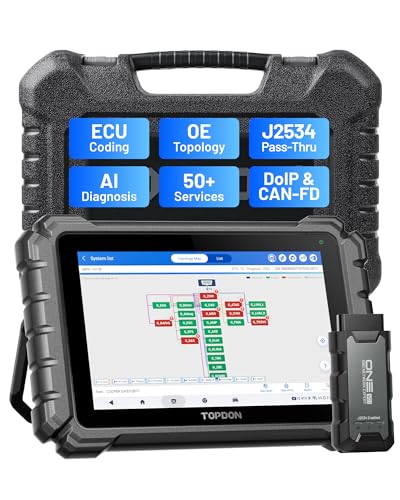
- Dual WiFi & 10.1" Touchscreen: Provides a stable, high-speed wireless link 3x faster than bluetooth, and a responsive, professional interface. Topdon ONE obd2 scanner diagnostic tool ensures smooth, non-lagging diagnostic scan, boosting mechanic efficiency
- J2534 Pass-Thru Support: The included ONE VCI supports the J2534 standard, allowing it to function as a pass-thru device when paired with OEM diagnostic software.Through TOPDON’s RLink platform, technicians can perform dealer-level coding, expanding in-house capabilities without investing in multiple factory automotive scan tools
- OE Topology Mapping: Visualize the vehicle’s ECU network exactly as it’s built.Zoom, pan, and highlight specific modules to pinpoint component issues with precision.Topology mapping displays real-time communication between modules
- 50+ Service Functions: Covers high-demand services like ADAS calibration, DPF regen, TPMS reset, ABS bleed, and throttle adaptation.Expands your service menu, allows you to charge premium rates, and turns away zero jobs due to lack of tooling. Vehicle-specific functionality may vary
- Advaned ECU Coding: 10 of the most serviced brands in North America, including full ECU coding and flash hidden support for BMW, VW, Au-di, Benz, Porsche, Toyota, Ni ssan and more. Enables module replacement, feature customization, and personal settings with automatic backup or restore.Lets your shop safely offer high-margin customization services, attracting more customers and boosting profit

- [J2534 Pass-Thru Programmer] - TOPDON RLink J2534 is engineered for professional technicians, delivering OEM diagnostic and reprogramming capabilities. It supports all J2534 protocols, CAN-FD, DoIP, D-PDU. Compatible with 17 vehicle brands—such as Chrysler, Ford, GM, KIA, Hyundai, Nissan, Toyota, Honda, Subaru, Mitsubishi, MAZDA, Land Rover/Jaguar, Volvo, Volkswagen/Audi, Mercedes-Benz, and BMW. RLink J2534 can help reduce the cost of purchasing equipment from different brands.
- [All-in-One OEM Reprogramming and Diagnostics] - When seamlessly integrated with OEM diagnostic software, this dongle enables you to perform a wide range of functions, including ECU programming and coding, DTC reading and clearing, active tests, component matching, adaptations, rewriting, guided troubleshooting, and more. This all-in-one tool eliminates the need for multiple OEM devices, significantly boosting work efficiency.
- [Tested, Trusted, and Proven for Accuracy] - TOPDON RLink J2534 is renowned for its reliability, having successfully completed over 10,000 real-vehicle tests. The wealth of data and hands-on experience behind it ensures consistent performance and accurate results. You can trust this tool to deliver optimal performance.
- [One-Click Installation, Continuous Updates] - The exclusive TOPDON RLink platform streamlines installation with a one-click driver setup, allowing you to quickly access OEM software for diagnostic and reprogramming tasks. With lifetime free updates, your RLink J2534 stays current without any additional cost, ensuring reliable performance for the long term. *We don't provide extra OE software.
- [Works with Windows Compatibility and OEM Software Subscription] - The RLink J2534 supports three CAN channels - including CAN FD and CAN-CC, providing advantages in the process of rapid troubleshooting. Compatible with Windows 7, 8 and 10 (64-bit) and higher versions of the system. For full functionality, an active OEM software subscription is required for each supported vehicle brand. Please note that the dongle does not include OEM software, which must be purchased separately to access brand-specific diagnostic and reprogramming features.
- 💯【Conta.ct us for Support Directly】For any issues experienced after purchase, please reach out to: 📞autelsupply@ outlook. com🛣️. Our team will provide perfect solution for you. For tech support or [explore additional accessory], please cont.act our team: 📞autelsupply@ outlook. com🛣️.
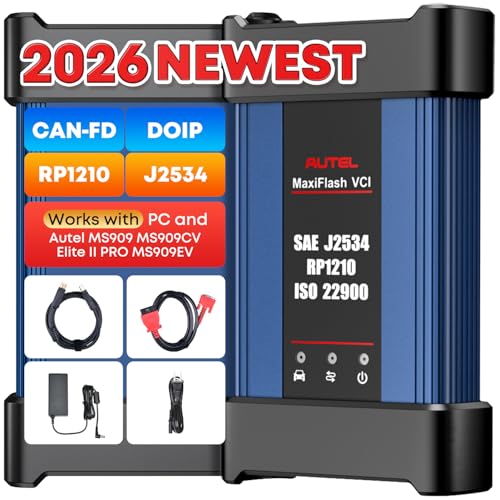
- 🌎【Autel J2534 Pass-Thru Progra.mmer】As an OEM Pass-Thru Progra.mmer Vehicle interface for multiple makes, Autel MaxiFlash J2534 support all J2534 protocols, D-PDU, CAN-FD and DoIP protocols. 2026 newer Autel MaxiFlash J2534 VCI can works with P-C and download OEM vehicle software, seamlessly conduct OE-level diagnostic-progra.mming-c0ding. Also, Work with Elite II Pro/ Ultra Lite/ MS909/ MS909CV/ MS909EV to directly pro.gram on Merce.des-Be.nz & BM.W. Autel J2534 Progr.ammer is a multi-functional device and supports 10+ major brands, including for Hond.a, G.M, LandRo.ver, BM.W, Chrysl.er, For.d, Hyun.dai, Ki.a, Merc.edes B.enz, Toyot.a, Volksw.agen etc.
- 🌎【Enhanced Protocol: J2534/D-PDU/RP1210/CAN FD/DoIP】Autel MaxiFlash JVCI is a blueto.oth communicate device, it supports latest CAN FD DoIP CAN protocols, compliant with automotive D-PDU/ J2534/ RP1210 standards. It can perform standard PassThru J2534 functions: compatible with Toyota Techstream, Volvo VIDA, Honda HDS, Jaguar Land Rover IDS and BM.W 3G for OEM diagnostics. CAN FD protocol is mainly for GM 2019+, DoIP protocol is mainly for Volvo 2018+, for L-and Rover/for Jaguar 2017+, for BM.W F chassis and G chassis.
- 🌎【Compatible with P-C/ WIND.OWS 】The Autel J2534 VCI can be connected to a compu.ter via a data cable; once the corresponding OEM software is installed, it enables do advanced progr.amming and c0ding on your vehicles. Easy Steps: 1) Connect to P-C via a USB cable 2) download OEM vehicle software 3) Start Diagnose. Take For.d for example, you can download OEM software on mot.orcraft.erservi.ce website, such as: For.d Diagnostic Software downloads, As B.uilt Data, Updated Cali.bration information, then use different software do relevant features.
- 🌎【Work with Autel Elite II Pro/ Ultra Lite/ MS909/ MS909CV/ MS909EV】This 2026 latest Autel J2534 Pass-Thru VCI is 100% compatible with Autel Elite II Pro Ultra Lite MS909 MS909CV MS909EV to perform advanced functions from diagnose to progra.mming.
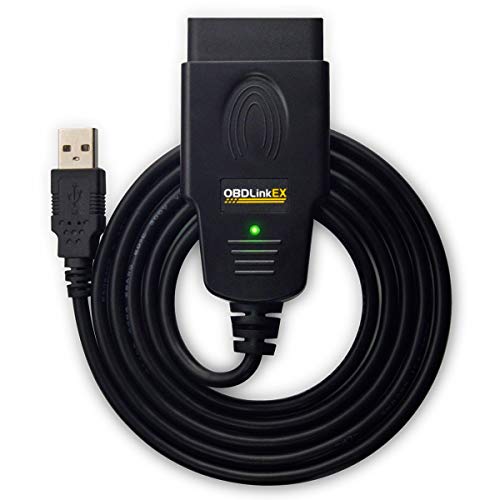
- CUSTOM-DESIGNED FOR USE WITH FORSCAN: Works with all FORScan compatible vehicles and is recommended by the FORScan Team
- DEALERSHIP-LEVEL DIAGNOSTICS: OBDLink EX supports all Ford protocols, modules, and advanced features of FORScan
- ELECTRONIC SWITCH allows FORScan to access all CAN buses simultaneously and enables advanced functions not possible with “toggle switch” adapters
- MAXIMUM THROUGHPUT -- up to 20 times faster than “toggle switch” adapters
- ROCK-SOLID CONNECTION avoids data corruption and dropped packets
SEOCONTENT-START
September, 2022 * * * IMPORTANT SAFETY RECALL REMINDER * * * According to our records, your 2021 Edge has not had necessary safety recall repairs made. We urge you to have the free repair performed at your local dealership as soon as possible. Recall Number and Description: 22S14 – SYNC4 and Rear View Camera Interaction What is the issue? On your vehicle, it may be possible that the rear-view camera will display a distorted image or show a blank screen with a message that the ºCamera is unavailable¿. Our records indicate that your vehicle has received the module updates required to resolve this concern. A rear-view camera that intermittently displays a blank or distorted image can reduce the driver s view of what is behind the vehicle, increasing the risk of a crash. If you have questions or concerns, please contact our Ford Customer Relationship Center at 1-866-436-7332. If you wish to contact us through the Internet, our address is: ford.com/support. Thank you for your attention to this very important matter. Septiembre de, 2022 * * * RECORDATORIO IMPORTANTE PROGRAMA DE SEGURIDAD * * * SegUR nuestros registros, no se realizaron en sur 2021 Edge las reparaciones necesarias correspondientes a la campaña de seguridad. Le solicitamos que realice esta reparación gratuita en su distribuidor local lo antes posible. Número y descripción de la campaña: 22S14 – Interacción de SYNC4 y la cámara trasera ¿Cuál es el problema? Es posible que la cámara trasera de su vehículo muestre una imagen distorsionada o una pantalla en blanco con un mensaje “Cámara no disponible”. En nuestros registros se indica que su vehículo ha recibido las actualizaciones del módulo requeridas para solucionar este problema. Cuando una cámara trasera, de forma intermitente, aparece en blanco o muestra una imagen distorsionada, la vista que tiene el conductor de lo que hay detrás del vehículo puede verse reducida, lo cual aumenta el riesgo de sufrir un choque. Si tiene dudas o preguntas, comuníquese con nuestro Centro de Relación con Clientes Ford al 1-866-436-7332. Si desea ponerse en contacto con nosotros a través de Internet, nuestra dirección es: ford.com/support. Gracias por su atenciic en este asunto sumamente importante. © Copyright 2022 Ford Motor Company 1 of 2 000000000000060 / 119 / 60 SEE OTHER SIDE FOR OPENING INSTRUCTIONS SEE OTHER SIDE FOR OPENING INSTRUCTIONS REMOVE THESE SIDE EDGES FIRST Š THEN FOLD, CREASE AND TEAR THIS STUB ALONG PERFORATION Š REMOVE THESE SIDE EDGES FIRST Š THEN FOLD, CREASE AND TEAR THIS STUB ALONG PERFORATION Š P.O. BOX 1904 DEARBORN, MI 48121-1904 Presorted STD US Postage PAID R K C 0056750 A / 000000000000060 / 60 ù ù
**************************************************************************************************************
April 2022 ???????? ???? 22S14 NI/DTB122S141 Ford Motor Company Ford Customer Service Division P. O. Box 1904 Dearborn, Michigan 48121 1904 1 of 9 A/1/000001/1 © Copyright 2022 Ford Motor Company ???????????????????????????????????????????????????????? 771553986056 A/1/000001/1 ???????????????????????????????????????????????????????????????????????????????????????????????????????????????????????????????????????????????????????????????????????????????????????????????????????????????????????????????????????????????????????????????????? JOHN A. SAMPLE 123 SAMPLE ST SAMPLE CITY, MI 12345-6789 * * * IMPORTANT SAFETY RECALL * * * Safety Recall Notice 22S14 / NHTSA Recall 22V151 2021 Edge Your Vehicle Identification Number (VIN): This notice is sent to you in accordance with the National Traffic and Motor Vehicle Safety Act. Ford Motor Company has decided that a defect which relates to motor vehicle safety exists in your vehicle, with the VIN shown above. We apologize for this situation and want to assure you that, with your assistance, we will correct this condition. Our commitment, together with your dealer, is to provide you with the highest level of service and support. What is the issue? On your vehicle, it may be possible that the rear-view camera will display a distorted image or show a blank screen with a message that the “Camera is unavailable”. Our records indicate that your vehicle has received the module updates required to resolve this concern. What is the risk? A rear-view camera that intermittently displays a blank or distorted image can reduce the driver’s view of what is behind the vehicle, increasing the risk of a crash. What will Ford and your dealer do? Ford Motor Company has released updated software for 22S14. Your vehicle is capable of Ford Power Up Software Updates. When Automatic Updates are turned ON (standard from the factory), the software will be downloaded to your vehicle over a private wi-fi network or through your vehicle’s modem through the cellular network. The software installation will happen after the download. Note: Refer to ford.com/support for further information on your Ford Power Up Software Updates system. Should the software fail to load or install properly, Ford has authorized your dealer to install 22S14 software free of charge (parts and labor) under the terms of this program. 22S14 NI/DTB122S141 How long will it take? If the software has failed to load or install properly, the time needed for this repair is less than one-half day. However, due to service scheduling requirements, your dealer may need your vehicle for a longer period of time. What should you do? Check SYNC software level Please check your software level by using your Sync menu and look for Ford Power-Up version 2.3.1 or later (for example 2.4.0) under the ‘Update Details’. Your Ford dealer can also check this for you remotely. Please allow 2-3 weeks after you receive this letter for the update to be available for your Ford Edge. If the software has installed and loaded properly then no action is necessary for this program. Your vehicle’s software is up to date. If automatic updates are turned on, software installation will occur automatically, in the background, while the vehicle is on or driving. The in-vehicle screen will provide installation status, and you can see the progress of the update on your FordPass app or Owner website. For your convenience, you can update your vehicle software using Ford Power Up capabilities. By utilizing this option, you should not need to take your vehicle to your dealer unless you’re unable to successfully perform the update. If the software has failed to load or install properly, please call your dealer to schedule a service appointment for Recall 22S14. Provide the dealer with your VIN, which is printed near your name at the beginning of this letter. Ford has not issued instructions to stop driving your vehicle under this safety recall. You can continue to safely drive your vehicle. If you do not already have a servicing dealer, you can access ford.com/support for dealer addresses, maps, and driving instructions. Ford Motor Company wants you to have this safety recall completed on your vehicle. The vehicle owner is responsible for making arrangements to have the work completed. Please note: Federal law requires that any vehicle lessor receiving this recall notice must forward a copy of this notice to the lessee within ten days. NOTE: You can receive information about Recalls and Customer Satisfaction Programs through our FordPass App. The app can be downloaded through the App Store or Google Play. In addition there are other features such as reserving parking in certain locations and controlling certain functions on your vehicle (lock or unlock doors, remote start) if it is equipped to allow control. COVID-19 (CORONAVIRUS) Ford dealerships have implemented enhanced protocols to ensure both your safety and the safety of dealership employees. This includes specific procedures for cleaning and disinfecting customer vehicles before and after each vehicle is serviced. In most places, vehicle service has been deemed a critical service. Please contact your local dealer to confirm current service hours. For more information on how Ford and your local dealer are working hard to keep you on the road during these challenging times, please visit ford.com/support. © Copyright 2022 Ford Motor Company 2 of 9 A/2/000001/1 ???? ???? ???? 22S14 NI/DTB122S141 Have you previously paid for this repair? If you have previously paid for a repair that addresses the issue described in this letter, you still need to have this recall performed to ensure the correct procedures were used. You may be eligible for a refund of previously paid repairs. Refunds will only be provided for service related to resolve a blank or distorted rear view image. To verify eligibility and expedite reimbursement, give your paid original receipt to your dealer. Refund requests may also be sent directly to Ford Motor Company. To request your refund from Ford, send the refund request with all required documentation, including your original repair receipt (no photocopies), to Ford Motor Company at P.O. Box 6251, Dearborn, Michigan 48121-6251. Refund requests mailed to this address may take up to 60 days to process. Your original receipt will be returned to you. Detailed information regarding eligibility for Ford’s reimbursement program and documentation requirements may be obtained by contacting the Ford Customer Relationship Center at 1-866-436-7332. What if you no longer own this vehicle? If you no longer own this vehicle, and have an address for the current owner, please forward this letter to the new owner. You received this notice because government regulations require that notification be sent to the last known owner of record. Our records are based primarily on state registration and title data, which indicate that you are the current owner. Can we assist you further? If you have difficulties getting your vehicle repaired promptly and without charge, please contact your dealership’s Service Manager for assistance. RETAIL OWNERS: If you have questions or concerns, please contact our Ford Customer Relationship Center at 1-866-436-7332 and one of our representatives will be happy to assist you. If you wish to contact us through the Internet, our address is: ford.com/support. For the hearing impaired call 1-800-232-5952 (TDD). Representatives are available Monday through Friday: 8:00AM – 8:00PM (Eastern Time). FLEET OWNERS: If you have questions or concerns, please contact our Ford Pro Contact Center at 1-800-34-FLEET, choose Option #1, and one of our representatives will be happy to assist you. If you wish to contact us through the Internet, our address is: fleet.ford.com. Representatives are available Monday through Friday: 7:00AM – 11:00PM and Saturday 7:00AM – 5:00PM (Eastern Time). If you are still having difficulty getting your vehicle repaired in a reasonable time or without charge, you may write the Administrator, National Highway Traffic Safety Administration, 1200 New Jersey Ave. S.E., Washington, D.C. 20590 or call the toll free Vehicle Safety Hotline at 1-888-327-4236 (TTY: 1-800-424-9153) or go to safercar.gov. Reference NHTSA Safety Recall 22V151. Thank you for your attention to this important matter. Ford Customer Service Division © Copyright 2022 Ford Motor Company 3 of 9 A/3/000001/1 ???? ???? ???? 4 of 9 A/4/000001/1 22S14 NI/DTB122S141 * * * CAMPAÑA DE SEGURIDAD IMPORTANTE * * * Aviso de campaña de seguridad 22S14 / Campaña 22V151 de la NHTSA 2021 Edge Número de identificación del vehículo (VIN): Este aviso se le envía de acuerdo con la Ley Nacional de Seguridad y Tránsito de Vehículos de los EE. UU. Ford Motor Company ha determinado que existe un defecto relacionado con la seguridad de su vehículo, con el VIN que aparece más arriba. Lamentamos esta situación y deseamos asegurarle que, con su ayuda, corregiremos el problema. Nuestro compromiso, junto con el de su distribuidor, es ofrecerle servicio y apoyo de alto nivel. ¿Cuál es el problema? Es posible que la cámara trasera de su vehículo muestre una imagen distorsionada o una pantalla en blanco con un mensaje “Cámara no disponible”. En nuestros registros se indica que su vehículo ha recibido las actualizaciones del módulo requeridas para solucionar este problema. ¿Qué riesgo existe? Cuando una cámara trasera, de forma intermitente, aparece en blanco o muestra una imagen distorsionada, la vista que tiene el conductor de lo que hay detrás del vehículo puede verse reducida, lo cual aumenta el riesgo de sufrir un choque. ¿Qué medidas adoptarán Ford y su distribuidor? Ford Motor Company ha lanzado el software actualizado para 22S14. Su vehículo tiene la capacidad de recibir actualizaciones de software de Ford Power Up. Cuando Actualizaciones automáticas esté activado (estándar de fábrica), el software se descargará en el vehículo a través de una red wifi privada o mediante el módem del vehículo, a través de la red celular. La instalación del software se producirá después de la descarga. Nota: Consulte ford.com/support para obtener información adicional sobre el sistema de Actualizaciones de software de Ford Power Up. Si el software no se puede cargar o instalar correctamente, Ford ha autorizado a su distribuidor a instalar el software de 22S14 sin costo alguno (piezas y mano de obra), conforme a los términos de este programa. Abril de 2022 Ford Motor Company División de Servicio al Cliente de Ford P. O. Box 1904 Dearborn, Michigan 48121 © Copyright 2022 Ford, División de Servicio al Cliente ???????????????????????????????????????????????????????? 771553986056 A/4/000001/1 ???????????????????????????????????????????????????????????????????????????????????????????????????????????????????????????????????????????????????????????????????????????????????????????????????????????????????????????????????????????????????????????????????? JOHN A. SAMPLE 123 SAMPLE ST SAMPLE CITY, MI 12345-6789 5 of 9 A/5/000001/1 22S14 NI/DTB122S141 ¿Cuánto tiempo tomará? Si el software no se ha podido cargar o instalar correctamente, el tiempo necesario para esta reparación será de menos de medio día. Sin embargo, debido a los requisitos de planificación de servicio, es posible que su distribuidor tarde un poco más. ¿Qué debe hacer? Compruebe el nivel del software de SYNC Compruebe el nivel de software a través del menú Sync y busque Ford Power-Up versión 2.3.1 o posterior (por ejemplo, 2.4.0) en “Detalles de actualización”. Su distribuidor Ford también puede lo comprobar de forma remota. Deberá esperar entre 2 y 3 semanas luego de recibir esta carta para que la actualización para su Ford Edge esté disponible. Si el software se ha instalado y cargado correctamente, no es necesario realizar ninguna acción para este programa. El software de su vehículo está actualizado. Si se activan las actualizaciones automáticas, la instalación del software se producirá automáticamente en segundo plano, mientras el vehículo está funcionando o se está conduciendo. El estado del la instalación aparecerá en la pantalla del vehículo y usted podrá ver el progreso de la actualización en la aplicación FordPass o en el sitio web de propietarios. Para su conveniencia, puede actualizar el software del vehículo gracias a las capacidades de Ford Power Up. Al utilizar esta opción, no será necesario que lleve el vehículo al distribuidor, a menos que no pueda realizar correctamente la actualización. Si no es posible cargar o instalar correctamente el software, llame a su distribuidor para programar una cita de servicio para la Campaña 22S14. Proporcione el VIN a su distribuidor, el cual está impreso debajo de sus datos al comienzo de esta carta. Para esta campaña de seguridad, Ford no ha emitido instrucciones de no manejar el vehículo. Puede continuar manejando su vehículo con seguridad. Si aún no tiene un distribuidor para realizar el servicio, puede acceder a ford.com/support para conocer las direcciones de los distribuidores, ver mapas y obtener las instrucciones para llegar. Ford Motor Company le recomienda realizar esta campaña de seguridad en su vehículo. El propietario del vehículo es responsable de realizar los arreglos para llevar a cabo el trabajo. Tenga presente que: La ley federal exige que los arrendadores de vehículos que reciban este aviso de campaña envíen una copia del mismo al arrendatario en un plazo de diez días. NOTA: Puede recibir información sobre las campañas y los programas de satisfacción del cliente a través de la aplicación FordPass. La aplicación se puede descargar a través de App Store o Google Play. Adicionalmente, existen otras funciones como reserva de estacionamientos en determinados lugares, además de control de ciertas funciones en el vehículo (bloqueo o desbloqueo de puertas, arranque remoto) si así está equipado para permitir el control. © Copyright 2022 Ford, División de Servicio al Cliente ???? ???????? ???? 6 of 9 A/6/000001/1 22S14 NI/DTB122S141 COVID-19 (CORONAVIRUS) Los distribuidores Ford han implementado protocolos mejorados con el fin de asegurar tanto su seguridad como la de los empleados de los diferentes distribuidores. Esto incluye procedimientos específicos de limpieza y desinfección antes y después de realizar servicio en cada uno de los vehículos de nuestros clientes. En la mayoría de los lugares, la atención de vehículos se ha considerado un servicio esencial. Póngase en contacto con su distribuidor local para confirmar las horas de servicio actuales. Para obtener más información sobre cómo Ford y su distribuidor local están trabajando arduamente para mantenerlo en las calles durante estos tiempos difíciles, visite ford.com/support. ¿Ha pagado anteriormente por esta reparación? Si usted ha pagado previamente por una reparación que aborda el problema descrito en esta carta, igualmente deberá realizar esta campaña a fin de asegurarse de que se hayan realizado los procedimientos correctos. Es posible que cumpla con los requisitos para recibir un reembolso por las reparaciones pagadas previamente. Solo se proporcionarán reembolsos por servicios relacionados con la resolución de la imagen distorsionada o en blanco de la cámara trasera. Para comprobar si cumple con los requisitos y agilizar el reembolso, proporcione el recibo de pago original a su distribuidor. También puede enviar las solicitudes de reembolso directamente a Ford Motor Company. Para solicitar un reembolso a Ford, envíe la solicitud con toda la documentación requerida, incluido el recibo original de la reparación (no envíe fotocopias), a Ford Motor Company, P.O. Box 6251, Dearborn, Michigan 48121-6251. El procesamiento de las solicitudes de reembolso enviadas a esta dirección puede tardar hasta 60 días. Su recibo original le será regresado. Comuníquese con el Centro de Relación con Clientes al 1-866-436-7332 para obtener información detallada relacionada con el programa de reembolso de Ford y los requisitos de documentación. ¿Qué pasa si usted ya no es el propietario del vehículo? Si usted ya no es el propietario del vehículo y tiene la dirección del propietario actual, le solicitamos que le reenvíe esta carta. Usted recibió este aviso porque las regulaciones del gobierno exigen el envío de notificaciones al propietario conocido más reciente del registro. Nuestros registros se basan principalmente en datos estatales y de propiedad, que indican que usted es el propietario actual del vehículo. ¿Podemos hacer algo más por usted? Si tiene problemas para reparar de inmediato su vehículo y sin costo alguno, comuníquese con el Gerente de Servicio de su distribuidor para solicitar ayuda. PROPIETARIOS MINORISTAS: Si tiene dudas o preguntas, comuníquese con nuestro Centro de Relación con Clientes Ford al 1-866-436-7332 y uno de nuestros representantes con gusto lo atenderá. Si desea comunicarse con nosotros a través de Internet, nuestra dirección es: ford.com/support. Las personas con problemas de audición pueden llamar al 1-800-232-5952 (TDD). Los representantes atienden de lunes a viernes, de 8:00 a.m. a 8:00 p.m. (hora del este). © Copyright 2022 Ford, División de Servicio al Cliente 7 of 9 A/7/000001/1 © Copyright 2022 Ford, División de Servicio al Cliente 22S14 NI/DTB122S141 ¿Podemos hacer algo más por usted? (continuación) PROPIETARIOS DE FLOTAS: Si tiene dudas o preguntas, comuníquese con nuestro Centro de contacto de Ford Pro al 1-800-34-FLEET, elija la opción n.° 1 y uno de nuestros representantes con gusto lo atenderá. Si desea comunicarse con nosotros a través de Internet, nuestra dirección es: fleet.ford.com. Los representantes atienden de lunes a viernes, de 7:00 a.m. a 11:00 p.m. y sábado de 7:00 a.m. a 5:00 p.m. (hora del este). Si aun así tiene problemas para reparar su vehículo en un periodo de tiempo razonable o sin costo, puede escribir al Administrador de National Highway Traffic Safety Administration, 1200 New Jersey Ave. S.E., Washington, D.C. 20590, llamar a la Línea directa de seguridad vehicular al 1-888-327-4236 (TTY: 1-800-424-9153) o visitar safercar.gov. Referencia: Campaña de seguridad 22V151 de la NHTSA. Gracias por su atención en este asunto sumamente importante. Ford, División de Servicio al Cliente ???? ???? ???? 22S14 NI/DTB122S141 8 of 9 A/8/000001/1 © Copyright 2022 Ford Motor Company How do I view Ford Power-Up software update details with SYNC®* 4? You can verify if the system is up-to-date and see details of the update with SYNC, the FordPass™* App, and Ford Owner. SYNC 4 1. Press Settings on your vehicle’s SYNC screen. 2. Select System Updates. This allows you to view the status and check the update details. 3. If you are at Ford Power-Up version 2.3.1 or later (for example 2.4.0) no action is necessary, and your vehicle’s software is up-to-date. FordPass App 1. Tap Account in the FordPass App. 2. Press the Service & Support tab. 3. Select Over-The-Air Update. This will show you when the last successful Ford Power-Up software update was completed. 4. If you are at Ford Power-Up version 2.3.1 or later (for example 2.4.0) no action is necessary, and your vehicle’s software is up-to-date. If you dismiss a FordPass notification and would like to see this message and its details, you can access it within your FordPass App by visiting the message center. 1. Tap Account in the FordPass App. 2. Select Message Center. Ford Owner 1. Go to ford.com/support. 2. Select MY ACCOUNT. 3. Click Sign In. 4. Enter your credentials. 5. Click Sign In. 6. Scroll down and look under the Notifications heading. Under Over-The-Air Updates, you can see Ford Power-Up software update status notifications for your account. 7. If available, click on What’s in this Update for additional details. 9 of 9 A/9/000001/1 © Copyright 2022 Ford, División de Servicio al Cliente 22S14 NI/DTB122S141 ¿Cómo veo los detalles de la actualización del software de Ford Power-Up con SYNC®* 4? Puede verificar si el sistema está actualizado y ver detalles de la actualización con SYNC, la aplicación FordPass™* y Ford Owner. SYNC 4 1. Presione Ajustes en la pantalla de SYNC del vehículo. 2. Seleccione Actualizaciones del sistema. Esto le permite ver el estado y comprobar los detalles de la actualización. 3. Si utiliza Ford Power-Up versión 2.3.1 o posterior (por ejemplo, 2.4.0) no se requiere realizar ninguna acción y el software del vehículo está actualizado. Aplicación FordPass 1. Toque Cuenta en la aplicación FordPass. 2. Presione la pestaña Servicio y soporte. 3. Seleccione Actualizaciones OTA. Esto mostrará cuándo finalizó la última actualización correcta del software de Ford Power-Up. 4. Si utiliza Ford Power-Up versión 2.3.1 o posterior (por ejemplo, 2.4.0) no se requiere realizar ninguna acción y el software del vehículo está actualizado. Si ignora una notificación de FordPass y desea ver este mensaje y sus detalles, puede acceder a él a través del centro de mensajes, en la aplicación FordPass. 1. Toque Cuenta en la aplicación FordPass. 2. Seleccione Centro de mensajes. Ford Owner 1. Vaya a ford.com/support. 2. Seleccione MI CUENTA. 3. Haga clic en Iniciar sesión. 4. Ingrese sus credenciales. 5. Haga clic en Iniciar sesión. 6. Desplácese y busque bajo en el encabezado Notificaciones. En Actualizaciones OTA, puede ver las notificaciones de estado de la actualización de software de Ford Power-Up para su cuenta. 7. Si está disponible, haga clic en Novedades de esta actualización para obtener detalles adicionales.
**************************************************************************************************************
Copyright 2022 Ford Motor Company David J. Johnson Ford Motor Company Director P. O. Box 1904 Service Engineering Operations Dearborn, Michigan 48121 Ford Customer Service Division May 25, 2022 TO: All U.S. Ford and Lincoln Dealers SUBJECT: NEW VEHICLE DEMONSTRATION / DELIVERY HOLD – Supplement #1 Safety Recall 22S14 Certain 2021-2022 Model Year Edge Vehicles with SYNC 4 APIM Module Reprogramming Due to Distorted Screen REF: NEW VEHICLE DEMONSTRATION / DELIVERY HOLD – Safety Recall 22S14 Dated April 20, 2022 New! REASON FOR THIS SUPPLEMENT Attachment III Technical Information: The technical instructions have been expanded to clarify the exact procedures required to reprogram the GWM, TCU, and APIM in each step. AFFECTED VEHICLES Vehicle Model Year Assembly Plant Build Dates Edge 2021 Oakville August 14, 2020 through November 15, 2021 2022 Oakville June 29, 2021 through February 7, 2022 Affected vehicles are identified in OASIS and FSA VIN Lists. REASON FOR THIS SAFETY RECALL In all of the affected vehicles, it is possible that the rear-view camera will display a distorted image or show a blank screen with a message that the “Camera is unavailable”. A rear-view camera that intermittently displays a blank or distorted image can reduce the driver’s view of what is behind the vehicle, increasing the risk of a crash. SERVICE ACTION Before demonstrating or delivering any new in-stock vehicles involved in this recall, dealers are to update the APIM module. This service must be performed on all affected vehicles at no charge to the vehicle owner. OWNER NOTIFICATION MAILING SCHEDULE Owner letters are expected to be mailed the week of April 25, 2022. Owners will be given the option of installing the software update themselves, or they can have their dealer perform the service for them. PLEASE NOTE: Federal law requires dealers to complete this recall service before a new vehicle is delivered to the buyer or lessee. Violation of this requirement by a dealer could result in a civil penalty of up to $21,000 per vehicle. Correct all vehicles in your new vehicle inventory before delivery. Copyright 2022 Ford Motor Company New! ATTACHMENTS Attachment I: Administrative Information Attachment II: Labor Allowances and Parts Ordering Information Attachment III: Technical Information Owner Notification Letters Recall Reimbursement Plan QUESTIONS & ASSISTANCE For questions and assistance, contact the Special Service Support Center (SSSC) via the SSSC Web Contact Site. The SSSC Web Contact Site can be accessed through the Professional Technician System (PTS) website using the SSSC link listed at the bottom of the OASIS VIN report screen or listed under the SSSC tab. Sincerely, David J. Johnson Copyright 2022 Ford Motor Company ATTACHMENT I Page 1 of 3 NEW VEHICLE DEMONSTRATION / DELIVERY HOLD – Supplement #1 Safety Recall 22S14 Certain 2021-2022 Model Year Edge Vehicles with SYNC 4 APIM Module Reprogramming Due to Distorted Screen OASIS ACTIVATION OASIS will be activated on April 20, 2022. FSA VIN LISTS ACTIVATION FSA VIN Lists will be available through https://web.fsavinlists.dealerconnection.com on April 20, 2022. Owner names and addresses will be available by May 13, 2022. NOTE: Your FSA VIN Lists may contain owner names and addresses obtained from motor vehicle registration records. The use of such motor vehicle registration data for any purpose other than in connection with this recall is a violation of law in several states, provinces, and countries. Accordingly, you must limit the use of this listing to the follow-up necessary to complete this recall. SOLD VEHICLES Ford has not issued instructions to stop selling/delivering or driving used vehicles under this safety recall. Owners should contact their dealer for an appointment to have their vehicles remedied as soon as practicable. Owners can continue to safely drive their vehicles. Immediately contact any of your affected customers whose vehicles are not on your VIN list but are identified in OASIS. Give the customer a copy of the Owner Notification Letter (when available) and schedule a service date. Correct other affected vehicles identified in OASIS which are brought to your dealership. Dealers are to prioritize repairs of customer vehicles over repairs of new and used vehicle inventory. STOCK VEHICLES Correct all affected units in your new vehicle inventory before delivery. Use OASIS to identify any affected vehicles in your used vehicle inventory. DEALER-OPERATED RENTAL VEHICLES The Fixing America’s Surface Transportation (FAST) Act law effective June 2016 prohibits a rental company from selling, renting or leasing vehicles subject to a safety or compliance recall. Please consult your legal counsel for legal advice. TITLE BRANDED / SALVAGED VEHICLES Affected title branded and salvaged vehicles are eligible for this recall. Copyright 2022 Ford Motor Company ATTACHMENT I Page 2 of 3 NEW VEHICLE DEMONSTRATION / DELIVERY HOLD – Supplement #1 Safety Recall 22S14 Certain 2021-2022 Model Year Edge Vehicles with SYNC 4 APIM Module Reprogramming Due to Distorted Screen OWNER REFUNDS This safety recall must still be performed, even if the owner has paid for a previous repair. Claiming a refund will not close the recall on the vehicle. Ford Motor Company is offering a refund for owner-paid repairs covered by this recall if the repair was performed prior to the date indicated in the reimbursement plan, which is posted with this bulletin. Owners are directed to seek reimbursement through authorized dealers or, at their option, directly through Ford Motor Company at P.O. Box 6251, Dearborn, MI 48121- 6251. Dealers are also pre-approved to refund owner-paid emergency repairs that were performed away from an authorized servicing dealer after the end date specified in the reimbursement plan. Non-covered repairs, or those judged by Ford to be excessive, will not be reimbursed. Refunds will only be provided for the cost associated with APIM reprogramming to resolve a blank or distorted rear view image. RENTAL VEHICLES Rental vehicles are not approved for this program. ADDITIONAL REPAIR (LABOR TIME AND/OR PARTS) Additional repairs identified as necessary to complete the FSA should be managed as follows: For related damage and access time requirements, refer to the Warranty and Policy Manual / Section 6 – Ford & Lincoln Program Policies / General Information & Special Circumstances for FSA’s / Related Damage. For vehicles within new vehicle bumper-to-bumper warranty coverage, no SSSC approval is required, although related damage must be on a separate repair line with the “Related Damage” radio button checked. o Ford vehicles – 3 years or 36,000 miles For vehicles outside new vehicle bumper-to-bumper warranty coverage, submit an Approval Request to the SSSC Web Contact Site prior to completing the repair. Copyright 2022 Ford Motor Company ATTACHMENT I Page 3 of 3 NEW VEHICLE DEMONSTRATION / DELIVERY HOLD – Supplement #1 Safety Recall 22S14 Certain 2021-2022 Model Year Edge Vehicles with SYNC 4 APIM Module Reprogramming Due to Distorted Screen CLAIMS PREPARATION AND SUBMISSION Claim Entry: Enter claims using Dealer Management System (DMS) or One Warranty Solution (OWS) online. o When entering claims, select claim type 31: Field Service Action. The FSA number 22S14 is the sub code. o For additional claims preparation and submission information, refer to the Recall and Customer Satisfaction Program (CSP) Repairs in the OWS User Guide. Related Damage/Additional labor and/or parts: Must be claimed as Related Damage on a separate repair line from the FSA with same claim type and sub code as described in Claim Entry above. IMPORTANT: Click the Related Damage Indicator radio button. Refunds: Submit refunds on a separate repair line. – Program Code: 22S14 – Misc. Expense: ADMIN – Misc. Expense: REFUND – Misc. Expense: 0.2 Hrs. Multiple refunds should be submitted on one repair line and the invoice details for each repair should be detailed in the comments section of the claim. Copyright 2022 Ford Motor Company ATTACHMENT II Page 1 of 1 NEW VEHICLE DEMONSTRATION / DELIVERY HOLD – Supplement #1 Safety Recall 22S14 Certain 2021-2022 Model Year Edge Vehicles with SYNC 4 APIM Module Reprogramming Due to Distorted Screen LABOR ALLOWANCES Description Labor Operation Labor Time Update Gateway Module, TCU, and APIM programming MT22S14B Actual Time Additional Time to Recover the APIM following a failed overthe- air update MT22S14C Up to 1.0 Hour PARTS REQUIREMENTS / ORDERING INFORMATION Parts are not required to complete this repair. ATTACHMENT III PAGE 1 OF 4 SAFETY RECALL 22S14-S1 CPR © 2022 FORD MOTOR COMPANY DEARBORN, MICHIGAN 48121 05/2022 CERTAIN 2021-2022 MODEL YEAR EDGE VEHICLES WITH SYNC 4 — APIM MODULE REPROGRAMMING DUE TO DISTORTED SCREEN SERVICE PROCEDURE Module Programming 1. Check the vehicle’s State Of Charge Parameter Identification Data (PID) by performing the following: • Launch the Ford Diagnostic and Repair System (FDRS) and navigate to toolbox tab > datalogger > BCM and select BATT SOC PID. • Ensure that the BATT_SOC PID reads over 80%. If the PID is less than 80%, fully recharge the vehicle’s 12-volt battery using the appropriate Rotunda battery tester and charger. • Remove the charger from the vehicle and using FDRS, navigate to toolbox tab > BCM > Reset Battery. • Monitor Sensor Learned Values application. Perform the BMS reset. • Connect the Rotunda battery tester and charger and set it to maintain 12.6 to 13.6 volts. Monitor the voltage real time using the indicator at the bottom right corner of FDRS to ensure that it is within this range. NOTE: Verify that the negative cable of the charger is installed on a chassis or engine ground, and not the 12 volt battery negative terminal to prevent the battery saver mode from activating on the vehicle. NOTE: If the diagnostic software does not load or if the vehicle cannot be identified properly, make sure there is a good internet connection and the Vehicle Communication Module (VCM) is properly connected to the Data Link Connector (DLC). NOTE: VCM 3 is recommended for improved data download time. 2. Log into Ford Diagnostic and Repair System (FDRS). Ensure FDRS is updated to the latest version at 31.6.7 or higher. NOTE: A blank 32GB or larger USB flash drive is required for APIM, TCU, and GWM software updates. Make sure the USB flash drive being used is formatted correctly. To see the available drives, hold down the Windows icon keyboard key and press the E keyboard key. Right click on the USB flash drive and select Properties. If File System under the General tab is not exFAT, the drive must be formatted. To format the USB flash drive, right click on the USB flash drive, select Format, select exFAT for the File System, and select Default Allocation Size for the Allocation Unit Size. De-selecting Quick Format is not necessary and will result in a lengthier operation. NOTE: The USB drive does not have to be formatted between vehicles if you are performing the same program. 3. Start a new FDRS session. NOTE: Vehicle information is automatically retrieved by the diagnostic software and a Network Test is run. Vehicle identification data appears on the screen when this is complete. 4. Select Toolbox tab. ATTACHMENT III PAGE 2 OF 4 SAFETY RECALL 22S14-S1 CPR © 2022 FORD MOTOR COMPANY DEARBORN, MICHIGAN 48121 05/2022 STEPS 5 THROUGH 10 WILL BE USED MULTIPLE TIMES DURING STEPS 11 THROUGH 18. 5. Select Software Updates tab to see updates available. 6. Select the module from the Module Programming Sequence section below starting at Step 11. 7. When prompted by the FDRS, connect the USB flash drive to the personal computer (PC). 8. When prompted by the FDRS, safely remove/eject the USB flash drive from the PC, turn the vehicle to Key On Engine Running (KOER), and connect the USB to the media hub to install the software update. The update starts automatically and may take 10 minutes or longer to complete. NOTE: It may take up to 5 minutes for the vehicle to recognize the USB flash drive with software update. 9. For APIM, TCU, and GWM USB software updates when SYNC touchscreen prompts to restart the vehicle: • Turn the vehicle OFF. • Open the driver door. • Wait ten minutes to allow the vehicle to power down. • Close the driver’s door. • Turn the vehicle to KOER. 10. Leave the USB drive inserted into the vehicle, until the vehicles infotainment display screen states programming successful. NOTE: It may take up to 5 minutes before SYNC touchscreen displays Update Successful pop up. After 5 minutes if “Successful” pop up is not shown on SYNC touchscreen, remove the USB and select YES on the FDRS “Was the USB Update Successful” prompt (FDRS verifies if the module software update was successfully installed on the module). NOTE: Repeat Steps 5-10 (while performing Steps 11-18) until no more software updates are available for modules covered in Steps 11-18. MODULE PROGRAMMING SEQUENCE IMPORTANT NOTE: Modules need to be programmed in exactly the order as listed below (some are repeated) unless there is no update available. Module updates will vary per vehicle based on Ford Power-UP over-the-air (OTA) updates previously completed. Some modules may already be at the latest level. 11. Select GWM – Gateway Module (GWM) – software update. • See Steps 5-10. • Run application. • If no more software updates are available, move to the next module in the sequence. ATTACHMENT III PAGE 3 OF 4 SAFETY RECALL 22S14-S1 CPR © 2022 FORD MOTOR COMPANY DEARBORN, MICHIGAN 48121 05/2022 NOTE: If FSA 22B08 is open for this vehicle, perform that field action before proceeding. 12. Select TCU – Telematics Control Unit (TCU) – software update. • This applies to 2021 model years only. • See Steps 5-10. • Run application. • If error message on SYNC display screen or no activity after 10 minutes. • See TSB 22-2150 – Module Recovery. • Retry TCU software update with same USB drive. 13. Select APIM – Accessory Protocol Interface Module (APIM/SYNC) – software update. • See Steps 5-10. • Run application. • Follow General Service Bulletin (GSB) 21-7088 – SYNC Programming, USB flash drive method. • If error message on SYNC display screen or no activity after 10 minutes. • See TSB 22-2150 – Module Recovery. • Retry APIM software update with same USB drive. NOTE: Step 14 is a required step separate from Step 11. Please follow all steps exactly as written. 14. Select GWM – Gateway Module (GWM) – software update. • See Steps 5-10. • Run application. • If no update is available, move to the next module in the sequence. 15. Select APIM – Accessory Protocol Interface Module (APIM) – software update. • See Steps 5-10. • Run application. • If no update is available, move to the next module in the sequence. 16. Select TCU – Telematics Control Unit (TCU) – software update. • This applies to 2021 model years only. • See Steps 5-10. • Run application. • If error message on SYNC display screen or no activity after 10 minutes. • See TSB 22-2150 – Module Recovery. • Retry TCU software update with same USB drive. 17. Select GWM – Gateway Module (GWM) – software update. • This applies to 2021 model years only. • See Steps 5-10. • Run application. • If no update is available, move to the next module in the sequence. 18. Repeat steps 14,15 (if 2021 Model year) and 16 as many times as required until no more updates are available. ATTACHMENT III PAGE 4 OF 4 SAFETY RECALL 22S14-S1 CPR © 2022 FORD MOTOR COMPANY DEARBORN, MICHIGAN 48121 05/2022 Important Information for Module Programming NOTE: When programming a module, use the following basic checks to ensure programming completes without errors. • Make sure the 12V battery is fully charged before carrying out the programming steps. • Connect FDRS/scan tool to a power source. NOTE: A good internet connection is necessary to identify the vehicle and to load the diagnostic software. • Inspect VCM/VCMM and cables for any damage. Make sure scan tool connections are not interrupted during programming. • A hardwired connection is strongly recommended. • Turn off all unnecessary accessories (radio, heated/cooled seats, headlamps, interior lamps, HVAC system, etc.) and close doors.• Disconnect/depower any aftermarket accessories (remote start, alarm, power inverter, CB radio, etc.). • Follow all scan tool on-screen instructions carefully. • Disable FDRS/scan tool sleep mode, screensaver, hibernation modes. • Create all sessions key-on-engine-off (KOEO). Starting the vehicle before creating a session will cause errors within the programming inhale process. Recovering a module when programming has resulted in a blank module a. Disconnect the VCMII or VCMM from the data link connector (DLC) and your PC. b. After ten seconds, reconnect the VCMII/VCMM to the DLC and the PC. Launch FDRS. The VCMII/VCMM icon should turn green in the bottom right corner of the screen. If it does not, troubleshoot the FDRS to VCM connection. c. If you are using the same FDRS as the initial programming attempt, select the appropriate VIN from the Vehicle Identification menu. If you are using a different FDRS, select “Read VIN from Vehicle” and proceed through the Network Test. d. In the Toolbox menu, navigate to the failed module and Download/Run Programmable Module Installation (PMI). Follow the on-screen prompts. When asked if the original module is installed, select “No” and continue through the installation application. e. Once programming has completed, a screen may list additional steps required to complete the programming process. Make sure all applicable steps are followed in order. Version 04-23-19 Ford Motor Company Recall Reimbursement Plan for 22S14 Ford and Lincoln dealers are in the best position to quickly and efficiently process reimbursement requests. However, federal legislation requires all motor vehicle manufacturers to establish processes through which customers may seek recall reimbursement directly from the manufacturer or from the dealers. Regarding the specific reimbursement plan for Recall # 22S14, owners who have paid for service to remedy the defect or noncompliance must have had that service performed prior to May 13, 2022. After this date, if repairs related to this recall are performed by a non-Ford repair facility in an emergency situation, customers must submit any refund requests through their dealership. As required by this federal regulation, Ford Motor Company submitted the details of its latest General Recall Reimbursement Plan in a letter to the National Highway Traffic Safety Administration (NHTSA) in May 2021. The following is the text of that letter and the Plan: General Recall Reimbursement Plan (As submitted to the NHTSA) Pursuant to the requirements set forth in 49 CFR Part 573 and Part 577 of the Code of Federal Regulations, Ford Motor Company (Ford) is submitting required information pertaining to our general reimbursement plan for the cost of remedies paid for by vehicle owners before they are notified of a related safety recall. Set forth below is Ford’s general plan to reimburse owners and purchasers for costs incurred for remedies in advance of notification of potential safely-related defects or noncompliances pursuant to Part 573.6 (c)(8)(i). This plan has not changed since our February 20, 2019 submission. Reimbursement Notification Ford’s notice to a vehicle owner in accordance with 49 CFR Part 577 will indicate that Ford is offering a refund if the owner paid to have service to remedy the defect or noncompliance prior to a specified ending date. In accordance with Part 573.13 (c)(2), this ending date will be defined as a minimum of ten calendar days after the date on which Ford mailed the last of its Part 577 notifications to owners, and will be indicated in the specific reimbursement plan available to owners for an individual recall. This notice will direct owners to seek eligible reimbursement through authorized dealers or, at their option, directly through Ford at the following address: Ford Motor Company P.O. Box 6251 Dearborn, MI 48121-6251 Ford notes that this rule allows for the identification of a beginning date for reimbursement eligibility. Under the rule, an owner who paid to remedy the defect or noncompliance prior to the identified beginning date would not be eligible for reimbursement. Ford generally has not established such a beginning date for reimbursement eligibility and does not presently anticipate changing this general policy. However, in any case where Ford determines a beginning date is appropriate, Ford will indicate that date in the owner notice. As permitted by 577.11(e), Ford may not include a reimbursement notification when all vehicles are well within the warranty period, subject to approval by the agency. Version 04-23-19 Costs to be Reimbursed For vehicles, reimbursement will not be less than the lesser of: • The amount paid by the owner for the remedy that specifically addressed and was reasonably necessary to correct the defect or noncompliance that is the subject of the recall, or • The cost of parts for the remedy (to be no more than the manufacturer’s list retail price for authorized part(s), plus associated labor at local labor rates, miscellaneous fees (such as disposal of waste) and taxes. For replacement equipment, reimbursement will be the amount paid by the owner for the replacement item (limited by the amount of the retail list price of the defective or noncompliant item that was replaced, plus taxes, where the brand or model purchased by the owner was different than the brand or model that was the subject of the recall). If the item of motor vehicle equipment was repaired, the reimbursement provisions identified above for vehicles will apply. Ford notes that costs incurred by the owner within the period during which Ford’s original or extended warranty would have provided for a free repair of the problem will not be eligible for reimbursement, as provided by Part 573.13 (d)(1). Entities Authorized to Provide Reimbursement Ford will continue to use authorized dealers to reimburse owners under the specific reimbursement plans for a particular recall, and will encourage owners to pursue requests for reimbursement directly through dealers to expedite reimbursement. Ford will also provide a mailing address to which customers can, at their option, send requests for reimbursement directly to Ford, as previously noted. Requests for reimbursement sent directly to Ford may take up to 60 days to process. Whether the owner chooses to pursue reimbursement requests through a dealer or directly through Ford, the owner will be directed to submit the required documentation, upon which reimbursement eligibility will be determined. Required Documentation The reimbursement determination will depend upon the information provided by the customer. Consistent with Part 573.13 (d)(4) the following information must be submitted: • Claimant name and address • Vehicle make, model, and model year • Vehicle identification number (VIN) and, for replacement equipment, a description of such equipment or, for tires, the model, size and TIN (DOT code) • Identification of the recall number (either the Ford recall number or the NHTSA recall number) • Identification of the owner of the recalled vehicle at the time that the pre-notification remedy was obtained • An original receipt for the pre-notification remedy that includes a breakdown of the amount for parts, labor, other costs and taxes, including costs for the replacement item. Where the receipt covers work other than to address the recall or noncompliance, Ford may require the claimant to separately identify costs that are eligible for reimbursement. • If the remedy was obtained during the warranty period, documentation indicating that the warranty was not honored or the warranty repair did not correct the problem related to the recall. Failure to submit all of the above information may result in denial of the reimbursement request. Version 04-23-19 Additional Information The Part 577 required owner notice will provide a toll-free telephone number through which specific information about the reimbursement plan can be requested from Ford. This general reimbursement plan will be incorporated into notifications pursuant to Part 573.6 by reference. Information specific to an individual recall also may be incorporated into the Part 573.6 notification.
**************************************************************************************************************
OMB Control No.: 2127-0004 Part 573 Safety Recall Report 22V-151 The information contained in this report was submitted pursuant to 49 CFR §573 Manufacturer Name : Ford Motor Company Submission Date : MAR 11, 2022 NHTSA Recall No. : 22V-151 Manufacturer Recall No. : 22S14 Manufacturer Information : Manufacturer Name : Ford Motor Company Address : 330 Town Center Drive Suite 500 Dearborn MI 48126-2738 Company phone : 1-866-436-7332 Population : Number of potentially involved : 78,376 Estimated percentage with defect : 100 % Vehicle Information : Vehicle 1 : 2021-2022 FORD EDGE Vehicle Type : LIGHT VEHICLES Body Style : ALL Power Train : NR Descriptive Information : The recalled SYNC 4 software was introduced into production on 08/14/2020 and was taken out of production on 02/07/2022. These vehicles are not produced in VIN order. Information as to the applicability of this action to specific vehicles can best be obtained by either calling Ford’s toll-free line (1-866-436-7332) or by contacting a local Ford or Lincoln dealer who can obtain specific information regarding the vehicles from the Ford On-line Automotive Service Information System (OASIS) database. Production Dates : AUG 14, 2020 – FEB 07, 2022 VIN Range 1 : Begin : NR End : NR Not sequential Description of Defect : Description of the Defect : Customers may experience a distorted, black and white, or discolored screen; lines across the screen; and/or a blank image when the vehicle is in reverse. Screen may also display “Camera is unavailable” message if the image is lost for 10 seconds. FMVSS 1 : NR FMVSS 2 : NR Description of the Safety Risk : A rear view camera that intermittently displays a blank or distorted image can reduce the driver’s view of what is behind the vehicle, increasing the risk of a crash. Description of the Cause : The SYNC software utilizes a low power mode to allow for quicker infotainment loading. When the analog video decoder chip in the infotainment Part 573 Safety Recall Report 22V-151 Page 2 The information contained in this report was submitted pursuant to 49 CFR §573 system attempts to exit the low power mode, the reset timers are not activated, causing color information to be incorrectly decoded resulting in image display issues. Identification of Any Warning that can Occur : None Involved Components : Component Name 1 : SYNC Software Component Description : 2021 Edge Component Part Number : MU5T-14G682-EJ Component Name 2 : SYNC Software Component Description : 2021 Edge Component Part Number : MU5T-14G682-ES Component Name 3 : SYNC Software Component Description : 2021 Edge Component Part Number : MU5T-14G682-ET Component Name 4 : SYNC Software Component Description : 2021 Edge Component Part Number : MU5T-14G682-EU Component Name 5 : SYNC Software Component Description : 2022 Edge Component Part Number : MU5T-14G682-LG Supplier Identification : Component Manufacturer Part 573 Safety Recall Report 22V-151 Page 3 The information contained in this report was submitted pursuant to 49 CFR §573 Name : Ford Motor Company Address : One American Road Dearborn Michigan 48126 Country : United States Chronology : On January 25, 2022, an issue pertaining to 2021-22 Ford Edge improper rear view camera functionality was brought to Ford’s Critical Concern Review Group for review. The CCRG analysis of the issue found that this is a randomly occurring issue caused by the SYNC software. Ford performed a statistical analysis to determine potential occurrence rate in the field. Ford received the first warranty claim for this concern on February 23, 2021. Ford has received 404 warranty claims that may be attributed to this issue. Ford’s warranty analysis related to this concern found that the number of claims steadily increased over time as the vehicle mileage and time in service increased. On March 4, 2022, Ford’s Field Review Committee reviewed the concern and approved a field action. Ford is not aware of any reports of accident or injury related to this condition. Description of Remedy : Description of Remedy Program : Ford is anticipated to begin Over-The-Air (OTA) deployment to update the SYNC 4 software for affected vehicles in March 2022. Alternatively, owners will have the option to take their vehicle to a Ford or Lincoln dealer to complete the software update. There will be no charge for this service. Ford provided the general reimbursement plan for the cost of remedies paid for by vehicle owners prior to notification of a safety recall in May 2021. The ending date for reimbursement eligibility is May 13, 2022. Ford will forward a copy of the notification letters to dealers to the agency when available. How Remedy Component Differs from Recalled Component : The updated software p/n MU5T-14G682-JP and MU5T-14G682-LP will disable low power mode from the SYNC analog decoder chip. Identify How/When Recall Condition was Corrected in Production : The updated software p/n MU5T-14G682-JP and MU5T-14G682-LP was updated in production on February 7, 2022. Part 573 Safety Recall Report 22V-151 Page 4 The information contained in this report was submitted pursuant to 49 CFR §573 Recall Schedule : Description of Recall Schedule : Notification to dealers is expected to occur on April 20, 2022. Mailing of owner notification letters is expected to begin April 25, 2022 and is expected to be completed by May 2, 2022. Planned Dealer Notification Date : APR 20, 2022 – APR 20, 2022 Planned Owner Notification Date : APR 25, 2022 – MAY 02, 2022 * NR – Not Reported
SEOCONTENT-END
This product presentation was made with AAWP plugin.