
NHTSA ID Number: 10226775
Manufacturer Communication Number: TSB 22-2404
Summary
This article supersedes TSB 22-2150 and SSM 50970 to update the Service Procedure. For some 2021 Mustang Mach-E, F-150, Edge, Nautilus and Bronco vehicles technicians may experience the inability to update the accessory protocol interface module (APIM), telematics control unit (TCU) or gateway module (GWM) using the Ford Diagnosis and Repair System (FDRS) and Universal Serial Bus (USB) drive. The PTS OTA Dashboard on vehicles with this condition may also display multiple APIM and/or TCU updates have failed, and/or a no OTA history message. In addition, on vehicles with this condition, the customer may have reported experiencing a Ford Power-Up software update failure message via the vehicle display and/or FordPass/LincolnWay. This may be due to an internal software error. To correct this condition, follow the Service Procedure to update and/or recover the APIM/TCU. Note: Only 10% of vehicles may require this procedure.
This bulletin supersedes 22-2150.
Model:
Summary
This article supersedes TSB 22-2150 to update the Service Procedure.
Issue: For some 2021 Mustang Mach-E, F-150, Edge, Nautilus and Bronco vehicles technicians may experience the inability to update the accessory protocol interface module (APIM), telematics control unit (TCU) or gateway module (GWM) using the Ford Diagnosis and Repair System (FDRS) and Universal Serial Bus (USB) drive. The PTS – OTA Dashboard on vehicles with this condition may also display multiple APIM and/or TCU updates have failed, and/or a no OTA history message. In addition, on vehicles with this condition, the customer may have reported experiencing a Ford Power-Up software update failure message via the vehicle display and/or FordPass/LincolnWay. This may be due to an internal software error. To correct this condition, follow the Service Procedure to update and/or recover the APIM/TCU.
NOTE: Only 10% of vehicles may require this procedure.
Action: Follow the Service Procedure to correct the condition on vehicles that meet all of the following criteria:
- 2021 Mustang Mach-E/F-150/Edge/Nautilus/Bronco
- Inability to update the APIM, TCU or GWM using the FDRS and USB drive
Special Tool(s)
| USB-to-Ethernet adapter: Trendnet TU2-ET100 USB2.0, Trendnet TU3-ETG USB 3.0, Startech USB31000S USB 3.0, UGREEN USB USB 3.0 model no 40321, Amazon Basics USB 3.0 U3-GE-1P. These adapters have been validated through Ford service testing.
|
| Mini B 5 Pin Female Adapter: Rotunda Part# CCMUSB-AF-BF5 or equivalent (Vehicles with USB Media Hub)
|
| USB 2 Cable – Male to Male: Rotunda Part# CCMUSB2-AM-AM-10 or equivalent (All vehicles)
|
| Ethernet cable assembly, obtain locally (All vehicles)
|
| NOTE: Ford has received feedback from technicians that the following USB-to-Ethernet adapters do not work and should not be used: TP-Link USB3 – 10/100/1000, Cable Creations 10/100/1000 USB3, UGREEN USB2 – 10/100, Cable Leader USB 2.0, UGREEN FBA_20256. In the near future, a list of good/bad USB-to-Ethernet adapters will be published on PTS > Service Tips.
|
Service Procedure
CAUTION: Due to Ford cyber security requirements, the module repair procedure outlined in this article is limited to a maximum of 15 attempts with a total of 20 days from the first time the application is run before the application is permanently disabled for each unique VIN. Make sure that all required and compatible tooling listed in this article is available prior to performing this procedure to reduce the chances of encountering this lockout state. If a lockout occurs, module replacement may be necessary. Note that even if the application is run successfully, the 20 day timer (allowing 15 attempts) continue to run in the background. If the module repair application has successfully completed in the past, it is not required to be run again.
NOTE: Administrative access on the laptop computer being used is required to perform this procedure. Make sure any antivirus software loaded in the laptop computer is disabled or uninstalled prior to performing this procedure.
NOTE: Use only a wireless connection for internet access as this application requires the use of the laptop computer ethernet port during the module recovery procedure. Verify the FDRS is at the latest software level.
Error Condition Table
| Error Message in FDRS | Cause | Actions |
|---|---|---|
| Unable to communicate with vehicle through ethernet adapter. Verify that the ethernet adapter being used is compatible per the TSB. |
|
|
| This vehicle does not qualify for Module Update Repair. The TSB does not apply to this vehicle concern. |
|
|
| Exception trying to obtain diagnostic files from the backend server required to repair this vehicle. This could indicate that this VIN has been locked out. |
|
|
| Module Repair has failed due to limited or no connection with the vehicle through the USB cable |
|
|
1. Connect either the vehicle communications module (VCM) II or VCM III to the data link connector (DLC) and start a vehicle session using the FDRS. Navigate to the toolbox tab on FDRS then select the Multi Module tab. Under the Multi Module tab, download and run the Module Update Repair application.
2. Does the FDRS application provide the following message: This vehicle does not qualify for Module Update Repair. The TSB does not apply to this vehicle concern?
(1). Yes – this article does not apply. Continue with following other service publications for APIM, TCU or GWM programming and/or the Workshop Manual (WSM) for normal diagnostics.
(2). No – proceed to Step 3.
3. Connect a battery charger to the vehicle’s 12v battery. Set the charger to maintain the battery at 12.6-13.6 volts.
4. For F-150 vehicles not equipped with a SYNC media hub, proceed to Step 6. Lower trim level F-150 vehicles are instead equipped with pass-through USB ports and do not have a SYNC media hub.
5. For Mustang Mach-E, Nautilus, and F-150 vehicles equipped with a SYNC Media hub, access the APIM in-line USB connector.
(1). For Mustang Mach-E vehicles, remove the left-hand side floor console front trim panel and disconnect the APIM in-line USB connector. The connector may be concealed by tape. Refer to Step 4 in the WSM Section 501-12 floor console removal. (Figures 1-3)
Figure 1
Figure 2
Figure 3
(2). For F-150 vehicles with a SYNC media hub and center console, remove the floor console lower left hand trim panel and disconnect the APIM in-line USB connector. Refer to Step 5 in Workshop Manual (WSM), Section 501-12 floor console removal. (Figures 4-6)
Figure 4
Figure 5
Figure 6
(3). For F-150 vehicles with the SYNC media hub and no center console, disconnect the SYNC media hub mini-USB connector from the back of the media hub. On some F-150 vehicles, media hub removal may not be required and the mini-USB connector can be accessed from the back of the instrument panel. Refer to Step 2 in Workshop Manual (WSM), Section 415-00 Universal Serial Bus (USB) Hub removal. (Figures 7-8)
Figure 7
Figure 8
(4). For Nautilus vehicles, remove the floor console lower right hand trim panel and disconnect the APIM in-line USB connector. Refer to Step 1 in Workshop Manual (WSM), Section 501-12 floor console removal. (Figures 9-10)
Figure 9
Figure 10
(5). For Edge vehicles, remove the SYNC media hub and disconnect the mini-USB connector on the back of the media hub. Refer to Step 1 in Workshop Manual (WSM), Section 415-00 Media Hub removal. (Figure 11)
Figure 11
(6). For Bronco vehicles, remove the SYNC media hub and disconnect the mini-USB connector on the back of the media hub. Refer to Steps 1 through 5 in WSM, Section 415-00 Universal Serial Bus (USB) Hub removal. Step 5 allows access to the mini-USB connector.
NOTE: Verify you have the appropriate Special Tools listed in this document. Failure to use the approved Special Tools may result in application failure. The application may only be run a maximum of 15 times within a 20 day timeframe for each VIN. Refer to the error condition table at the beginning of this article for further reference.
6. The FDRS prompts the installation of either USB or ethernet cable connections based on the failure detected. Allow the FDRS to establish an ethernet connection before continuing with the process. Moving too quickly prevents the FDRS from identifying the network and affects the recovery process. Once the ethernet connection is identified, select continue.
Required USB connections:
- Mustang Mach-E, Edge, Nautilus, Bronco and F-150 vehicles equipped with a SYNC Media hub:
- Connect the Mini B 5-pin female adapter to the vehicle harness.
- Connect the USB 2 Cable – male-to-male to the female adapter and the laptop USB port.
Figure 12
| Item | Description |
|---|---|
| 1 | FDRS |
| 2 | USB 2 Cable (male-to-male) |
| 3 | Mini B 5-pin female adapter |
| 4 | Vehicle harness |
Figure 13 – Mustang Mach-E
Figure 14 – Edge
Figure 15 – Nautilus
Figure 16 – Bronco
Figure 17 – F-150 with SYNC media hub and center console
Figure 18 – F-150 with SYNC media hub without center console
- F-150 vehicles without a SYNC media hub:
- Connect the USB 2 Cable – male-to-male or equivalent to the vehicle USB port and the laptop USB port
Figure 19
| Item | Description |
|---|---|
| 1 | FDRS |
| 2 | USB 2 Cable (male-to-male) |
| 3 | Vehicle harness |
Figure 20 – F-150 without SYNC media hub
Required ethernet connections:
- Mustang Mach-E, Edge, Nautilus, Bronco and F-150 vehicles equipped with a SYNC media hub:
- Connect the Mini B 5-pin female adapter to the vehicle harness.
- Connect the USB-to-ethernet adapter to the female adapter.
- Connect the ethernet cable to the USB-to-ethernet adapter and laptop ethernet port.
Figure 21 – Mustang Mach-E
Figure 22 – Edge
Figure 23 – Nautilus
Figure 24 – Bronco
Figure 25 – F-150 with SYNC media hub and center console
Figure 26 – F-150 with SYNC media hub without center console
- F-150 vehicles without SYNC media hub:
- Connect the USB-to-ethernet adapter to the vehicle USB port.
- Connect the ethernet cable to the USB-to-adapter and laptop ethernet port.
Figure 27
| Item | Description |
|---|---|
| 1 | FDRS |
| 2 | Ethernet Cable |
| 3 | USB-to-ethernet adapter |
| 4 | Mini B 5-pin female adapter |
| 5 | Vehicle harness |
Figure 28 – F-150 without SYNC media hub
NOTE: Make sure to use the appropriate Special Tools listed in this document. Failure to use the approved Special Tools may result in application failure. The application may only be run a maximum of 15 times within a 20 day timeframe for each VIN. Refer to the error condition table at the beginning of this article for further reference.
NOTE: Make sure any antivirus software loaded in the laptop computer is disabled or uninstalled prior to performing this procedure.
7. Continue following the FDRS on-screen prompts until the procedure is complete. The FDRS displays when to disconnect the cables. Restore the vehicle harness connections.
8. Once this procedure is complete, FDRS returns to the toolbox tab. Check the Professional Technician System (PTS) website for applicable SYNC 4 and Reverse Brake Assist System TSB, SSMs, GSB publications to update the APIM, TCU and/or GWM to the latest software level.
6 Affected Products
Vehicles
| MAKE | MODEL | YEAR |
| FORD | BRONCO | 2021 |
| FORD | EDGE | 2021 |
| FORD | F-150 | 2021 |
| FORD | MUSTANG MACH E | 2021 |
| LINCOLN | MKX | 2021 |
| LINCOLN | NAUTILUS | 2021 |
1 Associated Document
Manufacturer Communications
22-2404
31 October 2022
MC-10226775-0001.pdf 612.288KB
NHTSA ID Number: 10210393
Manufacturer Communication Number: TSB 22-2150
Summary
This article supersedes TSB 22-2117 to update the Issue, Action, Service Procedure. For some 2021 Mustang Mach-E, F-150, Edge, Nautilus and Bronco vehicles technicians may experience the inability to update the accessory protocol interface module (APIM) or telematics control unit (TCU) using the Ford Diagnosis and Repair System (FDRS) and Universal Serial Bus (USB) drive. The PTS – OTA Dashboard on vehicles with this condition may also display multiple APIM and/or TCU updates have failed, and/or a no OTA history message. In addition, on vehicles with this condition, the customer may have reported experiencing a Ford Power-Up software update failure message via the vehicle display and/or FordPass/LincolnWay. This may be due to an internal software error. To correct this condition, follow the Service Procedure to update and/or recover the APIM/TCU. Note: Only 10% of vehicles may require this procedure.
1 Associated Document
Manufacturer Communications
22-2150
13 April 2022
MC-10210393-0001.pdf 1134.007KB
NHTSA ID Number: 10209376
Manufacturer Communication Number: TSB 22-2117
Summary
Some 2021 Mustang Mach-E and F-150 customers may report experiencing a Ford Power-Up software update failure message via the vehicle display and/or FordPass. In addition, some technicians may experience the inability to update the accessory protocol interface module (APIM) or telematics control unit (TCU) using the Ford Diagnosis and Repair System (FDRS) and Universal Serial Bus (USB) drive. It may also be observed on the PTS – Over The Air (OTA) dashboard that multiple APIM and/or TCU updates have failed, or a no OTA history message is displayed. This may be due to a internal software error. To correct this condition, follow the Service Procedure to recover the APIM/TCU.
1 Associated Document
Manufacturer Communications
22-2117
22 March 2022
MC-10209376-0001.pdf 427.389KB
Reprogramming
Service Information & Reprogramming
Module Reprogramming
| Diagnostic Software | Interface Device | Complete Vehicle Diagnostics | Module Programming | ||
| 1996-2017 Model Year |
2018-Present Model Year |
1996-2017 Model Year |
2018-Present Model Year |
||
| IDS/FDRS | VCM, VCM II, VCMM |
X | X | X | X |
| FJDS/FDRS | Compatible J2534 Devices (Including VCM II and VCMM) |
X | X | X | |
Detailed system requirements, installation, and support information for each product is located under the diagnostics tool support tab for each product.
Integrated Diagnostic Software (IDS) / Ford Diagnosis & Repair System (FDRS)
For use with VCM I, VCM II, VMM and VCMM hardware devices only. The complete factory Ford Motor Company vehicle diagnostic tool that provides complete dealership level vehicle diagnostic coverage for all 1996 to present Ford, Lincoln and Mercury vehicles. The IDS software includes time based access to the IDS software, software updates and calibration files.
Ford J2534 Diagnostic Software (FJDS) / Ford Diagnosis & Repair System (FDRS)
For use with compatible J2534 hardware devices. FJDS software provides Ford Module Programming functionality that covers 1996 to present Ford, Lincoln and Mercury module reprogramming functions, plus complete dealership level vehicle diagnostic software for all 2018 to present Ford and Lincoln vehicles. The FJDS software license includes time based access to the FJDS software, software updates and calibration files.
Latest Calibration Information
Module Build Data (As-Built)
Use VIN to obtain As-Built data

- J2534 Pass-Thru Programmer: TOPDON RLink J2534 is an advanced diagnostic and reprogramming tool that support all J2534 protocols, as well as D-PDU, CAN-FD and DoIP, ensuring compatibility with a wide range of modern vehicles. It offers extensive versatility with support for over 18 major automotive brands, including Chrysler, Ford, GM, Nissan, Toyota, Honda, Subaru, Land Rover/Jaguar, Volvo, Wuling, Volkswagen/Audi, Mercedes-Benz, and BMW. NOTE: Not compatible with Ford IDS diagnostic software
- All-in-One OEM Diagnostics: This J2534 ECU programming tool elevates your automotive repair capabilities to new heights by delivering complete OEM diagnosis. Boasting comprehensive full-system diagnostics, intuitive repair guides, advanced ECU programming and coding, common reset services, a vast library of repair information and more, this all-in-one solution empowers technicians to effortlessly tackle complex vehicle issues with ease. *Not compatible with 24V vehicles
- Proven Performance You Can Trust: Backed by over 10000 real vehicle tests and benefit from a wealth of practical experience, this OEM reprogramming tool guarantees stable and exceptional performance. Supported by TOPDON's dedicated technical experts with in-depth knowledge of both auto repair and J2534 Pass-Thru programming, the RLink J2534 provides prompt and professional assistance, ensuring a smooth setup and reliable compatibility
- Integrated Excellence, Always Up-to-Date: Featuring the exclusive RLink Platform to provide a streamlined experience with one-click driver installation and management, ensuring flawless integration with your OE software, maintaining the original performance quality. The built-in operation guide makes mastering OE software quick and easy, so you can get started right away. Plus, with lifetime free updates, your diagnostics will stay current with the latest drivers and innovations
- Efficiency Meets Versatility: Engineered to support three CAN channels simultaneously - CAN FD and CAN-CC included, giving you the edge in fast troubleshooting. To perfectly synchronized with the OE software, please diagnose with active subscriptions and make sure your computer system is running a compatible 64-bit Windows version (7, 8, 10 or later) to fully leverage the power of RLink J2534. *We don't provide extra OE software

- Advanced VCI Box, Industry-leading J2534 Pass-Thru Technology: This J2534 Pass-Thru Programmer is designed espically for technicians, independent shop owners, and DIY enthusiasts, enables fast, reliable computer-based programming. It supports all J2534 protocols—including the latest DoIP and CAN FD—ensuring full compatibility with both legacy and next-generation vehicles.
- High-Speed OEM-Level Diagnostics & Programming: Unlock true OEM functionality with comprehensive system diagnostics, guided troubleshooting, coding, adaptations, resets, and programming—all designed to slash repair time. This all-in-one tool eliminates the need for multiple OEM devices, boosting efficiency and cutting costs. Equipped with High-Speed USB, it delivers 10x more data per second than competing solutions
- Coverage for 17 Car Brands & Ultra Reliability: Works seamlessly for Chrysler, for Ford(Forscan), for GM, for Nissan, for Toyota, for Honda, for Subaru(SSM4), for Land Rover/Jaguar, for Volvo, for Wuling, for Volkswagen, for Mercedes-Benz, and for BMW. Backed by over 10000 real vehicle tests and benefit from a wealth of practical experience, this OEM reprogramming tool guarantees stable and exceptional performance
- User-Friendly RLink Platform & Expert Support: TOPDON’s proprietary driver management platform offers a clean interface and lifetime free updates. Access a rich library of real-world case studies to stay ahead of the curve. Backed by a support team with 10+ years of J2534 and automotive repair experience, we provide one-on-one assistance to resolve any technical issue.
- 6.6 ft USB-C Cable & Portable Storage Case: The RLink J2534 diagnostic tool features a 6.6ft USB 2.0 Cable and a 1.2 ft OBDII Extension Cable, allows to connection your computer easily outside the vehicle. The included handled carry case offers easy portability, storage, and hanging options—keeping your gear clean and ready to go, anywhere.
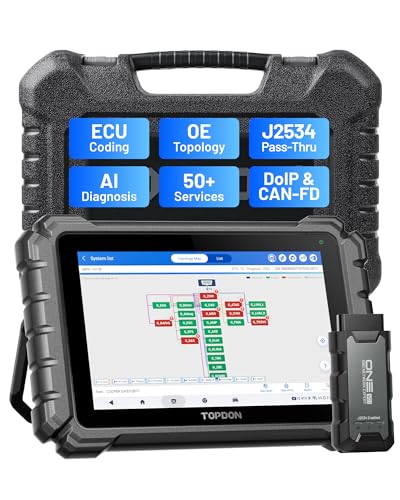
- Dual WiFi & 10.1" Touchscreen: Provides a stable, high-speed wireless link 3x faster than bluetooth, and a responsive, professional interface. Topdon ONE obd2 scanner diagnostic tool ensures smooth, non-lagging diagnostic scan, boosting mechanic efficiency
- J2534 Pass-Thru Support: The included ONE VCI supports the J2534 standard, allowing it to function as a pass-thru device when paired with OEM diagnostic software.Through TOPDON’s RLink platform, technicians can perform dealer-level coding, expanding in-house capabilities without investing in multiple factory automotive scan tools
- OE Topology Mapping: Visualize the vehicle’s ECU network exactly as it’s built.Zoom, pan, and highlight specific modules to pinpoint component issues with precision.Topology mapping displays real-time communication between modules
- 50+ Service Functions: Covers high-demand services like ADAS calibration, DPF regen, TPMS reset, ABS bleed, and throttle adaptation.Expands your service menu, allows you to charge premium rates, and turns away zero jobs due to lack of tooling. Vehicle-specific functionality may vary
- Advaned ECU Coding: 10 of the most serviced brands in North America, including full ECU coding and flash hidden support for BMW, VW, Au-di, Benz, Porsche, Toyota, Ni ssan and more. Enables module replacement, feature customization, and personal settings with automatic backup or restore.Lets your shop safely offer high-margin customization services, attracting more customers and boosting profit

- [J2534 Pass-Thru Programmer] - TOPDON RLink J2534 is engineered for professional technicians, delivering OEM diagnostic and reprogramming capabilities. It supports all J2534 protocols, CAN-FD, DoIP, D-PDU. Compatible with 17 vehicle brands—such as Chrysler, Ford, GM, KIA, Hyundai, Nissan, Toyota, Honda, Subaru, Mitsubishi, MAZDA, Land Rover/Jaguar, Volvo, Volkswagen/Audi, Mercedes-Benz, and BMW. RLink J2534 can help reduce the cost of purchasing equipment from different brands.
- [All-in-One OEM Reprogramming and Diagnostics] - When seamlessly integrated with OEM diagnostic software, this dongle enables you to perform a wide range of functions, including ECU programming and coding, DTC reading and clearing, active tests, component matching, adaptations, rewriting, guided troubleshooting, and more. This all-in-one tool eliminates the need for multiple OEM devices, significantly boosting work efficiency.
- [Tested, Trusted, and Proven for Accuracy] - TOPDON RLink J2534 is renowned for its reliability, having successfully completed over 10,000 real-vehicle tests. The wealth of data and hands-on experience behind it ensures consistent performance and accurate results. You can trust this tool to deliver optimal performance.
- [One-Click Installation, Continuous Updates] - The exclusive TOPDON RLink platform streamlines installation with a one-click driver setup, allowing you to quickly access OEM software for diagnostic and reprogramming tasks. With lifetime free updates, your RLink J2534 stays current without any additional cost, ensuring reliable performance for the long term. *We don't provide extra OE software.
- [Works with Windows Compatibility and OEM Software Subscription] - The RLink J2534 supports three CAN channels - including CAN FD and CAN-CC, providing advantages in the process of rapid troubleshooting. Compatible with Windows 7, 8 and 10 (64-bit) and higher versions of the system. For full functionality, an active OEM software subscription is required for each supported vehicle brand. Please note that the dongle does not include OEM software, which must be purchased separately to access brand-specific diagnostic and reprogramming features.
- 💯【Conta.ct us for Support Directly】For any issues experienced after purchase, please reach out to: 📞autelsupply@ outlook. com🛣️. Our team will provide perfect solution for you. For tech support or [explore additional accessory], please cont.act our team: 📞autelsupply@ outlook. com🛣️.
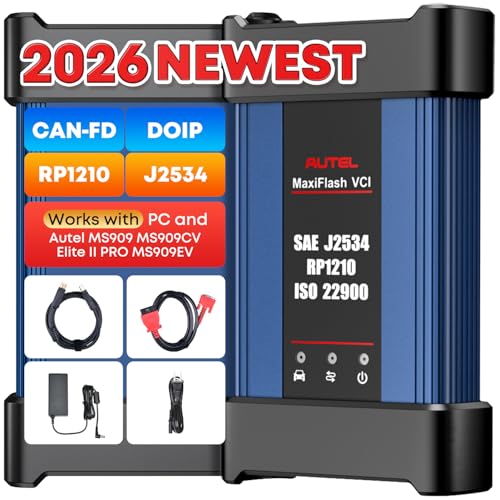
- 🌎【Autel J2534 Pass-Thru Progra.mmer】As an OEM Pass-Thru Progra.mmer Vehicle interface for multiple makes, Autel MaxiFlash J2534 support all J2534 protocols, D-PDU, CAN-FD and DoIP protocols. 2026 newer Autel MaxiFlash J2534 VCI can works with P-C and download OEM vehicle software, seamlessly conduct OE-level diagnostic-progra.mming-c0ding. Also, Work with Elite II Pro/ Ultra Lite/ MS909/ MS909CV/ MS909EV to directly pro.gram on Merce.des-Be.nz & BM.W. Autel J2534 Progr.ammer is a multi-functional device and supports 10+ major brands, including for Hond.a, G.M, LandRo.ver, BM.W, Chrysl.er, For.d, Hyun.dai, Ki.a, Merc.edes B.enz, Toyot.a, Volksw.agen etc.
- 🌎【Enhanced Protocol: J2534/D-PDU/RP1210/CAN FD/DoIP】Autel MaxiFlash JVCI is a blueto.oth communicate device, it supports latest CAN FD DoIP CAN protocols, compliant with automotive D-PDU/ J2534/ RP1210 standards. It can perform standard PassThru J2534 functions: compatible with Toyota Techstream, Volvo VIDA, Honda HDS, Jaguar Land Rover IDS and BM.W 3G for OEM diagnostics. CAN FD protocol is mainly for GM 2019+, DoIP protocol is mainly for Volvo 2018+, for L-and Rover/for Jaguar 2017+, for BM.W F chassis and G chassis.
- 🌎【Compatible with P-C/ WIND.OWS 】The Autel J2534 VCI can be connected to a compu.ter via a data cable; once the corresponding OEM software is installed, it enables do advanced progr.amming and c0ding on your vehicles. Easy Steps: 1) Connect to P-C via a USB cable 2) download OEM vehicle software 3) Start Diagnose. Take For.d for example, you can download OEM software on mot.orcraft.erservi.ce website, such as: For.d Diagnostic Software downloads, As B.uilt Data, Updated Cali.bration information, then use different software do relevant features.
- 🌎【Work with Autel Elite II Pro/ Ultra Lite/ MS909/ MS909CV/ MS909EV】This 2026 latest Autel J2534 Pass-Thru VCI is 100% compatible with Autel Elite II Pro Ultra Lite MS909 MS909CV MS909EV to perform advanced functions from diagnose to progra.mming.

- 【Advanced VCI Box, Industry-leading J2534 Pass-Thru Technology】This J2534 Pass-Thru Tool is designed espically designed for Professional Technicians and Advanced DIYers. This J2534 Pass-Thru device acts as a bridge between your vehicle and OEM software (sold separately), enabling dealership-level programming and diagnostics. It supports all J2534 protocols—including the latest DoIP and CAN FD—ensuring full compatibility with both legacy and next-generation vehicles.
- 【High-Speed OEM-Level Diagnostics and Functions】Unlock true OEM functionality with comprehensive system diagnostics, guided troubleshooting, coding, adaptations, resets, and rewriting—all designed to slash repair time. This all-in-one tool eliminates the need for multiple OEM devices, boosting efficiency and cutting costs. Equipped with High-Speed USB, it delivers 10x more data per second.
- 【Coverage for 8 Car Brands & Ultra Reliability】Compatible with Factory OEM Software.Fully supports J2534 protocols to work with Manufacturer subscriptions: for Chrysler, for Ford(Forscan), for GM, for Nissan, for Toyota, for Honda, for Fiat/Alfa Romeo/Lancia/Dodge/Ram/Jeep, and for VW/Audi. Backed by over 10000 real vehicle tests and benefit from a wealth of practical experience, this OEM J2534 tool guarantees stable and exceptional performance.
- 【User-Friendly RLink Platform & Expert Support】TOPDON’s proprietary driver management platform offers a clean interface and lifetime free updates. Access a rich library of real-world case studies to stay ahead of the curve. Backed by a support team with 10+ years of J2534 and automotive repair experience, we provide one-on-one assistance to resolve any technical issue. Note: This device requires a computer running Windows 7, 8, 10, or 11 (64-bit or later).
- 【6.6 ft USB-C Cable & Portable Storage Case】 The RLink J2534 diagnostic tool features a 6.6ft USB 2.0 Cable, allows to connection your computer easily outside the vehicle. The included handled carry case offers easy portability, storage, and hanging options—keeping your gear clean and ready to go, anywhere.
SEOCONTENT-START
TECHNICAL SERVICE BULLETIN Unable To Update The APIM, TCU Or GWM With The FDRS And USB Drive – Module Recovery 22-2404 31 October 2022 This bulletin supersedes 22-2150. Model: Ford 2021 Bronco 2021 Edge 2021 F-150 2021 Mustang Mach-E Lincoln 2021 Nautilus Summary This article supersedes TSB 22-2150 to update the Service Procedure. Issue: For some 2021 Mustang Mach-E, F-150, Edge, Nautilus and Bronco vehicles technicians may experience the inability to update the accessory protocol interface module (APIM), telematics control unit (TCU) or gateway module (GWM) using the Ford Diagnosis and Repair System (FDRS) and Universal Serial Bus (USB) drive. The PTS – OTA Dashboard on vehicles with this condition may also display multiple APIM and/or TCU updates have failed, and/or a no OTA history message. In addition, on vehicles with this condition, the customer may have reported experiencing a Ford Power-Up software update failure message via the vehicle display and/or FordPass/LincolnWay. This may be due to an internal software error. To correct this condition, follow the Service Procedure to update and/or recover the APIM/TCU. NOTE: Only 10% of vehicles may require this procedure. Action: Follow the Service Procedure to correct the condition on vehicles that meet all of the following criteria: • 2021 Mustang Mach-E/F-150/Edge/Nautilus/Bronco • Inability to update the APIM, TCU or GWM using the FDRS and USB drive Special Tool(s) USB-to-Ethernet adapter: Trendnet TU2-ET100 USB2.0, Trendnet TU3-ETG USB 3.0, Startech USB31000S USB 3.0, UGREEN USB USB 3.0 model no 40321, Amazon Basics USB 3.0 U3-GE-1P. These adapters have been validated through Ford service testing. Mini B 5 Pin Female Adapter: Rotunda Part# CCMUSB-AF-BF5 or equivalent (Vehicles with USB Media Hub) USB 2 Cable – Male to Male: Rotunda Part# CCMUSB2-AM-AM-10 or equivalent (All vehicles) Ethernet cable assembly, obtain locally (All vehicles) NOTE: Ford has received feedback from technicians that the following USB-to-Ethernet adapters do not work and should not be used: TP-Link USB3 – 10/100/1000, Cable Creations 10/100/1000 USB3, UGREEN USB2 – 10/100, Cable Leader USB 2.0, UGREEN FBA_20256. In the near future, a list of good/bad USB-to-Ethernet adapters will be published on PTS > Service Tips. Warranty Status: Eligible under provisions of New Vehicle Limited Warranty (NVLW)/Service Part Warranty (SPW)/Special Service Part (SSP)/Extended Service Plan (ESP) coverage. Limits/policies/prior approvals are not altered by a TSB. NVLW/SPW/SSP/ESP coverage limits are determined by the identified causal part and verified using the OASIS part coverage tool. Labor Times Description Download And Run The Module Repair Application Following The Service Procedure, Includes Time To Access Connector Operation No. MT222404 Time Actual Time Repair/Claim Coding Causal Part: 14G670 Condition Code: 04 Service Procedure CAUTION: Due to Ford cyber security requirements, the module repair procedure outlined in this article is limited to a maximum of 15 attempts with a total of 20 days from the first time the application is run before the application is permanently disabled for each unique VIN. Make sure that all required and compatible tooling listed in this article is available prior to performing this procedure to reduce the chances of encountering this lockout state. If a lockout occurs, module replacement may be necessary. Note that even if the application is run successfully, the 20 day timer (allowing 15 attempts) continue to run in the background. If the module repair application has successfully completed in the past, it is not required to be run again. NOTE: Administrative access on the laptop computer being used is required to perform this procedure. Make sure any antivirus software loaded in the laptop computer is disabled or uninstalled prior to performing this procedure. NOTE: Use only a wireless connection for internet access as this application requires the use of the laptop computer ethernet port during the module recovery procedure. Verify the FDRS is at the latest software level. Error Condition Table Error Message in FDRS Cause Actions Unable to communicate with vehicle through ethernet adapter. Verify that the ethernet adapter being used is compatible per the TSB. • Incompatible or faulted USB- to-Ethernet adapter • Verify the USB-to-Ethernet adapter that is being used is on the Ford recommended list. Re- attempt programming with a different adapter This vehicle does not qualify for Module Update Repair. The TSB does not apply to this vehicle concern. • The APIM and/or TCU modules are not corrupted. The TSB procedure does not apply. • The module repair procedure and TSB does not apply. Refer to Step 2, Substep 1 (Yes response) of this article. Exception trying to obtain diagnostic files from the backend server required to repair this vehicle. This could indicate that this VIN has been locked out. • Due to Ford Cyber Security requirements, the maximum number of attempts has been reached to run this application. Up to 15 attempts or within 20 days, which ever comes first. • Make sure that the module repair application has not previously been completed successfully by reviewing warranty history on PTS or FDRS vehicle history. • Replace the affected module (APIM or TCU) Error Message in FDRS Cause Actions Module Repair has failed due to limited or no connection with the vehicle through the USB cable 1. Incorrect tooling or improper connections to the vehicle. 1. Mini B 5 Pin Female Adapter (Rotunda Part # CCMUSB-AF-BF5 or equivalent) (vehicles with media hub). 2. USB 2 cable – male to male (Rotunda part # CCMUSB2-AM-AM-10 or equivalent). 2. This may also be caused by a fault with the USB port on the computer being utilized or the fastboot driver not being installed. 1. Verify that the proper cable and adapters are being utilized per the TSB 2. Retry the programming using a different USB port on the PC 3. Retry the programming with a different PC 4. Download the fastboot driver following the prompt in the FDRS error message 1. Connect either the vehicle communications module (VCM) II or VCM III to the data link connector (DLC) and start a vehicle session using the FDRS. Navigate to the toolbox tab on FDRS then select the Multi Module tab. Under the Multi Module tab, download and run the Module Update Repair application. 2. Does the FDRS application provide the following message: This vehicle does not qualify for Module Update Repair. The TSB does not apply to this vehicle concern? (1). Yes – this article does not apply. Continue with following other service publications for APIM, TCU or GWM programming and/or the Workshop Manual (WSM) for normal diagnostics. (2). No – proceed to Step 3. 3. Connect a battery charger to the vehicle’s 12v battery. Set the charger to maintain the battery at 12.6-13.6 volts. 4. For F-150 vehicles not equipped with a SYNC media hub, proceed to Step 6. Lower trim level F-150 vehicles are instead equipped with pass-through USB ports and do not have a SYNC media hub. 5. For Mustang Mach-E, Nautilus, and F-150 vehicles equipped with a SYNC Media hub, access the APIM in-line USB connector. (1). For Mustang Mach-E vehicles, remove the left-hand side floor console front trim panel and disconnect the APIM in-line USB connector. The connector may be concealed by tape. Refer to Step 4 in the WSM Section 501- 12 floor console removal. (Figures 1-3) Figure 1 Figure 2 Figure 3 (2). For F-150 vehicles with a SYNC media hub and center console, remove the floor console lower left hand trim panel and disconnect the APIM in-line USB connector. Refer to Step 5 in Workshop Manual (WSM), Section 501- 12 floor console removal. (Figures 4-6) Figure 4 Figure 5 Figure 6 (3). For F-150 vehicles with the SYNC media hub and no center console, disconnect the SYNC media hub mini- USB connector from the back of the media hub. On some F-150 vehicles, media hub removal may not be required and the mini-USB connector can be accessed from the back of the instrument panel. Refer to Step 2 in Workshop Manual (WSM), Section 415-00 Universal Serial Bus (USB) Hub removal. (Figures 7-8) Figure 7 Figure 8 (4). For Nautilus vehicles, remove the floor console lower right hand trim panel and disconnect the APIM in-line USB connector. Refer to Step 1 in Workshop Manual (WSM), Section 501-12 floor console removal. (Figures 9- 10) Figure 9 Figure 10 (5). For Edge vehicles, remove the SYNC media hub and disconnect the mini-USB connector on the back of the media hub. Refer to Step 1 in Workshop Manual (WSM), Section 415-00 Media Hub removal. (Figure 11) Figure 11 (6). For Bronco vehicles, remove the SYNC media hub and disconnect the mini-USB connector on the back of the media hub. Refer to Steps 1 through 5 in WSM, Section 415-00 Universal Serial Bus (USB) Hub removal. Step 5 allows access to the mini-USB connector. NOTE: Verify you have the appropriate Special Tools listed in this document. Failure to use the approved Special Tools may result in application failure. The application may only be run a maximum of 15 times within a 20 day timeframe for each VIN. Refer to the error condition table at the beginning of this article for further reference. 6. The FDRS prompts the installation of either USB or ethernet cable connections based on the failure detected. Allow the FDRS to establish an ethernet connection before continuing with the process. Moving too quickly prevents the FDRS from identifying the network and affects the recovery process. Once the ethernet connection is identified, select continue. Required USB connections: • Mustang Mach-E, Edge, Nautilus, Bronco and F-150 vehicles equipped with a SYNC Media hub: – Connect the Mini B 5-pin female adapter to the vehicle harness. – Connect the USB 2 Cable – male-to-male to the female adapter and the laptop USB port. Figure 12 Item 1 FDRS Description 2 USB 2 Cable (male-to-male) 3 Mini B 5-pin female adapter 4 Vehicle harness Figure 13 – Mustang Mach-E Figure 14 – Edge Figure 15 – Nautilus Figure 16 – Bronco Figure 17 – F-150 with SYNC media hub and center console Figure 18 – F-150 with SYNC media hub without center console • F-150 vehicles without a SYNC media hub: – Connect the USB 2 Cable – male-to-male or equivalent to the vehicle USB port and the laptop USB port Figure 19 Item Description 1 FDRS 2 USB 2 Cable (male-to-male) 3 Vehicle harness Figure 20 – F-150 without SYNC media hub Required ethernet connections: • Mustang Mach-E, Edge, Nautilus, Bronco and F-150 vehicles equipped with a SYNC media hub: – Connect the Mini B 5-pin female adapter to the vehicle harness. – Connect the USB-to-ethernet adapter to the female adapter. – Connect the ethernet cable to the USB-to-ethernet adapter and laptop ethernet port. Figure 21 – Mustang Mach-E Figure 22 – Edge Figure 23 – Nautilus Figure 24 – Bronco Figure 25 – F-150 with SYNC media hub and center console Figure 26 – F-150 with SYNC media hub without center console • F-150 vehicles without SYNC media hub: – Connect the USB-to-ethernet adapter to the vehicle USB port. – Connect the ethernet cable to the USB-to-adapter and laptop ethernet port. Figure 27 Item Description 1 FDRS 2 Ethernet Cable 3 USB-to-ethernet adapter 4 Mini B 5-pin female adapter 5 Vehicle harness Figure 28 – F-150 without SYNC media hub NOTE: Make sure to use the appropriate Special Tools listed in this document. Failure to use the approved Special Tools may result in application failure. The application may only be run a maximum of 15 times within a 20 day timeframe for each VIN. Refer to the error condition table at the beginning of this article for further reference. NOTE: Make sure any antivirus software loaded in the laptop computer is disabled or uninstalled prior to performing this procedure. 7. Continue following the FDRS on-screen prompts until the procedure is complete. The FDRS displays when to disconnect the cables. Restore the vehicle harness connections. 8. Once this procedure is complete, FDRS returns to the toolbox tab. Check the Professional Technician System (PTS) website for applicable SYNC 4 and Reverse Brake Assist System TSB, SSMs, GSB publications to update the APIM, TCU and/or GWM to the latest software level. © 2022 Ford Motor Company All rights reserved. NOTE: The information in Technical Service Bulletins is intended for use by trained, professional technicians with the knowledge, tools, and equipment to do the job properly and safely. It informs these technicians of conditions that may occur on some vehicles, or provides information that could assist in proper vehicle service. The procedures should not be performed by “do-it-yourselfers”. Do not assume that a condition described affects your car or truck. Contact a Ford or Lincoln dealership to determine whether the Bulletin applies to your vehicle. Warranty Policy and Extended Service Plan documentation determine Warranty and/or Extended Service Plan coverage unless stated otherwise in the TSB article. The information in this Technical Service Bulletin (TSB) was current at the time of printing. Ford Motor Company reserves the right de this information with updates. The most recent information is available through Ford Motor Company’s on-line technical resources.
**************************************************************************************************************
SEOCONTENT-END
This product presentation was made with AAWP plugin.