| GENERAL SERVICE BULLETIN SYNC GEN 1 And GEN 2 Vehicle Health Report Service Ending – Disabling Automatic Updates | 18-7018 28 June 2018 |
Model:
| Ford
2013-2016 C-MAX Hybrid |
| 2008-2016 Edge |
| 2008-2016 Escape |
| 2008-2016 E-Series |
| 2008-2016 Expedition |
| 2008-2016 Explorer |
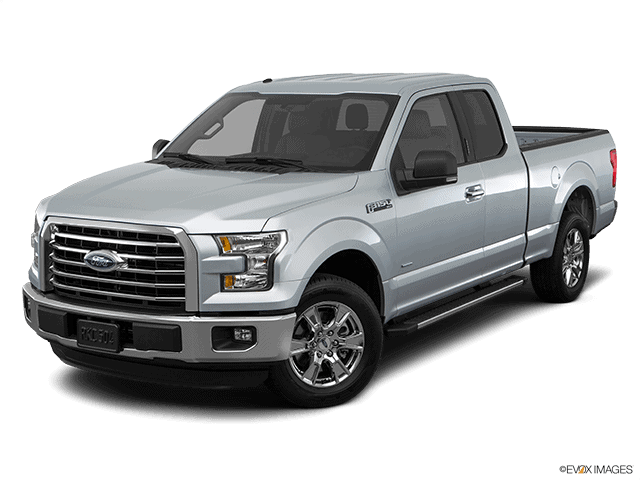
| 2008-2016 F-150 |
| 2014-2016 Fiesta |
| 2008-2009 Five Hundred |
| 2008-2009 Taurus |
| 2009-2016 Flex |
| 2012-2016 Focus |
| 2008-2016 Fusion |
| Lincoln
2008 Mark LT |
| 2015-2016 MKC |
| 2009-2016 MKS |
| 2010-2016 MKT |
| 2008-2016 MKX |
| 2008-2016 MKZ |
| Mercury
2008-2011 Mariner |
| 2008-2011 Milan |
Summary
Ford has made the necessary decision to discontinue the Vehicle Health Report service for SYNC GEN1 & GEN2 available on 2008-2016 vehicles. Consistent with the Terms & Conditions in the user agreement and starting August 1st, 2018, this change will result in the following:
- Vehicle Health Information will no longer be sent through the mobile phone associated with the registered e-mail account
- Vehicle Health Reports will no longer be sent via e-mail
- Vehicle Health Reports will no longer be available on the Ford/Lincoln Owner websites
Service Information
INSTRUCTIONS TO DISABLE AUTOMATIC REMINDERS
Perform the following to disable this feature for SYNC or SYNC with MyFord:
1. Start your vehicle and put it in park, not accessory mode.
2. Press the phone button. Phone menu displays.
3. Press the selection arrows until Vehicle Health displays. Press OK.
4. Press the selection arrows until User Preferences displays. Press OK.
5. Press the selection arrows until Automatic Reports displays. Press OK.
6. Press the selection arrows until Automatic Reports Off displays. Press OK.
7. “Auto Reports Set Off” displays to confirm your choice.
Perform the following to disable this feature for SYNC with voice-activated navigation:
1. Start your vehicle and put it in park, not accessory mode.
2. Press the phone button. Phone menu displays.
3. Press Settings.
4. Press Advanced.
5. Press Vehicle Health Report.
6. Press Automatic Reports. The current setting is highlighted.
7. Press Set Auto Reports Off.
Perform the following to disable this feature for SYNC with MyFord Touch:
1. Start your vehicle and put it in park, not accessory mode.
2. Press Settings on the touchscreen to change your vehicle health report settings.
3. Press Vehicle.
4. Press Vehicle Health Report.
5. Press Off for Automatic Reminders, press your selection.
For more information regarding this change, including alternative ways to obtain vehicle health information, please review the frequently asked questions page on the Ford/Lincoln owner site.
18-7018
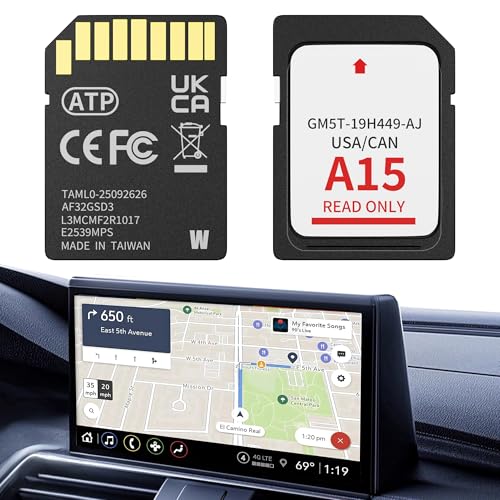
- 【LATEST A15 NAVIGATION SD CARD UPDATE】Stay ahead with the newest 2026 A15 navigation SD card that updates all previous versions including A14 and earlier, providing the most comprehensive map coverage for the entire United States and Canada with millions of updated points of interest such as gas stations, hotels, restaurants and newly added highways, ensuring reliable guidance for both city driving and cross-country adventures.
- 【WIDE COMPATIBILITY WITH FORD MODELS】This navigation SD card part number GM5T-19H449-AJ is designed to fit Ford vehicles including F-150 2013-2015, Explorer 2011-2016, Fusion 2013-2016, Expedition 2015, Escape 2013-2015, Edge 2011-2015, Focus 2012-2015, C-MAX 2013-2015, Escape Hybrid 2013-2015, Expedition XT 2015, Fiesta 2014-2015, Flex 2013-2015, Mustang 2015, Super Duty F-250/F-350/F-450 2013-2016, Taurus 2013-2015, Transit 2013-2015, Transit Connect 2014-2016.
- 【WIDE COMPATIBILITY WITH LINCOLN MODELS】 This navigation SD card compatible with Lincoln Accessories Fits Lincoln MKZ (2013 - 2016), MKX (2011 - 2016), MKC (2015), MKS (2013 - 2015), MKT (2013 - 2015), NAVIGATOR (2015). Reliable Lincoln navigation accessories that update your vehicle’s SYNC 2 system for accurate routing across USA & Canada.
- 【EASY PLUG AND PLAY INSTALLATION】You need to check if the CCPU of Ford/Lincoln SYNC system is compatible or needs to be updated first, check the product image corresponding to the CCPU version. To install: 1. Turn engine OFF 20+ mins. 2. Locate the SD card slot and remove the old navigation card. 3. Insert the new Navigation SD Card untll it clicks. 4.Start the engine to ensure, the “Navigation” icon should appear in the top-right corner (Auto-updates in 10-20 mins Never interrupt the process!).
- 【RELIABLE OFFLINE GPS NAVIGATION】Unlike smartphone navigation apps that depend on cellular data signals this Lincoln/Ford navigation SD card stores all map data directly on the card providing uninterrupted turn-by-turn directions even in remote areas mountains or deserts with no internet connection, perfect for long road trips across the United States and Canada with no data usage no signal issues and no roaming charges ensuring you always find your way regardless of your location.

- 【Compatible with Ford models】F-150 2013-2015, Explorer 2011-2016, Fusion 2013-2016, Escape, Escape Hybrid 2013-2015, Super Duty (F-250/F-350/F-450) 2013-2016, Edge 2011-2015, Focus 2012-2015, Flex 2013-2015, Fiesta 2014-2015, C-Max 2013-2015, Mustang 2015, Taurus 2013-2015, Expedition 2015, Transit 2014-2015
- 【Compatible with Lincoln Models】MKC 2015, MKS 2013-2015, MKT 2013-2015, MKX 2011-2016, MKZ 2014-2016, Navigator 2015
- 【A15 Navigation SD Card】This SD card updates previous versions such as A14, A13, A12, and so on, providing expanded coverage of hundreds of cities, counties and metropolitan areas in all 50 U.S. states, Puerto Rico, and Canada. For Ford navigation SD card update ensures that users have access to the newest map data, allowing for accurate and up-to-date navigation information.
- 【Easy to Use】Before replacing the SD card, ensure the engine is OFF at least 10 mintes. Insert the new card (label side up), then turn ON the vehicle. The system will update automatically—DO NOT turn off the engine until it’s complete. The update takes about 10-20 minutes, with no additional programming required.
- 【Navigation SD Card Warning】Do not insert the A15 navigation SD card into non-vehicle devices, as this may damage the map data. Additionally, A15 Navigation SD cards are locked to the first vehicle once inserted and cannot be switched to another vehicle

- OEM Genuine Ford Parts only at Rod Baker Ford!
- Requires Updating Sync 3 to the Latest Compatible Version!
- Required for Upgrading Sync 3 to unlock Carplay Feature
- SEE Description for Compatible Models!!!
- If you are unsure about fitment, please contact us with your VIN to confirm!
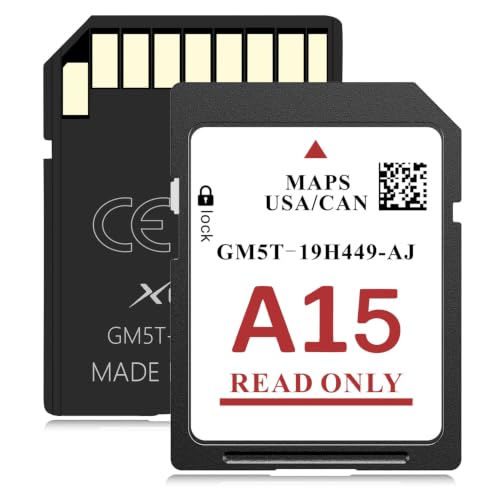
- SYNC 2 Navigation System Map Update: Get directions to wherever you travel with this map update that identifies roads, subdivisions, business and points of interest for the United States and Canada. Drive confidently through unfamiliar or recently changed areas and arrive at your destination quickly and efficiently
- Upgrade to 2026 XGEEK A15 SD Card: Replaces A14 and older versions with full updated US and Canada maps, fresh POIs and new highways for reliable daily and long-distance navigation
- Compatible Ford Navigation Models: Edge (2011-2015), Expedition XT (2015), Expedition (2015), Explorer (2011-2016), Escape / Escape Hybrid (2013-2015), Taurus (2013-2015), Transit (2014-2015), Transit Connect (2014-2015), F-150 (2013-2015), Flex (2013-2015), Fiesta (2014-2015), Focus (2012-2015), Fusion (2013-2016), Mustang (2015), C-Max (2013-2015), Super Duty F250 / F350 / F450 (2013-2016)
- Compatible Lincoln Navigation Models: MKC (2015), MKS (2013-2015), MKT (2013-2015), MKX (2011-2016), MKZ (2014-2016), Navigator (2015)
- Installation Instructions: Before installation, check whether the Ford/Lincoln SYNC system's central processor (CCPU) is compatible or requires an upgrade; for detailed steps, refer to main image 7. Turn off the vehicle and remove the old navigation card. Insert the new Navigation SD Card and start the engine, the Navigation icon should appear in the top-right corner

- OEM Genuine Ford Parts only at Rod Baker Ford!
- SEE LISTING DESCRIPTION FOR COMPATIBLE MODELS!!!
- Upgrade for Sync 3 Carplay and AndroidAuto
- Installing This Item DOES NOT Unlock Carplay, proper Sync 3 Software is Needed!
- If you are unsure about fitment, please contact us with your VIN to confirm!
This product presentation was made with AAWP plugin.