NHTSA ID Number: 10204990
Manufacturer Communication Number: CSC15A03
Summary
Demonstration/Delivery Hold – Application Performance Upgrade 15A03 Certain 2016 Model Year Escape, MKC, Exkpedition, and Navigator Vehicles Sync 3 Software Updates
ROGRAM TERMS
This program will be in effect through April 29, 2016. There is no mileage limit for this program.
AFFECTED VEHICLES
| Vehicle | Model Year | Assembly Plant | Build Dates |
| Escape | 2016 | Louisville | May 27, 2015 through July 29, 2015 |
| MKC | 2016 | Louisville | May 26, 2015 through July 27, 2015 |
| Expedition | 2016 | Kentucky Truck | July 20, 2015 through July 23, 2015 |
| Navigator | 2016 | Kentucky Truck | July 20, 2015 through July 23, 2015 |
REASON FOR THIS PROGRAM
In affected Escape and MKC vehicles, software concerns in the SYNC 3 touch screen interface may cause the touch screen to exhibit one or more of the following conditions:
- The touch screen may become slow to respond or unresponsive to touch input.
- The touch screen may react to false touch events with no user interaction.
Additionally, affected Expedition and Navigator vehicles may have been loaded with an incorrect version of the SYNC 3 operating system, which can cause one or more of the following conditions:
- Navigation routes and other settings may not be maintained after cycling the ignition key off, then back on.
- The touch screen may not display any graphics.
- The voice/push-to-talk button may become unresponsive.
- The system may become sluggish.
- The touch screen may become slow to respond or unresponsive to touch input.
SERVICE ACTION
Sold vehicles: Owners of all affected vehicles will be mailed a USB drive and instructions to install the SYNC 3 updates themselves. Although OASIS may indicate 15A03 is open, the application may have already been installed by the owner. Please confirm with the owner if they have installed the application before attempting to service their vehicle. Sold vehicles should only be serviced if the owner has not already completed the update, and requests that their dealer perform the repair under this program.
This service must be performed on all affected vehicles at no charge to the vehicle owner.
New/In-Stock vehicles: Before demonstrating or delivering any of the vehicles involved in this program, dealers are to update the SYNC 3 software on all affected vehicles using a USB drive.
OWNER NOTIFICATION MAILING SCHEDULE
Owners of all affected vehicles will be mailed a USB drive along with instructions to install SYNC 3 updates the week of November 30, 2015. Dealers should repair any affected vehicles that arrive at their dealerships, whether or not the customer has received a letter.
STOCK VEHICLES
Correct all affected units in your new vehicle inventory before delivery.
SOLD VEHICLES
- Owners of affected vehicles will be mailed a USB drive that is pre-loaded with software along with instructions to update the SYNC 3 system themselves.
- Owners will also be given the option to have dealers perform the repair.
TITLE BRANDED / SALVAGED VEHICLES
Affected title branded and salvaged vehicles are eligible for this service action.
OWNER REFUNDS
Refunds are not approved for this program.
RENTAL VEHICLES
The use of rental vehicles is not approved for this program.
LINCOLN CLIENT SPECIAL HANDLING
To ensure the best possible experience for Lincoln owners, Lincoln Dealers are encouraged to utilize the Lincoln Loyalty Program to provide clients with surprise and delight offerings, including:
- Fuel fill
- Transportation assistance
- Courtesy pick-up and delivery of client vehicles
The Lincoln Loyalty Program is exclusive to Lincoln Dealers. Owners will not be notified of this service in owner mailings. Reference EFC03578, Lincoln Loyalty Program Announcement for additional details.
PARTS REQUIREMENTS / ORDERING INFORMATION
Parts are not required to complete this repair.
Instructions for Updating a USB Drive with the Correct Software
Minimum 2 gigabyte (GB) USB drive required. This procedure will clear any saved data stored on the USB flash drive. Save any important data stored on the USB drive to another location prior to starting this procedure.
- Format the USB Drive.
- Insert USB Flash drive into computer.
- From Windows start button or desktop, select my computer.
- Right click on the USB drive/temporary disk.
- Select “Format”.
- Under File System, select “FAT32”.
- Under Allocation Unit Size, select Default allocation size.
- Under Format Options, select “Quick Format”.
- Select “start” to reformat.
- Select “OK”, for pop up warning, “Reformatting will erase all data stored on this disk.”
- Close all open pop-up windows once complete.
- Tag the USB Drive to identify the new software level it will contain.
- Download the software. A hard wired internet connection is recommended.
- Determine the appropriate software to be downloaded.
- Click here for Touch Screen Software Updates for Escape and MKC vehicles.
- Click here for Operating System Software Updates for Expedition and Navigator vehicles.
- A download pop-up window will appear with selections “Run, Save, or Cancel”. Select “Save”.
- A “Save-As” pop up window will appear. Choose a folder on your computer to save the file temporarily.
- Select “Save”.
- When the “Download Complete” pop up window appears, select “Open folder”.
- The file will be highlighted. Double click on the file.
- A download warning may appear. If so, agree to continue by choosing “Yes”, “OK”, or “Run”.
- An extract pop up window will appear. The extract destination to the USB drive will need to be selected.
- To browse for the USB drive, select the button with three dots located to the right of the pop up window.
- Scroll down and select “Computer”
- Select the USB drive/removable disk and click “OK”.
- Select Extract.
- Confirm USB drive contents. Select USB drive located under “My Computer”. A folder named “SyncMyRide” and two files (autoinstall.lst and DONTINDX.msa) will be present on the USB drive; it is now ready for the USB upgrade procedure located in Attachment IV.
- Determine the appropriate software to be downloaded.
CERTAIN 2016 MODEL YEAR ESCAPE AND MKC VEHICLES — SYNC 3 TOUCH SCREEN SOFTWARE UPDATE
OVERVIEW
Affected vehicles may have software concerns in the SYNC 3 touch screen interface which can cause the touch screen to exhibit several undesirable conditions. Before demonstrating or delivering any of the Escape and MKC vehicles involved in this program, dealers are to update the touch screen using a USB drive.
SYNC Touch Screen Software Update
NOTE: Although OASIS may indicate 15A03 is open, the software update may have already been installed by the owner. Please confirm with the owner if they have installed the software update before attempting to service their vehicle.
NOTE: Some vehicles may prompt the user to receive SYNC Automatic System Updates. Select “Ask Me Later” and proceed with the software update procedure.
NOTE: The installation procedure takes less than five minutes. Do not remove the USB drive or turn the vehicle off until the “Installation Complete” screen appears.
- Start the vehicle and allow it to idle for 30 seconds.
- Remove any connected devices from the vehicle USB port(s).
- Install the USB drive containing the new installation procedure will start automatically. See Figure 1.
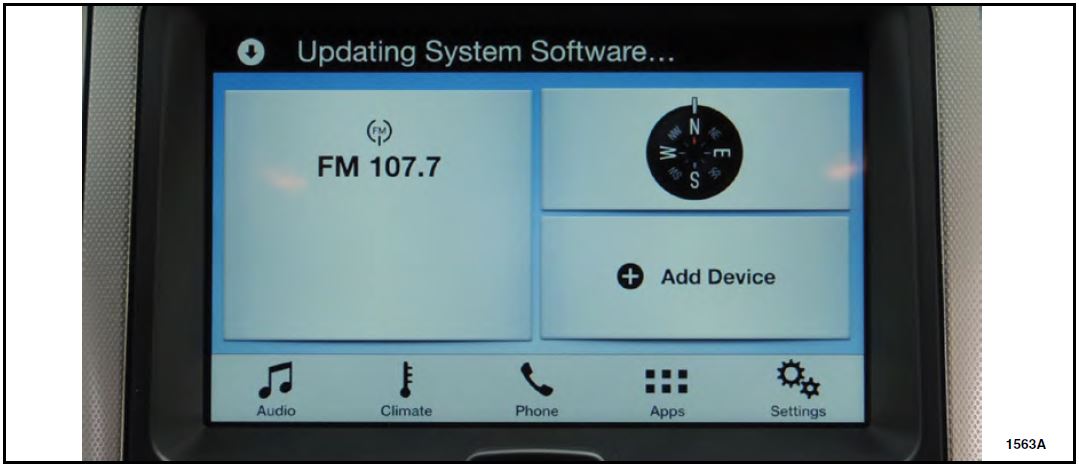
FIGURE 1
NOTE: It is normal for the system to reboot and/or for the screen to go dark/blank at times. The USB drive must remain installed during this time, and should not be removed until the “Installation Complete” screen appears.
NOTE: After updating the touch screen software, the touch screen may not respond to touch until the system is allowed to fully power down and reset.
- After the “Installation Complete” screen appears remove the USB drive, turn the vehicle off and remove the key. See Figure 2
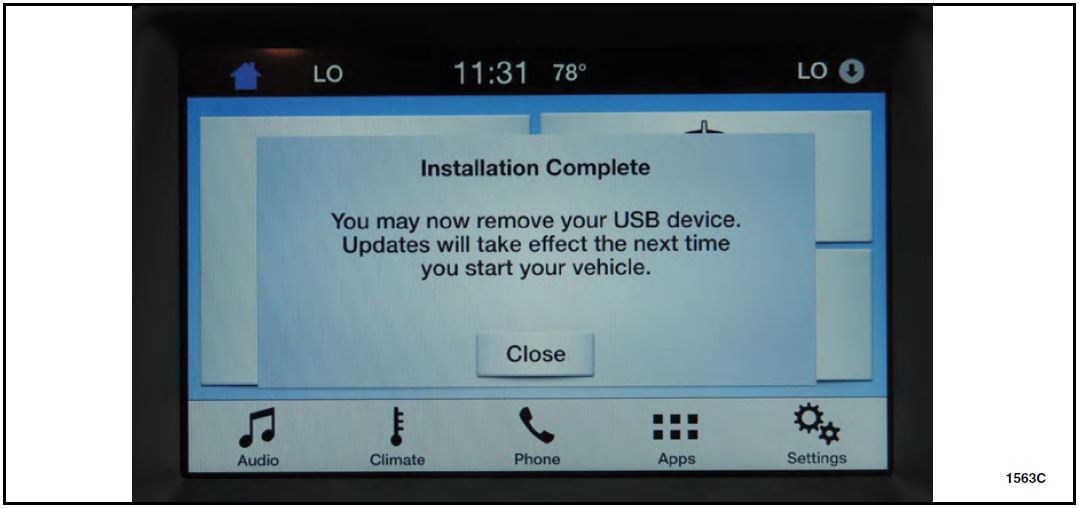
FIGURE 2
- Open and close the driver’s front door and wait approximately four minutes for the system to completely power down.
- After four minutes, start the vehicle and verify that the SYNC 3 system operates properly.
SYNC 3 OPERATING SYSTEM SOFTWARE UPDATES
OVERVIEW
Affected vehicles may have been loaded with an incorrect version of the SYNC 3 operating system. Before demonstrating or delivering any of the Expedition and Navigator vehicles involved in this program, dealers are to update the operating system using a USB drive.
SYNC Operating System Update
NOTE: Although OASIS may indicate 15A03 is open, the software update may have already been installed by the owner. Please confirm with the owner if they have installed the software before attempting to service their vehicle.
NOTE: Some vehicles may prompt the user to receive SYNC Automatic System Updates. Select “Ask Me Later” and proceed with the update procedure.
NOTE: The installation procedure takes less than five minutes. Do not remove the USB drive or turn the vehicle off until the “Installation Complete” screen appears.
- Start the vehicle and allow it to idle for 30 seconds.
- If the vehicle is not note the current SYNC “Automatic System Update” settings. This setting will need to be restored after the software update has completed. See Figure 1.
- Press the Gear/Settings icon.
- Select “General” then scroll to the bottom of screen.
- Select “Automatic System Updates.”
- Note if the setting is “On” or “Off.”
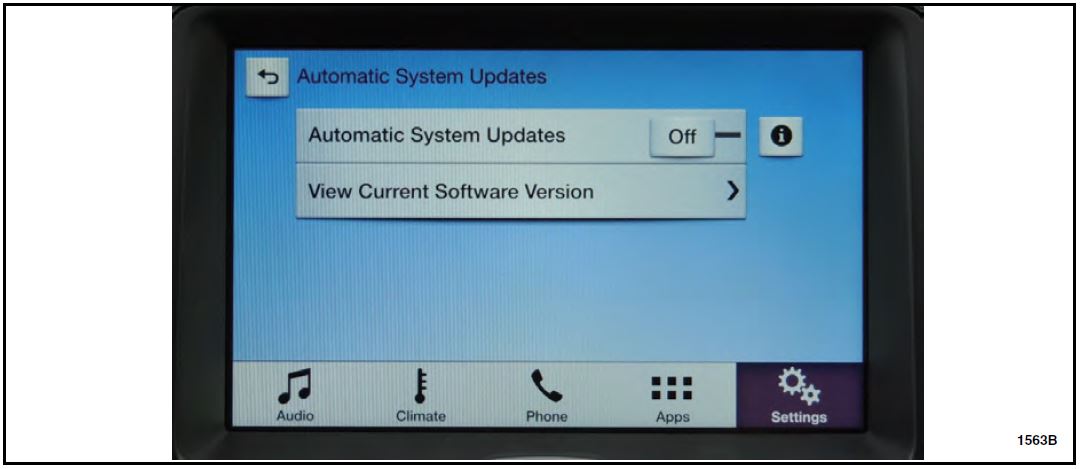
FIGURE 1
- Remove any connected devices from the vehicle USB port(s).
- Install the USB drive containing the new SYNC operating system update (refer to Attachment III). The installation procedure will start and finish automatically. See Figure 2.
FIGURE 2
NOTE: It is normal for the system to reboot and/or for the screen to go dark/blank at times. The USB drive must remain installed during this time, and should not be removed until the “Installation Complete” screen appears.
- After the “Installation Complete” screen appears, remove the USB drive, turn the vehicle off and remove the key. See Figure 3.
FIGURE 3
- Open and close the driver’s front door and wait approximately four minutes for the system to completely power down.
- After four minutes, start the vehicle and verify that the SYNC 3 system operates properly.
- Restore the “Automatic System Update” settings. Refer to Step 2, on Page 1.
November 2015
Application Performance Upgrade 15A03
Programa de satisfacción del cliente 15A03
Mr. John Sample
123 Main Street
Anywhere, USA 12345
Your Vehicle Identification Number (VIN): 12345678901234567
At Ford Motor Company, we are committed not only to building high quality, dependable products, but also to building a community of happy, satisfied customers. To demonstrate that commitment, we are providing a no-charge Application Performance Upgrade for your vehicle with the VIN shown above.
| Why are you receiving this notice? | On your vehicle, software concerns in the SYNC 3 touch screen interface may cause the touch screen to exhibit one or both of the following conditions:
|
| What will Ford and your dealer do? | In the interest of customer satisfaction, Ford Motor Company is providing you with a pre-programmed USB drive and instructions to install the touch screen software update yourself.
Alternatively, if you prefer to have this service performed by a dealer, Ford Motor Company has also authorized your dealer to install the touch screen update free of charge under the terms of this program. This Application Upgrade Program will be in effect until April 29, 2016 regardless of mileage. Coverage is automatically transferred to subsequent owners. |
| How long will it take? | The time needed for you to install the update using the enclosed USB drive is less than 10 minutes.
If you choose to have your dealer perform the update, your dealer may need your vehicle for a longer period of time due to service scheduling requirements. |
| What should you do? | Follow the enclosed instructions and use the USB drive to install the touch screen update.
Alternatively, you may call your dealer and request a service date for Application Performance Upgrade 15A03. Provide the dealer with the VIN of your vehicle, which is printed near your name at the beginning of this letter. If you do not already have a servicing dealer, you can access www.Fordowner.com for dealer addresses, maps, and driving instructions. Ford Motor Company wants you to have this service action completed on your vehicle. The vehicle owner is responsible for making arrangements to have the work completed. |
| What if you no longer own this vehicle? | If you no longer own this vehicle, and have an address for the current owner, please forward this letter to the new owner.
You received this notice because our records, which are based primarily on state registration and title data, indicate that you are the current owner. |
| Can we assist you further? | If you have difficulties getting your vehicle repaired promptly and without charge, please contact your dealership’s Service Manager for assistance.
RETAIL OWNERS: If you have questions or concerns, please contact our Ford Customer Relationship Center at 1-866-436-7332 and one of our representatives will be happy to assist you. If you wish to contact us through the Internet, our address is: www.Fordowner.com. For the hearing impaired call 1-800-232-5952 (TDD). Representatives are available Monday through Friday: 8:00AM – 8:00PM (Eastern Time). Si necesita ayuda o tiene alguna pregunta, por favor llame al Centro de Relación con Clientes al 1-866-436-7332 y presione 2 para Español. FLEET OWNERS: If you have questions or concerns, please contact our Fleet Customer Information Center at 1-800-34-FLEET, choose Option #3, and one of our representatives will be happy to assist you. If you wish to contact us through the Internet, our address is: www.fleet.ford.com. Representatives are available Monday through Friday: 8:00AM – 8:00PM (Eastern Time). |
Thank you for your attention to this important matter.
Ford Customer Service Division
SYNC 3 Touch Screen Software Update
NEED HELP? If at any point you encounter difficulty during the software update process, please contact your dealer for additional assistance.
- Start the vehicle and allow it to idle for 30 seconds. The engine will continue to idle until step 4.
- Remove any connected devices from the vehicle USB port(s).
- Install the USB drive containing the new touch screen software update. The installation procedure will start automatically and “Updating System Software…” will appear on the screen. See Figure 1.
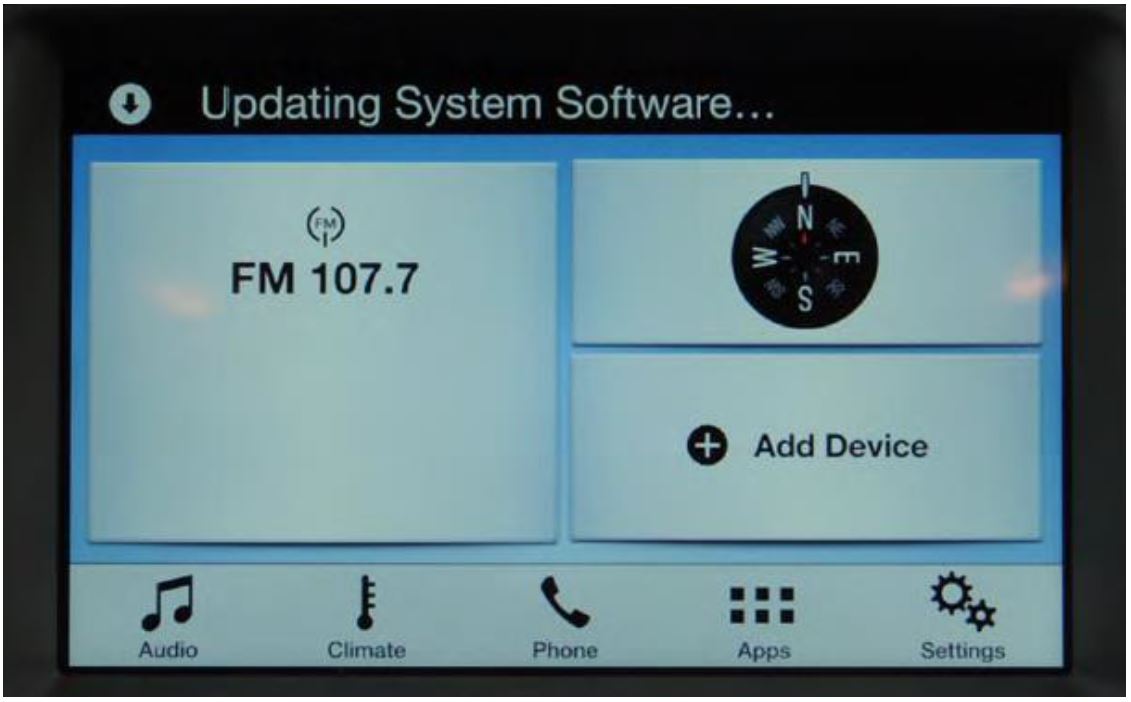
Figure 1
NOTE: The installation procedure takes less than five minutes, and it is normal for the system to reboot and/or for the screen to go dark/blank at times. Do not remove the USB drive or turn the vehicle off until the “Installation Complete” screen appears.
NOTE: After updating the software, the touch screen may not respond to touch until the system is allowed to fully power down and reset.
- After the “Installation Complete” screen appears, remove the USB drive, turn the vehicle off, and remove the key. See Figure 2 on the next page.
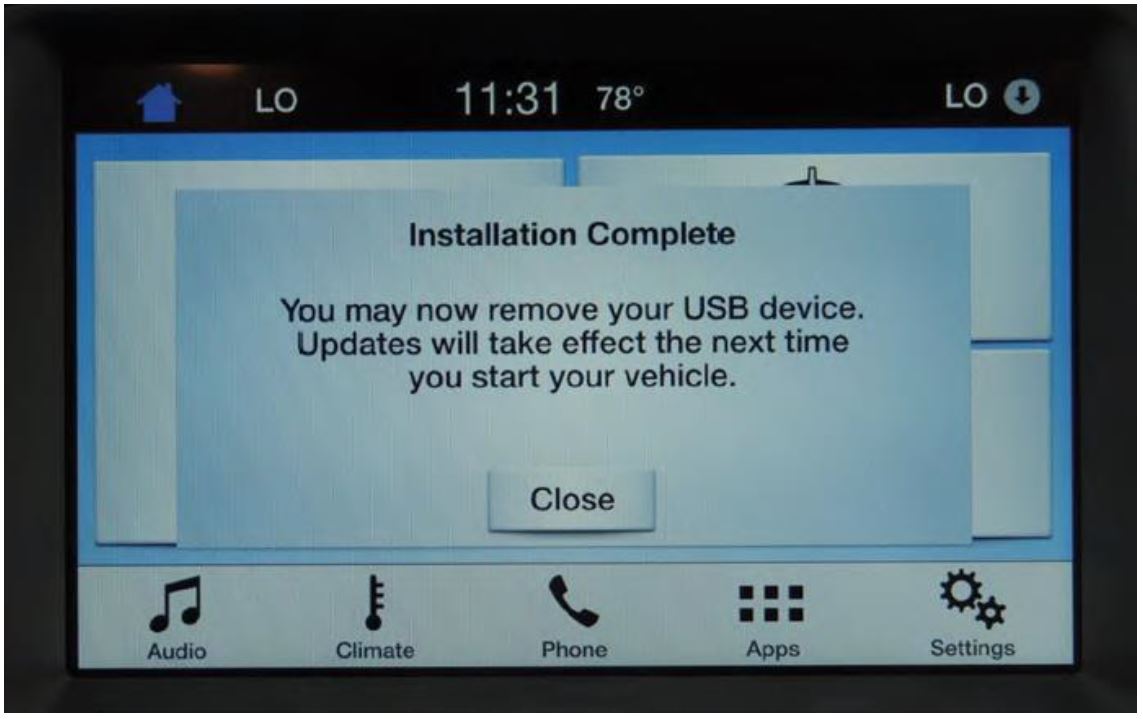
Figure 2
- Open and close the driver’s front door and wait approximately four minutes for the system to completely power down.
- After four minutes, start the vehicle. Verify the touch screen operates properly.
November 2015
Application Performance Upgrade 15A03
Programa de satisfacción del cliente 15A03
Mr. John Sample
123 Main Street
Anywhere, USA 12345
Your Vehicle Identification Number (VIN): 12345678901234567
At Ford Motor Company, we are committed not only to building high quality, dependable products, but also to building a community of happy, satisfied customers. To demonstrate that commitment, we are providing a no-charge Application Performance Upgrade for your vehicle with the VIN shown above.
| Why are you receiving this notice? | Your vehicle may have been loaded with an incorrect version of the SYNC 3 operating system, which can cause one or more of the following conditions:
|
| What will Ford and your dealer do? | In the interest of customer satisfaction, Ford Motor Company is providing you with a pre-programmed USB drive and instructions to install the operating system update yourself.
Alternatively, if you prefer to have this service performed by a dealer, Ford Motor Company has also authorized your dealer to install the operating system update free of charge under the terms of this program. This Application Upgrade Program will be in effect until April 29, 2016 regardless of mileage. Coverage is automatically transferred to subsequent owners. |
| How long will it take? | The time needed for you to install the update using the enclosed USB drive is less than 15 minutes.
If you choose to have your dealer perform the update, your dealer may need your vehicle for a longer period of time due to service scheduling requirements. |
| What should you do? | Follow the enclosed instructions and use the USB drive to install the required update.
Alternatively, you may call your dealer and request a service date for Application Performance Upgrade 15A03. Provide the dealer with the VIN of your vehicle. The VIN is printed near your name at the beginning of this letter. If you do not already have a servicing dealer, you can access www.Fordowner.com for dealer addresses, maps, and driving instructions. Ford Motor Company wants you to have this service action completed on your vehicle. The vehicle owner is responsible for making arrangements to have the work completed. |
| What if you no longer own this vehicle? | If you no longer own this vehicle, and have an address for the current owner, please forward this letter to the new owner.
You received this notice because our records, which are based primarily on state registration and title data, indicate that you are the current owner. |
| Can we assist you further? | If you have difficulties getting your vehicle repaired promptly and without charge, please contact your dealership’s Service Manager for assistance.
RETAIL OWNERS: If you have questions or concerns, please contact our Ford Customer Relationship Center at 1-866-436-7332 and one of our representatives will be happy to assist you. If you wish to contact us through the Internet, our address is: www.Fordowner.com. For the hearing impaired call 1-800-232-5952 (TDD). Representatives are available Monday through Friday: 8:00AM – 8:00PM (Eastern Time). Si necesita ayuda o tiene alguna pregunta, por favor llame al Centro de Relación con Clientes al 1-866-436-7332 y presione 2 para Español. FLEET OWNERS: If you have questions or concerns, please contact our Fleet Customer Information Center at 1-800-34-FLEET, choose Option #3, and one of our representatives will be happy to assist you. If you wish to contact us through the Internet, our address is: www.fleet.ford.com. Representatives are available Monday through Friday: 8:00AM – 8:00PM(Eastern Time). |
Thank you for your attention to this important matter.
Ford Customer Service Division
SYNC 3 Operating System Software Update
NEED HELP? If at any point you encounter difficulty during the software update process, please contact your dealer for additional assistance.
NOTE: Your vehicle’s SYNC3 system is capable of automatic updates over Wi-Fi. After reprogramming the operating system using the procedure below, the “Automatic System Updates” setting will default to “Off.”
WHAT IS AN AUTOMATIC SYSTEM UPDATE? When Wi-Fi and automatic updates are enabled, your system checks for software updates periodically. If a new version is available, it downloads at that time. Software downloads can take place for up to 30 minutes after you have switched your vehicle off. The updates do not interrupt the normal use of your SYNC 3 system. If a download does not complete for any reason, the download continues where it left off at the next Wi-Fi connected opportunity. Upon activation of an update, a banner displays on the touchscreen indicating the system update.
Software update procedure:
- Start the vehicle and allow it to idle for 30 seconds. The engine will continue to idle until step 5.
- To review the current “Automatic System Updates” setting so that it can be restored after programming has completed, refer to the instructions below. You may also modify this setting after programming has completed if your preferences have changed.
- Press the Gear/Settings icon (lower right corner of the screen).
- Select “General” then scroll to the bottom of screen.
- Select “Automatic System Updates.”
- Take note if your setting is “On” or “Off.” See Figure 1.
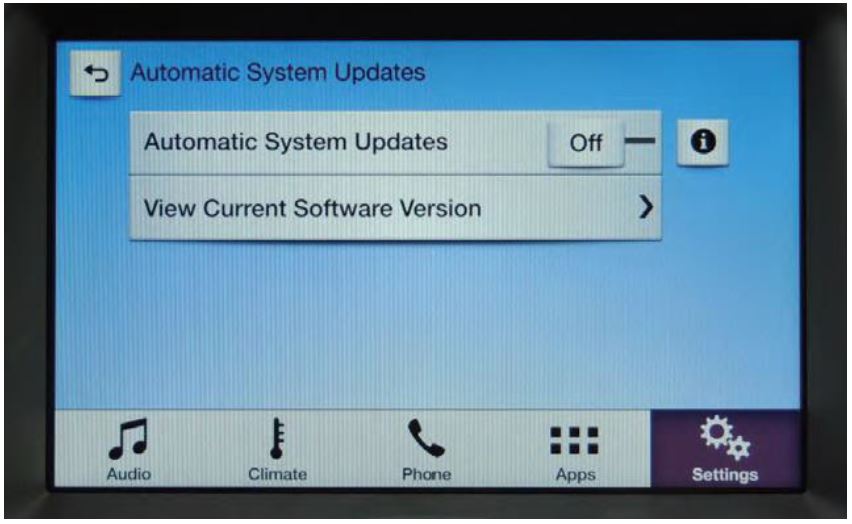
Figure 1
- Remove any connected devices from the vehicle USB port(s).
- Install the USB drive containing the SYNC operating system update. The installation procedure will start automatically and “Updating System Software…” will appear on the screen. See Figure 2 on the next page.
Figure 2
NOTE: The installation procedure takes less than five minutes, and it is normal for the system to reboot and/or for the screen to go dark/blank at times. Do not remove the USB drive or turn the vehicle off until the “Installation Complete” screen appears.
- After the “Installation Complete” screen appears, remove the USB drive, turn the vehicle off and remove the key. See Figure 3.
Figure 3
- Open and close the driver’s front door and wait approximately four minutes for the system to completely power down.
- After four minutes, start the vehicle. Verify the SYNC 3 system operates properly.
- Restore or modify the “Automatic System Update” settings. Refer to Step 2 on the previous page.
November 2015
Customer Satisfaction Program 15A03
Programa de satisfacción del cliente 15A03
Mr. John Sample
123 Main Street
Anywhere, USA 12345
Your Vehicle Identification Number (VIN): 12345678901234567
At the Lincoln Motor Company, we are committed not only to building high quality, dependable products, but also to building a community of happy, satisfied customers. To demonstrate that commitment, we are providing a no-charge Application Performance Upgrade for your vehicle with the VIN shown above.
| Why are you receiving this notice? | On your vehicle, software concerns in the SYNC 3 touch screen interface may cause the touch screen to exhibit one or both of the following conditions:
|
| What will Lincoln and your dealer do? | In the interest of customer satisfaction, The Lincoln Motor Company is providing you with a pre-programmed USB drive and instructions to install the touch screen software update yourself.
Alternatively, if you prefer to have this service performed by a dealer, The Lincoln Motor Company has also authorized your dealer to install the touch screen update free of charge under the terms of this program. This Application Upgrade Program will be in effect until April 29, 2016 regardless of mileage. Coverage is automatically transferred to subsequent owners. |
| How long will it take? | The time needed for you to install the update using the enclosed USB drive is less than 10 minutes.
If you choose to have your dealer perform the update, your dealer may need your vehicle for a longer period of time due to service scheduling requirements. |
| What should you do? | Follow the enclosed instructions and use the USB drive to install the touch screen update.
Alternatively, you may call your dealer and request a service date for Application Performance Upgrade 15A03. Provide the dealer with the VIN of your vehicle, which is printed near your name at the beginning of this letter. If you do not already have a servicing dealer, you can access www.Lincolnowner.com for dealer addresses, maps, and driving instructions. The Lincoln Motor Company wants you to have this service action completed on your vehicle. The vehicle owner is responsible for making arrangements to have the work completed. |
| What if you no longer own this vehicle? | If you no longer own this vehicle, and have an address for the current owner, please forward this letter to the new owner.
You received this notice because our records, which are based primarily on state registration and title data, indicate that you are the current owner. |
| Can we assist you further? | If you have difficulties getting your vehicle repaired promptly and without charge, please contact your dealership’s Service Manager for assistance.
RETAIL OWNERS: If you have questions or concerns, please contact our Customer Relationship Center at 1-866-436-7332 and one of our representatives will be happy to assist you. If you wish to contact us through the Internet, our address is: www.Lincolnowner.com. For the hearing impaired call 1-800-232-5952 (TDD). Representatives are available Monday through Friday: 8:00AM – 8:00PM (Eastern Time). Si necesita ayuda o tiene alguna pregunta, por favor llame al Centro de Relación con Clientes al 1-866-436-7332 y presione 2 para Español. FLEET OWNERS: If you have questions or concerns, please contact our Fleet Customer Information Center at 1-800-34-FLEET, Option #3 and one of our representatives will be happy to assist you. Representatives are available Monday through Friday: 8:00AM – 8:00PM (Eastern Time). If you wish to contact us through the Internet, our address is: www.fleet.ford.com. |
Thank you for your attention to this important matter.
The Lincoln Motor Company
SYNC 3 Touch Screen Software Update
NEED HELP? If at any point you encounter difficulty during the software update process, please contact your dealer for additional assistance.
- Start the vehicle and allow it to idle for 30 seconds. The engine will continue to idle until step 4.
- Remove any connected devices from the vehicle USB port(s).
- Install the USB drive containing the new touch screen software update. The installation procedure will start automatically and “Updating System Software…” will appear on the screen. See Figure 1.
Figure 1
NOTE: The installation procedure takes less than five minutes, and it is normal for the system to reboot and/or for the screen to go dark/blank at times. Do not remove the USB drive or turn the vehicle off until the “Installation Complete” screen appears.
NOTE: After updating the software, the touch screen may not respond to touch until the system is allowed to fully power down and reset.
- After the “Installation Complete” screen appears, remove the USB drive, turn the vehicle off, and remove the key. See Figure 2 on the next page.
Figure 2
- Open and close the driver’s front door and wait approximately four minutes for the system to completely power down.
- After four minutes, start the vehicle. Verify the touch screen operates properly.
November 2015
Customer Satisfaction Program 15A03
Programa de satisfacción del cliente 15A03
Mr. John Sample
123 Main Street
Anywhere, USA 12345
Your Vehicle Identification Number (VIN): 12345678901234567
At the Lincoln Motor Company, we are committed not only to building high quality, dependable products, but also to building a community of happy, satisfied customers. To demonstrate that commitment, we are providing a no-charge Application Performance Upgrade for your vehicle with the VIN shown above.
| Why are you receiving this notice? | Your vehicle may have been loaded with an incorrect version of the SYNC 3 operating system, which can cause one or more of the following conditions:
|
| What will Lincoln and your dealer do? | In the interest of customer satisfaction, The Lincoln Motor Company is providing you with a pre-programmed USB drive and instructions to install the operating system update yourself.
Alternatively, The Lincoln Motor Company has also authorized your dealer to install the required update free of charge under the terms of this program. This Application Upgrade Program will be in effect until April 29, 2016 regardless of mileage. Coverage is automatically transferred to subsequent owners. |
| How long will it take? | The time needed for you to install the update using the enclosed USB drive is less than 15 minutes.
If you choose to have your dealer perform the update, your dealer may need your vehicle for a longer period of time due to service scheduling requirements. |
| What should you do? | Follow the enclosed instructions and use the USB drive to install the operating system update.
Alternatively, you may call your dealer and request a service date for Application Performance Upgrade 15A03. Provide the dealer with the VIN of your vehicle. The VIN is printed near your name at the beginning of this letter. If you do not already have a servicing dealer, you can access www.Lincolnowner.com for dealer addresses, maps, and driving instructions. The Lincoln Motor Company wants you to have this service action completed on your vehicle. The vehicle owner is responsible for making arrangements to have the work completed. |
| What if you no longer own this vehicle? | If you no longer own this vehicle, and have an address for the current owner, please forward this letter to the new owner.
You received this notice because our records, which are based primarily on state registration and title data, indicate that you are the current owner. |
| Can we assist you further? | If you have difficulties getting your vehicle repaired promptly and without charge, please contact your dealership’s Service Manager for assistance.
RETAIL OWNERS: If you have questions or concerns, please contact our Customer Relationship Center at 1-866-436-7332 and one of our representatives will be happy to assist you. If you wish to contact us through the Internet, our address is: www.Lincolnowner.com. For the hearing impaired call 1-800-232-5952 (TDD). Representatives are available Monday through Friday: 8:00AM – 8:00PM (Eastern Time). Si necesita ayuda o tiene alguna pregunta, por favor llame al Centro de Relación con Clientes al 1-866-436-7332 y presione 2 para Español. FLEET OWNERS: If you have questions or concerns, please contact our Fleet Customer Information Center at 1-800-34-FLEET, Option #3 and one of our representatives will be happy to assist you. Representatives are available Monday through Friday: 8:00AM – 8:00PM (Eastern Time). If you wish to contact us through the Internet, our address is: www.fleet.ford.com. |
Thank you for your attention to this important matter.
The Lincoln Motor Company
SYNC 3 Operating System Software Update
NEED HELP? If at any point you encounter difficulty during the software update process, please contact your dealer for additional assistance.
NOTE: Your vehicle’s SYNC3 system is capable of automatic updates over Wi-Fi. After reprogramming the operating system using the procedure below, the “Automatic System Updates” setting will default to “Off.”
WHAT IS AN AUTOMATIC SYSTEM UPDATE? When Wi-Fi and automatic updates are enabled, your system checks for software updates periodically. If a new version is available, it downloads at that time. Software downloads can take place for up to 30 minutes after you have switched your vehicle off. The updates do not interrupt the normal use of your SYNC 3 system. If a download does not complete for any reason, the download continues where it left off at the next Wi-Fi connected opportunity. Upon activation of an update, a banner displays on the touchscreen indicating the system update.
Software update procedure:
- Start the vehicle and allow it to idle for 30 seconds. The engine will continue to idle until step 5.
- To review the current “Automatic System Updates” setting so that it can be restored after programming has completed, refer to the instructions below. You may also modify this setting after programming has completed if your preferences have changed.
- Press the Gear/Settings icon (lower right corner of the screen).
- Select “General” then scroll to the bottom of screen.
- Select “Automatic System Updates.”
- Take note if your setting is “On” or “Off.” See Figure 1.
Figure 1
- Remove any connected devices from the vehicle USB port(s).
- Install the USB drive containing the SYNC operating system update. The installation procedure will start automatically and “Updating System Software…” will appear on the screen. See Figure 2 on the next page.
Figure 2
NOTE: The installation procedure takes less than five minutes, and it is normal for the system to reboot and/or for the screen to go dark/blank at times. Do not remove the USB drive or turn the vehicle off until the “Installation Complete” screen appears.
- After the “Installation Complete” screen appears, remove the USB drive, turn the vehicle off and remove the key. See Figure 3.
Figure 3
- Open and close the driver’s front door and wait approximately four minutes for the system to completely power down.
- After four minutes, start the vehicle. Verify the SYNC 3 system operates properly.
- Restore or modify the “Automatic System Update” settings. Refer to Step 2 on the previous page.
4 Affected Products
Vehicles
| MAKE | MODEL | YEAR |
| FORD | ESCAPE | 2016 |
| FORD | EXPEDITION | 2016 |
| LINCOLN | MKC | 2016 |
| LINCOLN | NAVIGATOR | 2016 |
1 Associated Document
Manufacturer Communications
Application Performance Upgrade 15A03
October 28, 2015
MC-10204990-9999.pdf 535.679KB

- 【LATEST A15 NAVIGATION SD CARD UPDATE】Stay ahead with the newest 2026 A15 navigation SD card that updates all previous versions including A14 and earlier, providing the most comprehensive map coverage for the entire United States and Canada with millions of updated points of interest such as gas stations, hotels, restaurants and newly added highways, ensuring reliable guidance for both city driving and cross-country adventures.
- 【WIDE COMPATIBILITY WITH FORD MODELS】This navigation SD card part number GM5T-19H449-AJ is designed to fit Ford vehicles including F-150 2013-2015, Explorer 2011-2016, Fusion 2013-2016, Expedition 2015, Escape 2013-2015, Edge 2011-2015, Focus 2012-2015, C-MAX 2013-2015, Escape Hybrid 2013-2015, Expedition XT 2015, Fiesta 2014-2015, Flex 2013-2015, Mustang 2015, Super Duty F-250/F-350/F-450 2013-2016, Taurus 2013-2015, Transit 2013-2015, Transit Connect 2014-2016.
- 【WIDE COMPATIBILITY WITH LINCOLN MODELS】 This navigation SD card compatible with Lincoln Accessories Fits Lincoln MKZ (2013 - 2016), MKX (2011 - 2016), MKC (2015), MKS (2013 - 2015), MKT (2013 - 2015), NAVIGATOR (2015). Reliable Lincoln navigation accessories that update your vehicle’s SYNC 2 system for accurate routing across USA & Canada.
- 【EASY PLUG AND PLAY INSTALLATION】You need to check if the CCPU of Ford/Lincoln SYNC system is compatible or needs to be updated first, check the product image corresponding to the CCPU version. To install: 1. Turn engine OFF 20+ mins. 2. Locate the SD card slot and remove the old navigation card. 3. Insert the new Navigation SD Card untll it clicks. 4.Start the engine to ensure, the “Navigation” icon should appear in the top-right corner (Auto-updates in 10-20 mins Never interrupt the process!).
- 【RELIABLE OFFLINE GPS NAVIGATION】Unlike smartphone navigation apps that depend on cellular data signals this Lincoln/Ford navigation SD card stores all map data directly on the card providing uninterrupted turn-by-turn directions even in remote areas mountains or deserts with no internet connection, perfect for long road trips across the United States and Canada with no data usage no signal issues and no roaming charges ensuring you always find your way regardless of your location.

- 2026 Latest Navigation GPS Maps sd Card A15 newest updated includes New Roads USA and Canada
- Compatible with Ford Navigation: f150 (2013-2015), Super Duty f250/350/450 (2013-2016), Explorer (2011-2016), Escape (2013-2015),FOCUS 2012 - 2015,FUSION 2013 - 2016
- Compatible with Ford Navigation: Expedition (2015), Mustang (2015), Transit (2013-2015), TRANSIT CONNECT (2014 - 2016),Taurus (2013-2015)
- Compatible with Lincoln Navigation MKC 2015, MKS (2013-2015), MKT (2013-2015), MKX (2011-2016,) MKZ (2013-2016),NAVIGATOR (2015)
- Compatible with C-MAX 2013 - 2015, EDGE 2011 - 2015,ESCAPE 2013 - 2015,ESCAPE HYBRID 2013 - 2015,EXPEDITION XT 2015,FIESTA 2014 - 2015,FLEX 2013 - 2015

- Note: Navigation sd card for database version A15 map library coverage for the United States and Canada. Note, please refer to the system version description in the attached picture to confirm that your car with Sync2 systems that use the embedded SD card
- Suitable Vehicles: The GPS navigation SD card is OEM GM5T-19H449-AJ, compatible with Ford 2013-2015 C-Max, 2013-2016 Fusion, compatible with Lincoln 2013-2015 MKS, and more. Please refer to the details page for more specific information on the fit models
- Clear Navigation: Our truck gps navigation SD card encompassing detailed map data and comprehensive road information, has undergone recent updates to incorporate the most current map database, enables you to arrive at your destination swiftly
- Easy to Install: Simply turn off the vehicle power, identify the SD card slot, typically positioned in the central console or concealed behind a dashboard access panel, eject the existing SD card and insert the new SD card until you hear the slot clic
- Usage Guidelines: When the latest version navigation SD card fault message is displayed, firstly eject the SD card and inspect it for breakage, if not perform a system factory reset or master reset according to the instructions in the detailed description
- [Precautions purchase]:Please contact and tell us your car's model, year and VIN number before or after you place order, and we will provide "free pre-programming" based on your vehicle's VIN.
- [Fitment]:Sync 3 Upgrade Kit Fits for Ford 2011-2016 F150, F250, F350, F450, F550, Edge, C-MAX, Escape, Expedition, Flex, Explorers, Focus, Fusion, Mustang, Super Duty, Taurus, Transit, Transit Connect; Fits for Lincoln MKC, MKS, MKT, MKX, MKZ, Navigator. (Specifically judged by VIN)
- [Retain all]:Sync 2 to sync 3 upgrade kit retaining all factory features (audio radio, rear camera, climate control, steering wheel controls, heated and cooled seats, etc.) With the latest map version na220.Support Wireless CarPlay.
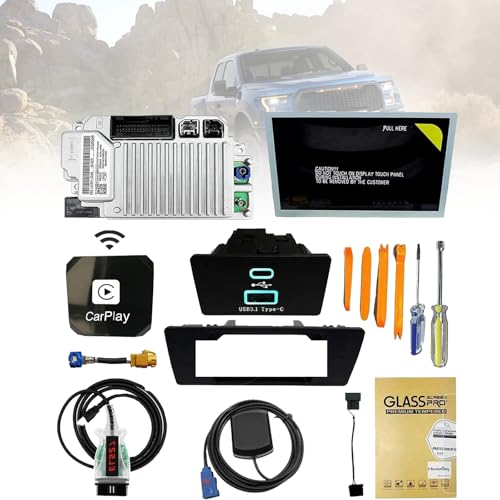
- [Kit Includes]:1.Ford SYNC3 APIM module 2.Genuine Ford 8" Capacitive Touchscreen 3.Screen to module cable 4.GPS antenna 5.USB-A HUB 6.USB power harness 7.USB bracket 8.ELM27 blinker 9.Replacement tools
- [Easy Installation]:The perfect design of SYNC 2 to SYNC 3 is rigorously tested before leaving the factory to ensure that there are no product defects and to provide you with better service.
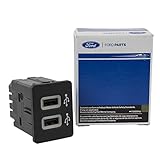
- OEM Genuine Ford Parts only at Rod Baker Ford!
- Requires Updating Sync 3 to the Latest Compatible Version!
- Required for Upgrading Sync 3 to unlock Carplay Feature
- SEE Description for Compatible Models!!!
- If you are unsure about fitment, please contact us with your VIN to confirm!
SEOCONTENT-START
Copyright 2015 Ford Motor Company Michael A. Berardi Ford Motor Company Director P. O. Box 1904 Service Engineering Operations Dearborn, Michigan 48121 Ford Customer Service Division October 28, 2015 TO: All U.S. Ford and Lincoln Dealers SUBJECT: DEMONSTRATION / DELIVERY HOLD – Application Performance Upgrade 15A03 Certain 2016 Model Year Escape, MKC, Expedition, and Navigator Vehicles SYNC® 3 Software Updates PROGRAM TERMS This program will be in effect through April 29, 2016. There is no mileage limit for this program. AFFECTED VEHICLES Vehicle Model Year Assembly Plant Build Dates Escape 2016 Louisville May 27, 2015 through July 29, 2015 MKC 2016 Louisville May 26, 2015 through July 27, 2015 Expedition 2016 Kentucky Truck July 20, 2015 through July 23, 2015 Navigator 2016 Kentucky Truck July 20, 2015 through July 23, 2015 Affected vehicles are identified in OASIS and FSA VIN Lists. REASON FOR THIS PROGRAM In affected Escape and MKC vehicles, software concerns in the SYNC® 3 touch screen interface may cause the touch screen to exhibit one or more of the following conditions: The touch screen may become slow to respond or unresponsive to touch input. The touch screen may react to false touch events with no user interaction. Additionally, affected Expedition and Navigator vehicles may have been loaded with an incorrect version of the SYNC® 3 operating system, which can cause one or more of the following conditions: Navigation routes and other settings may not be maintained after cycling the ignition key off, then back on. The touch screen may not display any graphics. The voice/push-to-talk button may become unresponsive. The system may become sluggish. The touch screen may become slow to respond or unresponsive to touch input. Copyright 2015 Ford Motor Company SERVICE ACTION Sold vehicles: Owners of all affected vehicles will be mailed a USB drive and instructions to install the SYNC® 3 updates themselves. Although OASIS may indicate 15A03 is open, the application may have already been installed by the owner. Please confirm with the owner if they have installed the application before attempting to service their vehicle. Sold vehicles should only be serviced if the owner has not already completed the update, and requests that their dealer perform the repair under this program. This service must be performed on all affected vehicles at no charge to the vehicle owner. New/In-Stock vehicles: Before demonstrating or delivering any of the vehicles involved in this program, dealers are to update the SYNC® 3 software on all affected vehicles using a USB drive. OWNER NOTIFICATION MAILING SCHEDULE Owners of all affected vehicles will be mailed a USB drive along with instructions to install SYNC® 3 updates the week of November 30, 2015. Dealers should repair any affected vehicles that arrive at their dealerships, whether or not the customer has received a letter. ATTACHMENTS Attachment I: Administrative Information Attachment II: Labor Allowances and Parts Ordering Information Attachment III: Technical Information – USB Software Installation Attachment IV: Technical Information – Touch Screen Update Procedure Attachment V: Technical Information – Operating System Update Procedure Owner Notification Letters and Installation Instructions QUESTIONS & ASSISTANCE For questions and assistance, contact the Special Service Support Center (SSSC) via the SSSC Web Contact Site. The SSSC Web Contact Site can be accessed through the Professional Technician Society (PTS) website using the SSSC link listed at the bottom of the OASIS VIN report screen or listed under the SSSC tab. Sincerely, Michael A. Berardi Copyright 2015 Ford Motor Company ATTACHMENT I Page 1 of 2 DEMONSTRATION / DELIVERY HOLD – Application Performance Upgrade 15A03 Certain 2016 Model Year Escape, MKC, Expedition, and Navigator Vehicles SYNC® 3 Software Updates OASIS ACTIVATION OASIS will be activated on October 28, 2015. FSA VIN LISTS ACTIVATION FSA VIN Lists will be available through https://web.fsavinlists.dealerconnection.com on October 28, 2015. Owner names and addresses will not be activated for this program. STOCK VEHICLES Correct all affected units in your new vehicle inventory before delivery. SOLD VEHICLES Owners of affected vehicles will be mailed a USB drive that is pre-loaded with software along with instructions to update the SYNC® 3 system themselves. Owners will also be given the option to have dealers perform the repair. TITLE BRANDED / SALVAGED VEHICLES Affected title branded and salvaged vehicles are eligible for this service action. ADDITIONAL LABOR TIME AND/OR PARTS Submit a request to the SSSC Web Contact Site prior to the repair if you have any of the following: Damage that you believe was caused by the covered condition. A condition that requires additional labor and/or parts to complete the repair. Aftermarket equipment or non-Ford modifications to the vehicle which might prevent the repair of the covered condition. Requests for approval after completion of the repair may not be granted. Ford Motor Company reserves the right to deny coverage for related damage in cases where the vehicle owner has not had this recall performed on a timely basis. Additional related damage parts are subject to random selection for return to the Ford Warranty Parts Analysis Center (WPAC). OWNER REFUNDS Refunds are not approved for this program. RENTAL VEHICLES The use of rental vehicles is not approved for this program. Copyright 2015 Ford Motor Company ATTACHMENT I Page 2 of 2 DEMONSTRATION / DELIVERY HOLD – Application Performance Upgrade 15A03 Certain 2016 Model Year Escape, MKC, Expedition, and Navigator Vehicles SYNC® 3 Software Updates LINCOLN CLIENT SPECIAL HANDLING To ensure the best possible experience for Lincoln owners, Lincoln Dealers are encouraged to utilize the Lincoln Loyalty Program to provide clients with surprise and delight offerings, including: Fuel fill Transportation assistance Courtesy pick-up and delivery of client vehicles The Lincoln Loyalty Program is exclusive to Lincoln Dealers. Owners will not be notified of this service in owner mailings. Reference EFC03578, Lincoln Loyalty Program Announcement for additional details. CLAIMS PREPARATION AND SUBMISSION Enter claims using Direct Warranty Entry (DWE) or One Warranty Solution (OWS). o DWE: refer to ACESII manual for claims preparation and submission information. o OWS: when entering claims in DMS software, select claim type 31: Field Service Action. The FSA number (15A03) is the sub code. Additional labor and/or parts must be claimed as related damage on a separate repair line from which the FSA is claimed. Additional labor and/or parts require prior approval from the SSSC via the SSSC Web Contact Site. For Lincoln Client Special Handling, reference EFC03578, Lincoln Loyalty Program Announcement and EFC04165, Lincoln Loyalty Rental Claims for Requirements and Claiming Instructions. Claims for Lincoln Loyalty should be submitted as a separate line on the same Repair Order. PROGRAM TERMS: This program will be in effect through April 29, 2016. There is no mileage limit for this program. Copyright 2015 Ford Motor Company ATTACHMENT II Page 1 of 1 DEMONSTRATION / DELIVERY HOLD – Application Performance Upgrade 15A03 Certain 2016 Model Year Escape, MKC, Expedition, and Navigator Vehicles SYNC® 3 Software Updates LABOR ALLOWANCES Description Labor Operation Labor Time Install touch screen software updates (Escape and MKC vehicles only) 15A03B 0.3 Hours Install operating system software updates (Expedition and Navigator vehicles only) 15A03C 0.3 Hours PARTS REQUIREMENTS / ORDERING INFORMATION Parts are not required to complete this repair.
**************************************************************************************************************
SEOCONTENT-END
This product presentation was made with AAWP plugin.