August 28, 2015
TO: All U.S.Ford and Lincoln Dealers
SUBJECT: DELIVERY HOLD – Application Performance Upgrade 15A01
Certain 2016 Model Year Ford Explorer Vehicles
Application Upgrade – Install SYNC 911 Assist
PROGRAM TERMS
This program will be in effect through September 30, 2016. There is no mileage limit for this program.
AFFECTED VEHICLES
| Vehicle | Model Year | Assembly Plant | Build Dates |
| Explorer | 2016 | Chicago | March 6, 2015 through June 9, 2015 |
Affected vehicles are identified in OASIS and FSA VIN Lists.
REASON FOR THIS PROGRAM
The SYNC 911 Assist feature in all the affected vehicles was not properly configured at the assembly plant, and as a result cannot be activated using the procedure in the Owner’s Manual. The SYNC 911 Assist feature is specified as standard content in the U.S. market.
SERVICE ACTION
Sold vehicles: Owners will be mailed a USB drive and instructions to install the SYNC 911 application themselves. Although OASIS may indicate 15A01 as open, the application may have already been installed by the owner. Please confirm with the owner if they have installed the application before attempting to service their vehicle.
This service must be performed on all affected vehicles at no charge to the vehicle owner.
New / In-stock vehicles: Dealers are to install the SYNC 911 Assist application using a USB drive.
OWNER NOTIFICATION MAILING SCHEDULE
Owners of record will be mailed a USB drive and instructions to install the SYNC 911 application the week of September 14, 2015. Dealers should repair any affected vehicles that arrive at their dealerships if the customer requests the application upgrade.
ATTACHMENTS
Attachment I: Administrative Information
Attachment II: Labor Allowances and Parts Ordering Information
Attachment III: Technical Information – Instructions to update a USB Drive
Attachment IV: Technical Information – Instructions to install the application on the vehicle Owner Notification Letter
QUESTIONS & ASSISTANCE
For questions and assistance, contact the Special Service Support Center (SSSC) via the SSSC Web Contact Site. The site can be accessed through the Professional Technician Society (PTS) website using a link listed at the bottom of the OASIS VIN report screen or listed under the SSSC tab.
ATTACHMENT I
DELIVERY HOLD – Application Performance Upgrade 15A01
Certain 2016 Model Year Ford Explorer Vehicles
Application Upgrade – Install SYNC 911 Assist
OASIS ACTIVATION
OASIS will be activated on August 28, 2015.
FSA VIN LISTS ACTIVATION
FSA VIN Lists will be available through https://web.fsavinlists.dealerconnection.com on August 28, 2015. Owner names and addresses will be available by September 25, 2015.
NOTE: Your FSA VIN Lists may contain owner names and addresses obtained from motor vehicle registration records. The use of such motor vehicle registration data for any purpose other than in connection with this program is a violation of law in several states, provinces, and countries. Accordingly, you must limit the use of this listing to the follow-up necessary to complete this service action.
STOCK VEHICLES
Correct all affected units in your new vehicle inventory before delivery.
SOLD VEHICLES
Owners of affected vehicles will be given the option to have dealers perform the repair.
TITLE BRANDED / SALVAGED VEHICLES
Affected title branded and salvaged vehicles are eligible for this service action.
ADDITIONAL LABOR TIME AND/OR PARTS
Contact the Special Service Support Center (SSSC) if you have any of the following: Damage that you believe was caused by the covered condition.
- A condition that requires additional labor and/or parts to complete the repair.
- Aftermarket equipment or non-Ford modifications to the vehicle which might prevent the repair of the covered condition.
Contact the SSSC prior to the repair. Please be prepared to provide your requested additional warranty part cost, estimated additional labor time, and dealer specific labor rate. Requests for approval after completion of the repair may not be granted. Ford Motor Company reserves the right to deny coverage for related damage in cases where the vehicle owner has not had this service action performed on a timely basis. Additional related damage parts are subject to random selection for return to the Ford Warranty Parts Analysis Center (WPAC).
OWNER REFUNDS
Refunds are not approved for this program.
RENTAL VEHICLES
The use of rental vehicles is not approved for this program.
CLAIMS PREPARATION AND SUBMISSION
- Enter claims using Direct Warranty Entry (DWE) or One Warranty Solution (OWS).
- DWE: refer to ACESII manual for claims preparation and submission information.
- OWS: when entering claims in DMS software, select claim type 31: Field Service Action. The FSA number (15A01) is the sub code.
- Additional labor and/or parts must be claimed as related damage on a separate repair line from which the FSA is claimed. Additional labor and /or parts require prior approval from the Special Service Support Center.
- PROGRAM TERMS: This program will be in effect through September 30, 2016. There is no mileage limit for this program.
ATTACHMENT II
DELIVERY HOLD – Application Performance Upgrade 15A01
Certain 2016 Model Year Ford Explorer Vehicles
Application Upgrade – Install SYNC 911 Assist
LABOR ALLOWANCES
| Description | Labor Operation | Labor Time |
| Install SYNC 911 Application | 15A01B | 0.3 Hours |
PARTS REQUIREMENTS / ORDERING INFORMATION
Parts are not required to complete this repair.
ATTACHMENT III
DELIVERY HOLD – Application Performance Upgrade 15A01
Certain 2016 Model Year Ford Explorer Vehicles
Application Upgrade – Install SYNC 911 Assist
Instructions for Updating a USB Drive with the Correct APIM Software Level
Minimum 2 gigabyte (GB) USB drive required. USB drives previously provided for FSAs 11A02 and 11A03 are preferred for compatibility. This procedure will clear any saved data stored on the USB flash drive. Save any important data stored on the USB drive to another location prior to starting this procedure.
- Format the USB Drive.
- Insert USB Flash drive into computer.
- From Windows start button or desktop, select my computer.
- Right click on the USB drive/temporary disk.
- Select “Format”.
- Under File System, select “FAT32”.
- Under Allocation Unit Size, select Default allocation size.
- Under Format Options, select “Quick Format”.
- Select “start” to reformat.
- Select “OK”, for pop up warning, “Reformatting will erase all data stored on this disk.”
- Close all open pop-up windows once complete.
- Tag the USB Drive to identify the new software level it will contain (i.e., “13171” or “14122”).
- Download the software. A hard wired internet connection is recommended.
- https://givisivsustorageprod.blob.core.windows.net/swparts/Gen2v37EARepairNARev1.exe
- A download pop-up window will appear with selections “Run, Save, or Cancel”. Select “Save”.
- A “Save-As” pop up window will appear. Choose a folder on your computer to save the file temporarily.
- Select “Save”.
- When the “Download Complete” pop up window appears, select “Open folder”.
- The file will be highlighted. Double click on the file.
- A download warning may appear. If so, agree to continue by choosing “Yes”, “OK”, or “Run”.
- An extract pop up window will appear. The extract destination to the USB drive will need to be selected.
- To browse for the USB drive, select the button with three dots located to the right of the pop up window.
- Scroll down and select “Computer”
- Select the USB drive/removable disk and click “OK”. USB drives previously provided for FSA 11A02 and 11A03 will be titled “SYNC”.
- Select Extract.
- Confirm USB drive contents. Select USB drive located under “My Computer”. A folder named “SyncMyRide” and two files (autoinstall.lst and DONTINDX.msa) will be present on the USB drive; it is now ready for the USB upgrade procedure located in Attachment IV.
ATTACHMENT IV
CERTAIN 2016 MODEL YEAR EXPLORER VEHICLES — APPLICATION UPGRADE – INSTALL SYNC 911 ASSIST
SERVICE PROCEDURE
Accessory Protocol Interface Module (APIM) Reprogramming Using USB Drive
NOTE: Refer to Attachment III for instructions on updating a USB drive with the correct version of software.
NOTE: The vehicle must not be in transport mode while performing the reprogramming procedure.
NOTE: The installation procedure takes less than 10 minutes. Do not remove the USB drive or turn the vehicle off until the “Installation Complete!” screen appears.
- Start the vehicle and allow it to idle for 30 seconds.
- Remove any connected devices from the vehicle USB port(s) and press the home button located at the bottom/center of the screen. See Figure 1.
- Install the USB drive included with this letter into one of the USB ports. The installation procedure will start automatically. See Figure 2.
NOTE: It is normal for the system to reboot several times and/or for the screen to go dark/blank at times. The USB drive must remain installed during this time, and should not be removed until the “Installation Complete!” screen appears.
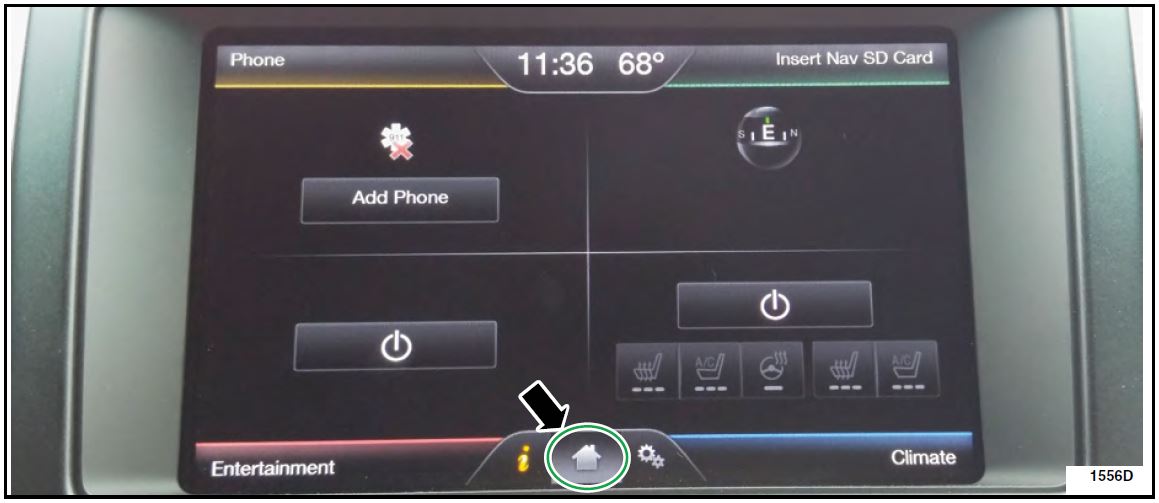
FIGURE 1
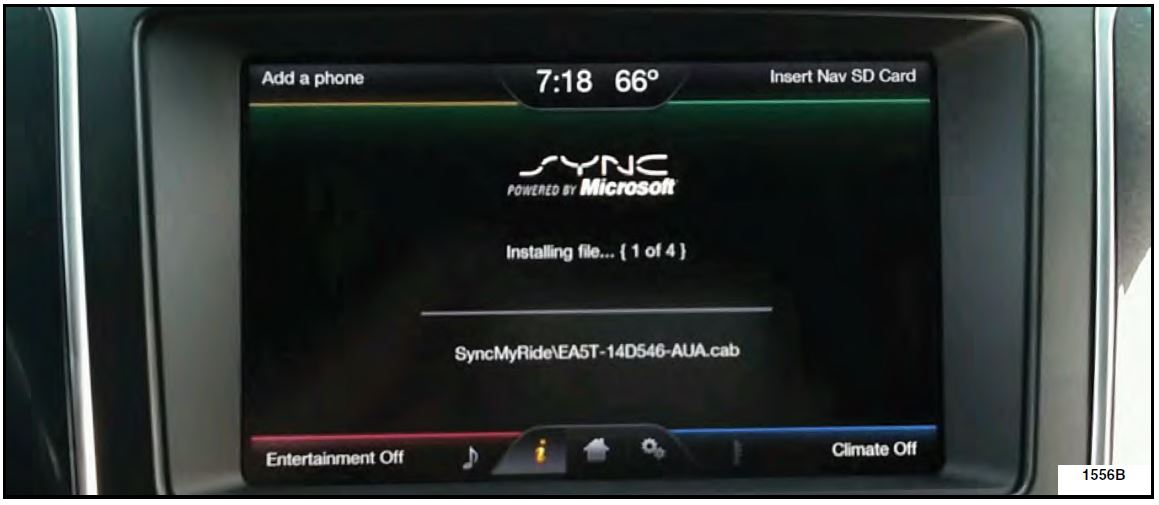
FIGURE 2
- The upgrade is complete when the “Installation Complete!” message is displayed. See Figure 3.
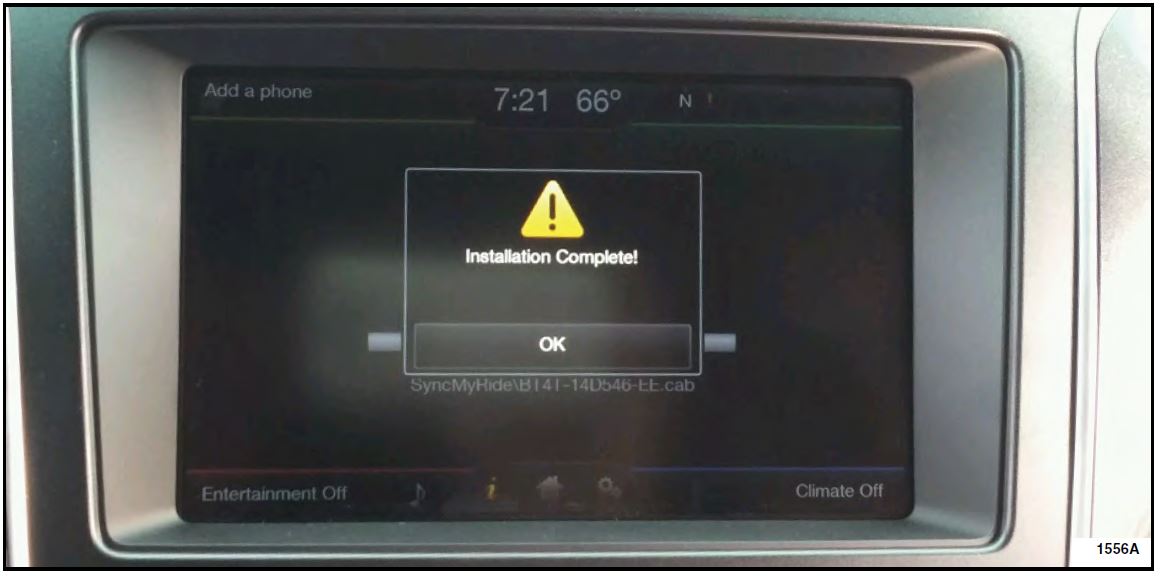
FIGURE 3
- Press “OK” and remove the USB drive from the USB port. See Figure 3.
NOTE: After the installation is complete, a compatible phone must be paired to access the 911 Assist feature.
- Notify the customer that they may need to re-establish their MyFord mobile account.
September 2015
Application Performance Upgrade 15A01
Programa de satisfacción del cliente 15A01
Mr. John Sample
123 Main Street
Anywhere, USA 12345
Your Vehicle Identification Number (VIN): 12345678901234567
At Ford Motor Company, we are committed not only to building high quality, dependable products, but also to building a community of happy, satisfied customers. To demonstrate that commitment, we are providing a no-charge Application Performance Upgrade for your vehicle with the VIN shown above.
| Why are you receiving this notice? | On your vehicle, the SYNC 911 Assist feature was not properly installed at the assembly plant, and as a result cannot be activated using the procedure in the Owner’s Manual. In the interest of customer satisfaction, Ford Motor Company is providing you with a pre-programmed USB drive and instructions to install the application yourself. Once this service is performed, refer to your Owner’s Manual to enable the SYNC 911 Assist feature if desired. |
| What will Ford and your dealer do? | Alternatively, Ford Motor Company has also authorized your dealer to install the SYNC 911 Assist application free of charge under the terms of this program.
This Application Upgrade Program will be in effect until September 30, 2016 regardless of mileage. Coverage is automatically transferred to subsequent owners. |
| How long will it take? | The time needed for you to install the application upgrade using the enclosed USB drive is less than 10 minutes.The time needed for your dealer to install the application upgrade is less than one-half day. However, due to service scheduling requirements, your dealer may need your vehicle for a longer period of time. |
| What should you do? | Follow the enclosed instructions and use the USB drive to install the SYNC 911 Assist application.
Alternatively, you may call your dealer and request a service date for Application Performance Upgrade 15A01. Provide the dealer with the VIN of your vehicle. The VIN is printed near your name at the beginning of this letter. If you do not already have a servicing dealer, you can access www.Fordowner.com for dealer addresses, maps, and driving instructions. Ford Motor Company wants you to have this service action completed on your vehicle. The vehicle owner is responsible for making arrangements to have the work completed. |
| What if you no longer own this vehicle? | If you no longer own this vehicle, and have an address for the current owner, please forward this letter to the new owner.
You received this notice because our records, which are based primarily on state registration and title data, indicate that you are the current owner. |
| Can we assist you further? | If you have difficulties getting your vehicle repaired promptly and without charge, please contact your dealership’s Service Manager for assistance.
RETAIL OWNERS: If you still have concerns, please contact the Ford Motor Company Customer Relationship Center at 1-866-436-7332 and one of our representatives will be happy to assist you. For the hearing impaired call 1800-232-5952 (TDD). Representatives are available Monday through Friday: 8:00AM – 8:00PM (Eastern Time). If you wish to contact us through the Internet, our address is: www.Fordowner.com. Si necesita ayuda o tiene alguna pregunta, por favor llame al Centro de Relación con Clientes al 1-866-436-7332 y presione 2 para Español. FLEET OWNERS: If you still have concerns, please contact the Fleet Customer Information Center at 1-800-34-FLEET, Option #3 and one of our representatives will be happy to assist you. Representatives are available Monday through Friday: 8:00AM – 8:00PM (Eastern Time). Or you may contact us through the Internet at www.fleet.ford.com. |
Thank you for your attention to this important matter.
Ford Customer Service Division
Instructions for installing the SYNC 911 Assist application
NOTE: The installation procedure takes less than 10 minutes. Do not remove the USB drive or turn the vehicle off until the “Installation Complete!” screen appears.
- Start the vehicle and allow it to idle for 30 seconds.
- Remove any connected devices from the vehicle USB port(s) and press the home button located at the bottom/center of the screen. See Figure 1.
- Install the USB drive included with this letter into one of the USB ports. The installation procedure will start automatically. See Figure 2.
NOTE: It is normal for the system to reboot several times and/or for the screen to go dark/blank at times. The USB drive must remain installed during this time, and should not be removed until the “Installation Complete!” screen appears.
FIGURE 1
FIGURE 2
- The upgrade is complete when the “Installation Complete!” message is displayed. See Figure 3.
FIGURE 3
- Press “OK” and remove the USB drive from the USB port. See Figure 3.
NOTE: After the installation is complete, a compatible phone must be paired to access the 911 Assist feature.
- Notify the customer that they may need to re-establish their MyFord mobile account.
Service Information & Reprogramming
Software necessary to program electronic modules to the latest calibration level, perform module initialization (PATS), and set Programmable Parameters on Ford, Lincoln and Mercury vehicles.
Ford Module Programming (FMP) is a software application that allows subscribers to program electronic modules on Ford, Lincoln and Mercury vehicles. It can be used for:
- Reprogramming emission-related (OBDII) modules on some vehicles manufactured in 1995 and all vehicles manufactured from 1996 to the present
- Reprogramming or reconfiguring non-emission-related modules on many vehicles (UBP and MS-CAN not supported)
In addition, module initialization (PATS) functions such as Keycode Erase/Reprogram and PCM Parameter Reset can be done using this application.
No products found.


- ALL OF THE J2534 PROTOCOLS - This single unit has all of the protocols you need for your OEM J2534 reprogramming and diagnostics including the latest in DoIP and CanFD
- J2534 TECHNICAL SUPPORT - FREE for the life of the tool. Staffed by technicians who understand vehicle repair and J2534 Pass‑thru
- TOOLBOX WITH OEM APPLICATION DESCRIPTIONS - educational video tutorials and real-time news – Giving you the confidence and up-to-date knowledge to get the job done
- J2534 v05.00 API - The newest version of J2534 to give you the latest in pass-thru technology
- FUTURE PROOF WITH 4 CAN CHANNELS - Going beyond the 3 required by select Chrysler/FCA models, CarDAQ-Plus 3 also provides a 4th to meet the needs of future OEM applications
No products found.
No products found.
Latest Calibration Information
Module Build Data (As-Built)
Use VIN to obtain As-Built data

No products found.

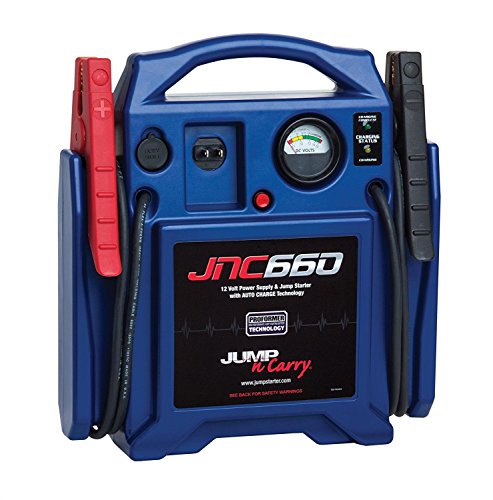
- Delivers serious jump-starting power with 1000 peak amps and 500 instant starting amps
- Reverse polarity alarm alerts when there is an improper connection; Connect the clamps to the battery, turn on the switch and start your vehicle. All Metal Powder Coated Clamps
- Features a 120 PSI air compressor to help inflate tires with low pressure; High-powered LED light rotates 270 degrees to help you work in the dark
- Built-in 12V DC outlet and USB port provide portable power for electronic devices; Includes a limited 1 year manufacturer warranty
- Jump starter should be charged every 30 days when not in use; Charges using a standard household extension cord (sold separately)
This product presentation was made with AAWP plugin.