
NHTSA ID Number: 10205031
Manufacturer Communication Number: TSB160066
Summary
Touchscreen navigation system – arabic language – blank screen

FORD:
2012 Escape Hybrid
2012-2015 F-550, Flex
2012-2016 Edge, Escape, Expedition, Explorer, F-150, F-250, F-350, F-450, Fusion, Mustang, Taurus
2015-2016 Transit
LINCOLN:
2012-2014 Mark LT
2012-2016 MKS, MKT, MKX, MKZ, Navigator
2015-2016 MKC
ISSUE
Some 2012-2016 vehicles equipped with a touchscreen navigation system and the language set to Arabic may exhibit a blank screen. This may be the result of the ribbon cables not being fully seated inside the front display interface module (FDIM) or an improper software configuration of the FDIM.
ACTION
Follow the Service Procedure steps to correct the condition.
SERVICE PROCEDURE
1. Is the FDIM touchscreen blank with no backlight?
(1). Yes – proceed to Step 2.
(2). No – this article does not apply. Refer to Workshop Manual (WSM), Section 415-00 for normal diagnostics.
2. Remove the FDIM. Refer to WSM, Section 415-00.
3. Separate the FDIM from the APIM. Refer to WSM, Section 415-00.
4. Remove the fasteners on the top and bottom of the FDIM that secure the back cover. (Figure 1)
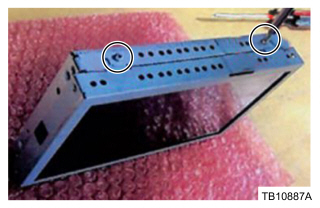
Figure 1
5. Carefully remove the back cover of the FDIM.
6. Inspect the ribbon cable connections on the FDIM to make sure all ribbons are properly seated and the locking tabs are properly locked in place. (Figures 2-4)
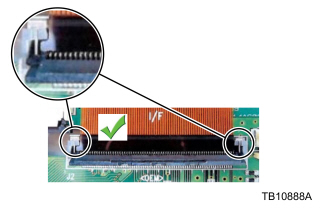
Figure 2
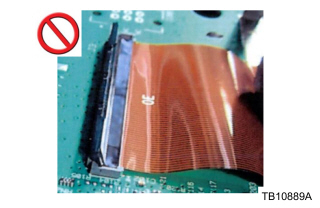
Figure 3
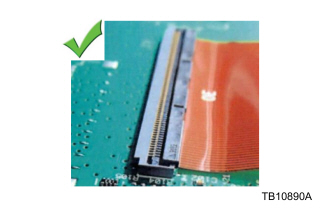
Figure 4
7. Inspect the small ribbon cables to make sure they are properly seated and the locking tabs on each side are flipped up. (Figures 5-6)
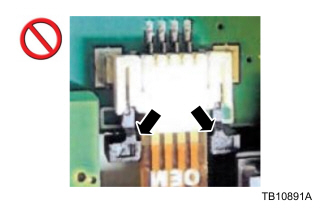
Figure 5
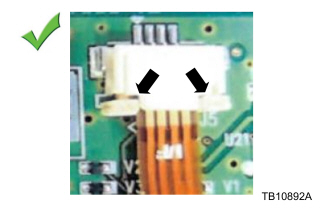
Figure 6
8. Reinstall the back cover on the FDIM. Keep the FDIM separated from the APIM.
9. Check the vehicle build date. Was the vehicle built on or before 1-Feb 2016?
(1). Yes – proceed to Step 10.
(2). No – proceed to Step 13.
10. Is the PICkit tool software installed on the PC?
(1). Yes – proceed to Step 12.
(2). No – proceed to Step 11.
11. Install the PICkit tool software.
(1). This procedure requires the installation of software from a CD-ROM. Make sure the PC you are using is equipped with a CD-ROM compatible drive and has a Windows based operating system. Once the software and Excel files are loaded onto the PC, the software installation process does not need to be repeated.
(2). Insert the PICkit tool CD-ROM into a Windows PC. If the program does not auto run, open the program manually from the start menu. Open the folder labeled Install within the list of files, then open the PICkit 2 folder and click the PICkit2 Setup file.
(3). Follow the on-screen prompts to install the PICkit tool onto the PC.
(1) Select a location for the program.
(2) Allow everyone to access the program.
(3) Agree to the terms and conditions
(4) Remove the PICkit tool CD and insert the CD-ROM labeled Excel file.
Find the Excel file labeled Gateway Module Program Update Matrix and copy it onto the desktop.
Remove the CD and continue with programing the FDIM.
12. Programing the FDIM using the PICkit tool.
(1). Open the Excel file located on the desktop.
(2). A list of vehicles with the appropriate navigation system and update file will be shown. Select the proper update file based on the vehicle being serviced and copy that file onto the desktop.
(3). Connect the emulator harness from the DM8 kit to the back of the FDIM. (Figure 7)
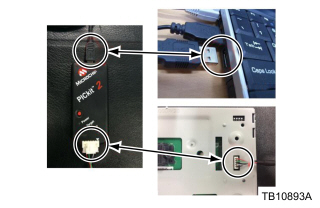
Figure 7
(4). Connect the USB cable from the emulator to the PC.
(5). Locate the PICkit 2 v2.61 icon on the desktop and double click to open the program.
- If the emulator is properly connected and the device will automatically be recognized when opened. If the device is not recognized, make sure the emulator is properly connected.
(6). On the PICkit 2 programmer screen, under the Microchip VDD PICkit 2 there will be a box with a number in it. The check box must be set to On and the numerical value must be set to 3.3.
(7). Click the file at the top left of the screen and select Import Hex.
(8). Select the Hex file you transferred to the desktop and click open.
- If the FDIM was properly programmed, the main PICkit 2 programmer screen will show the words Hex file successfully imported in the yellow box.
(9). Underneath the yellow text box, click the button labeled Write.
- Once the file is successfully written to the module, the box will turn green with Programming Successful displayed.
13. Reinstall the FDIM and APIM. Refer to WSM, Section 415-00.
93 Affected Products
Vehicles
| MAKE | MODEL | YEAR |
| FORD | EDGE | 2012-2016 |
| FORD | ESCAPE | 2012-2016 |
| FORD | ESCAPE HYBRID | 2012 |
| FORD | EXPEDITION | 2012-2016 |
| FORD | EXPLORER | 2012-2016 |
| FORD | F-150 | 2012-2016 |
| FORD | F-250 | 2012-2016 |
| FORD | F-350 | 2012-2016 |
| FORD | F-450 | 2012-2016 |
| FORD | F-550 | 2012-2013 |
| FORD | F-550 SD | 2014-2015 |
| FORD | FLEX | 2012-2015 |
| FORD | FUSION | 2012-2016 |
| FORD | MUSTANG | 2012-2016 |
| FORD | TAURUS | 2012-2016 |
| FORD | TRANSIT | 2015-2016 |
| LINCOLN | MKC | 2015-2016 |
| LINCOLN | MKS | 2012-2016 |
| LINCOLN | MKT | 2012-2016 |
| LINCOLN | MKX | 2012-2016 |
| LINCOLN | MKZ | 2012-2016 |
| LINCOLN | NAVIGATOR | 2012-2016 |
1 Associated Document
Manufacturer Communications
TSB 16-0066
MC-10205031-9999.pdf 312.974KB
NHTSA ID Number: 10183767
Manufacturer Communication Number: 16-0066
Summary
Some 2012-2016 vehicles equipped with a touchscreen navigation system and the language set to Arabic may exhibit a blank screen. This may be the result of the ribbon cables not being fully seated inside the front display interface module (FDIM) or an improper software configuration of the FDIM.
1 Associated Document
Manufacturer Communications
TSB 16-0066
MC-10183767-9999.pdf 312.974KB
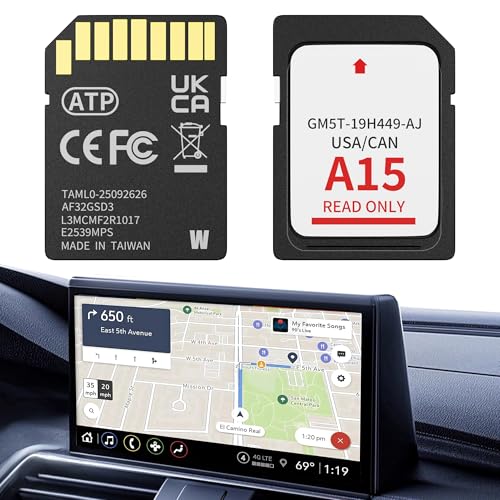
- 【LATEST A15 NAVIGATION SD CARD UPDATE】Stay ahead with the newest 2026 A15 navigation SD card that updates all previous versions including A14 and earlier, providing the most comprehensive map coverage for the entire United States and Canada with millions of updated points of interest such as gas stations, hotels, restaurants and newly added highways, ensuring reliable guidance for both city driving and cross-country adventures.
- 【WIDE COMPATIBILITY WITH FORD MODELS】This navigation SD card part number GM5T-19H449-AJ is designed to fit Ford vehicles including F-150 2013-2015, Explorer 2011-2016, Fusion 2013-2016, Expedition 2015, Escape 2013-2015, Edge 2011-2015, Focus 2012-2015, C-MAX 2013-2015, Escape Hybrid 2013-2015, Expedition XT 2015, Fiesta 2014-2015, Flex 2013-2015, Mustang 2015, Super Duty F-250/F-350/F-450 2013-2016, Taurus 2013-2015, Transit 2013-2015, Transit Connect 2014-2016.
- 【WIDE COMPATIBILITY WITH LINCOLN MODELS】 This navigation SD card compatible with Lincoln Accessories Fits Lincoln MKZ (2013 - 2016), MKX (2011 - 2016), MKC (2015), MKS (2013 - 2015), MKT (2013 - 2015), NAVIGATOR (2015). Reliable Lincoln navigation accessories that update your vehicle’s SYNC 2 system for accurate routing across USA & Canada.
- 【EASY PLUG AND PLAY INSTALLATION】You need to check if the CCPU of Ford/Lincoln SYNC system is compatible or needs to be updated first, check the product image corresponding to the CCPU version. To install: 1. Turn engine OFF 20+ mins. 2. Locate the SD card slot and remove the old navigation card. 3. Insert the new Navigation SD Card untll it clicks. 4.Start the engine to ensure, the “Navigation” icon should appear in the top-right corner (Auto-updates in 10-20 mins Never interrupt the process!).
- 【RELIABLE OFFLINE GPS NAVIGATION】Unlike smartphone navigation apps that depend on cellular data signals this Lincoln/Ford navigation SD card stores all map data directly on the card providing uninterrupted turn-by-turn directions even in remote areas mountains or deserts with no internet connection, perfect for long road trips across the United States and Canada with no data usage no signal issues and no roaming charges ensuring you always find your way regardless of your location.

- 【Compatible with Ford models】F-150 2013-2015, Explorer 2011-2016, Fusion 2013-2016, Escape, Escape Hybrid 2013-2015, Super Duty (F-250/F-350/F-450) 2013-2016, Edge 2011-2015, Focus 2012-2015, Flex 2013-2015, Fiesta 2014-2015, C-Max 2013-2015, Mustang 2015, Taurus 2013-2015, Expedition 2015, Transit 2014-2015
- 【Compatible with Lincoln Models】MKC 2015, MKS 2013-2015, MKT 2013-2015, MKX 2011-2016, MKZ 2014-2016, Navigator 2015
- 【A15 Navigation SD Card】This SD card updates previous versions such as A14, A13, A12, and so on, providing expanded coverage of hundreds of cities, counties and metropolitan areas in all 50 U.S. states, Puerto Rico, and Canada. For Ford navigation SD card update ensures that users have access to the newest map data, allowing for accurate and up-to-date navigation information.
- 【Easy to Use】Before replacing the SD card, ensure the engine is OFF at least 10 mintes. Insert the new card (label side up), then turn ON the vehicle. The system will update automatically—DO NOT turn off the engine until it’s complete. The update takes about 10-20 minutes, with no additional programming required.
- 【Navigation SD Card Warning】Do not insert the A15 navigation SD card into non-vehicle devices, as this may damage the map data. Additionally, A15 Navigation SD cards are locked to the first vehicle once inserted and cannot be switched to another vehicle

- OEM Genuine Ford Parts only at Rod Baker Ford!
- Requires Updating Sync 3 to the Latest Compatible Version!
- Required for Upgrading Sync 3 to unlock Carplay Feature
- SEE Description for Compatible Models!!!
- If you are unsure about fitment, please contact us with your VIN to confirm!
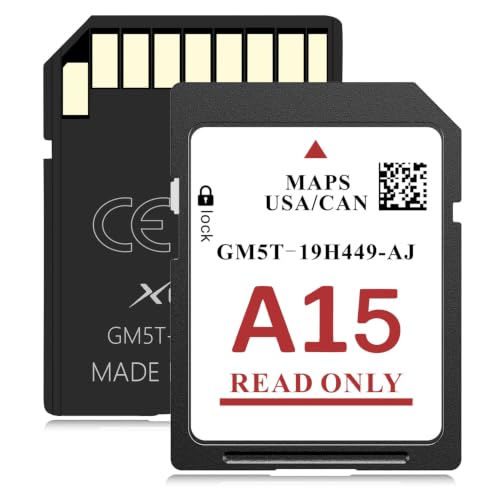
- SYNC 2 Navigation System Map Update: Get directions to wherever you travel with this map update that identifies roads, subdivisions, business and points of interest for the United States and Canada. Drive confidently through unfamiliar or recently changed areas and arrive at your destination quickly and efficiently
- Upgrade to 2026 XGEEK A15 SD Card: Replaces A14 and older versions with full updated US and Canada maps, fresh POIs and new highways for reliable daily and long-distance navigation
- Compatible Ford Navigation Models: Edge (2011-2015), Expedition XT (2015), Expedition (2015), Explorer (2011-2016), Escape / Escape Hybrid (2013-2015), Taurus (2013-2015), Transit (2014-2015), Transit Connect (2014-2015), F-150 (2013-2015), Flex (2013-2015), Fiesta (2014-2015), Focus (2012-2015), Fusion (2013-2016), Mustang (2015), C-Max (2013-2015), Super Duty F250 / F350 / F450 (2013-2016)
- Compatible Lincoln Navigation Models: MKC (2015), MKS (2013-2015), MKT (2013-2015), MKX (2011-2016), MKZ (2014-2016), Navigator (2015)
- Installation Instructions: Before installation, check whether the Ford/Lincoln SYNC system's central processor (CCPU) is compatible or requires an upgrade; for detailed steps, refer to main image 7. Turn off the vehicle and remove the old navigation card. Insert the new Navigation SD Card and start the engine, the Navigation icon should appear in the top-right corner

SEOCONTENT-START
WARRANTY STATUS: Eligible Under Provisions Of New Vehicle Limited Warranty Coverage Warranty/ESP coverage limits/policies/prior approvals are not altered by a TSB. Warranty/ESP coverage limits are determined by the identified causal part and verified using the OASIS part coverage tool. DEALER CODING BASIC PART NO. CONDITION CODE 10D885 12
**************************************************************************************************************
SEOCONTENT-END
This product presentation was made with AAWP plugin.