NHTSA ID Number: 10233599
Manufacturer Communication Number: TSB 23-2105
Summary
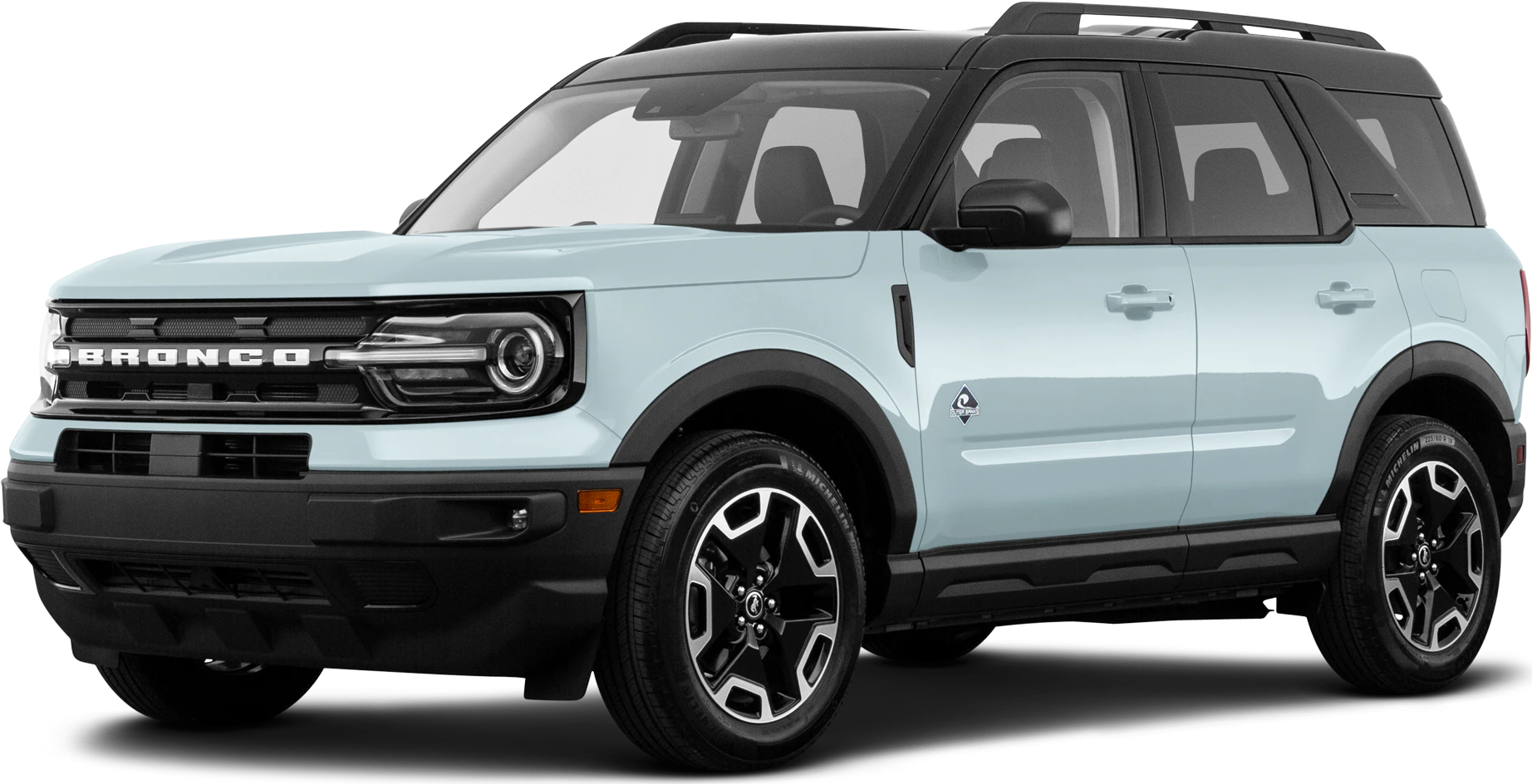
Some 2021-2022 Bronco vehicles may experience at least one of the following symptoms: blank/frozen center display screen, Android Auto Apple Carplay connectivity, checkerboard display and/or Bluetooth connectivity. This may be due to the software in the accessory protocol interface module (APIM). To correct the condition, follow the Service Procedure to reprogram the APIM. NOTE: The APIM software update that addresses the symptom listed in this article may have been sent via Ford Power-Up software updates delivered over-the-air (OTA) to connected vehicles that have automatic updates enabled through the SYNC 4 screen. Enter the vehicle identification number (VIN) in Professional Technician System (PTS) and check the OTA Dashboard under the Connected Vehicle tab for OTA update history. If an update to the APIM has successfully completed recently and the customer is reporting the symptoms are no longer present, this article may not apply.
Model:
| Ford
2021-2022 Bronco |
Issue: Some 2021-2022 Bronco vehicles may experience at least one of the following symptoms: blank/frozen center display screen, Android Auto Apple Carplay connectivity, checkerboard display and/or Bluetooth connectivity. This may be due to the software in the accessory protocol interface module (APIM). To correct the condition, follow the Service Procedure to reprogram the APIM.
NOTE: The APIM software update that addresses the symptom listed in this article may have been sent via Ford Power-Up software updates delivered over-the-air (OTA) to connected vehicles that have automatic updates enabled through the SYNC 4 screen. Enter the vehicle identification number (VIN) in Professional Technician System (PTS) and check the OTA Dashboard under the Connected Vehicle tab for OTA update history. If an update to the APIM has successfully completed recently and the customer is reporting the symptoms are no longer present, this article may not apply.
Action: Follow the Service Procedure to correct the condition on vehicles that meet all of the following criteria:
- 2021-2022 Bronco
- At least one of the following customer symptoms:
- Blank/frozen center display screen
- Android Auto Apple Carplay connectivity
- Checkerboard display
- Bluetooth connectivity
Parts
Parts To Inspect And Replace Only If Necessary
| Service Part Number | Quantity | Description |
BAGM-94RH7-800 | If Needed | Battery |
If Needed indicates the part is not mandatory.
Service Procedure
NOTE: Ask the customer to bring their spare key fob to assist in the Ford Diagnosis and Repair System (FDRS) programming. The time required to complete this procedure will vary depending on several factors including the number of module software updates required, available internet bandwidth, universal serial bus (USB) flash drive variability, and the potential that controller area network (CAN) flashing (software update via the data link connector [DLC] with FDRS) may be required. It is recommended to connect to the internet with an ethernet cable and use a USB 3.0/3.1 capable flash drive when performing software updates.
1. Start an FDRS session and navigate to Toolbox tab > Datalogger > body control module (BCM) and select the BATT_SOC parameter identification (PID). Verify the PID reads 80% or higher. If state of charge (SOC) is less than 80%, charge the battery then navigate back to Toolbox tab > BCM > Reset Battery Monitor Sensor Learned Values application. Perform the battery monitor sensor (BMS) reset.
(1). If the battery is unable to achieve an 80% SOC then a new battery may be required. Use the Rotunda GRX-3590 or DCA-800 testers to verify if replacement is required. If the battery is replaced, fully recharge the new battery. Then disconnect the Rotunda charger and perform a BMS reset using the FDRS scan tool.
2. Reconnect the battery charger and set it to maintain a vehicle voltage of 12.6-13.6 volts. A low battery state of charge while performing a software update to any module may result in a repeat Restart Required message in the vehicle center screen or a message on the FDRS saying Part Number Validation Failed or DID Validation Failed.
3. Are there any updates available for the GWM, APIM or TCU?
(1). Yes – proceed to Step 4.
(2). No – this article does not apply. Refer to Workshop Manual (WSM), Section 415-00.
4. Perform the Module Software Updating Procedures outlined below for the GWM, APIM and TCU. Perform a network test after each software update using the latest software level of the FDRS scan tool. This will refresh the list of modules that have available software updates based current module software levels. Continue performing software updates until all available software updates for those modules are complete. If any error conditions are experienced during programming, refer to WSM Section 418-01A > General Procedures > Module Programming for the Error Condition Table.
Module Software Updating Procedure
NOTE: Depending on the current software level of the modules, all the following updates may not be required.
The following instructions apply when performing a software update on any of the following modules performed in the following order:
- 2021 vehicles – GWM, TCU, APIM, GWM, APIM, TCU
- 2022 vehicles – GWM, APM, TCU
NOTE: If the next update is not showing available, perform a network test and recheck availability.
NOTE: A 32GB or larger universal serial bus (USB) flash drive is required for the GWM, TCU and APIM software updates. USB 3.0 or higher is recommended for faster file transfer.
Make sure the USB flash drive being used is formatted correctly. To see the available drives, hold down the Windows icon keyboard key and press the E keyboard key. Right click on the USB flash drive and select Properties. If File System under the General tab is not exFAT, the drive must be formatted.
To format the USB flash drive:
- Right click on the USB flash drive
- Select Format, select exFAT for the File System
- Select Default Allocation Size for the Allocation Unit Size
De-selecting Quick Format is not necessary and will result in a lengthier operation.
1. Using the FDRS, begin module programming by selecting the SW Updates tab. Follow all on-screen instructions carefully. Perform the next available update.
2. When prompted, connect the USB flash drive to the FDRS.
3. When prompted by the FDRS, safely remove/eject the USB flash drive from the FDRS and connect it to the USB media hub to install the software into the module. When the USB software update begins, the center display screen displays a message stating Do Not Remove USB. The update may take 10 minutes or longer to complete.
NOTE: It may take up to 5 minutes for the vehicle to recognize the USB flash drive.
4. When the pop-up stating Restart Required appears on the center display screen:
(1). Turn the ignition off.
(2). Wait for 10 minutes.
(3). Restart the vehicle (key-on vehicle running/ready). The update is still in progress at this time.
NOTE: It may take up to 5 minutes before the center display screen displays Update Successful pop up. After 5 minutes if Update Successful pop up is not shown on the center display screen, remove the USB and select yes on the FDRS Was the USB Update Successful prompt (FDRS verifies if the module software update was successfully installed on the module).
5. Once the pop up stating Update Successful appears in the center display screen, select Close, remove the USB flash drive from the USB media hub, and select Yes on FDRS indicating the update installed successfully. This initiates the remaining automated configuration steps and reports the module software part numbers and application software levels to the Ford online database. Failure to follow this step results in an inaccurate database as well as omitted, improperly installed, or improperly configured applications (features) such as navigation (if equipped). It is normal for the module to reset during this step.
2 Affected Products
Vehicle
| MAKE | MODEL | YEAR |
| FORD | BRONCO | 2021-2022 |
1 Associated Document
Manufacturer Communications
23-2105
29 March 2023
MC-10233599-0001.pdf 122.155KB
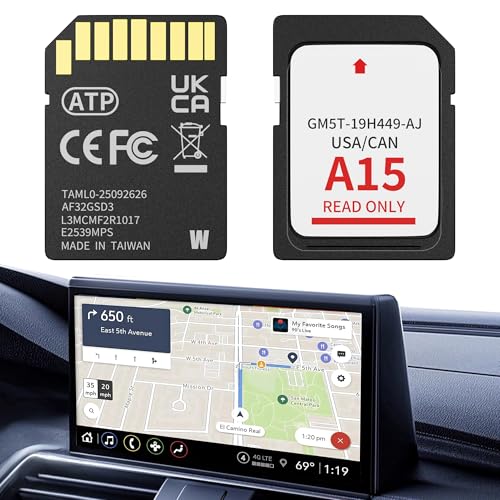
- 【LATEST A15 NAVIGATION SD CARD UPDATE】Stay ahead with the newest 2026 A15 navigation SD card that updates all previous versions including A14 and earlier, providing the most comprehensive map coverage for the entire United States and Canada with millions of updated points of interest such as gas stations, hotels, restaurants and newly added highways, ensuring reliable guidance for both city driving and cross-country adventures.
- 【WIDE COMPATIBILITY WITH FORD MODELS】This navigation SD card part number GM5T-19H449-AJ is designed to fit Ford vehicles including F-150 2013-2015, Explorer 2011-2016, Fusion 2013-2016, Expedition 2015, Escape 2013-2015, Edge 2011-2015, Focus 2012-2015, C-MAX 2013-2015, Escape Hybrid 2013-2015, Expedition XT 2015, Fiesta 2014-2015, Flex 2013-2015, Mustang 2015, Super Duty F-250/F-350/F-450 2013-2016, Taurus 2013-2015, Transit 2013-2015, Transit Connect 2014-2016.
- 【WIDE COMPATIBILITY WITH LINCOLN MODELS】 This navigation SD card compatible with Lincoln Accessories Fits Lincoln MKZ (2013 - 2016), MKX (2011 - 2016), MKC (2015), MKS (2013 - 2015), MKT (2013 - 2015), NAVIGATOR (2015). Reliable Lincoln navigation accessories that update your vehicle’s SYNC 2 system for accurate routing across USA & Canada.
- 【EASY PLUG AND PLAY INSTALLATION】You need to check if the CCPU of Ford/Lincoln SYNC system is compatible or needs to be updated first, check the product image corresponding to the CCPU version. To install: 1. Turn engine OFF 20+ mins. 2. Locate the SD card slot and remove the old navigation card. 3. Insert the new Navigation SD Card untll it clicks. 4.Start the engine to ensure, the “Navigation” icon should appear in the top-right corner (Auto-updates in 10-20 mins Never interrupt the process!).
- 【RELIABLE OFFLINE GPS NAVIGATION】Unlike smartphone navigation apps that depend on cellular data signals this Lincoln/Ford navigation SD card stores all map data directly on the card providing uninterrupted turn-by-turn directions even in remote areas mountains or deserts with no internet connection, perfect for long road trips across the United States and Canada with no data usage no signal issues and no roaming charges ensuring you always find your way regardless of your location.

- 【Compatible with Ford models】F-150 2013-2015, Explorer 2011-2016, Fusion 2013-2016, Escape, Escape Hybrid 2013-2015, Super Duty (F-250/F-350/F-450) 2013-2016, Edge 2011-2015, Focus 2012-2015, Flex 2013-2015, Fiesta 2014-2015, C-Max 2013-2015, Mustang 2015, Taurus 2013-2015, Expedition 2015, Transit 2014-2015
- 【Compatible with Lincoln Models】MKC 2015, MKS 2013-2015, MKT 2013-2015, MKX 2011-2016, MKZ 2014-2016, Navigator 2015
- 【A15 Navigation SD Card】This SD card updates previous versions such as A14, A13, A12, and so on, providing expanded coverage of hundreds of cities, counties and metropolitan areas in all 50 U.S. states, Puerto Rico, and Canada. For Ford navigation SD card update ensures that users have access to the newest map data, allowing for accurate and up-to-date navigation information.
- 【Easy to Use】Before replacing the SD card, ensure the engine is OFF at least 10 mintes. Insert the new card (label side up), then turn ON the vehicle. The system will update automatically—DO NOT turn off the engine until it’s complete. The update takes about 10-20 minutes, with no additional programming required.
- 【Navigation SD Card Warning】Do not insert the A15 navigation SD card into non-vehicle devices, as this may damage the map data. Additionally, A15 Navigation SD cards are locked to the first vehicle once inserted and cannot be switched to another vehicle

- SYNC 2 Navigation System Map Update: Get directions to wherever you travel with this map update that identifies roads, subdivisions, business and points of interest for the United States and Canada. Drive confidently through unfamiliar or recently changed areas and arrive at your destination quickly and efficiently
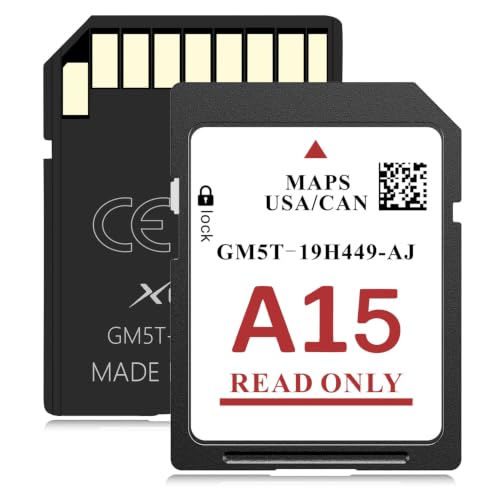
- Upgrade to 2026 XGEEK A15 SD Card: Replaces A14 and older versions with full updated US and Canada maps, fresh POIs and new highways for reliable daily and long-distance navigation
- Compatible Ford Navigation Models: Edge (2011-2015), Expedition XT (2015), Expedition (2015), Explorer (2011-2016), Escape / Escape Hybrid (2013-2015), Taurus (2013-2015), Transit (2014-2015), Transit Connect (2014-2015), F-150 (2013-2015), Flex (2013-2015), Fiesta (2014-2015), Focus (2012-2015), Fusion (2013-2016), Mustang (2015), C-Max (2013-2015), Super Duty F250 / F350 / F450 (2013-2016)
- Compatible Lincoln Navigation Models: MKC (2015), MKS (2013-2015), MKT (2013-2015), MKX (2011-2016), MKZ (2014-2016), Navigator (2015)
- Installation Instructions: Before installation, check whether the Ford/Lincoln SYNC system's central processor (CCPU) is compatible or requires an upgrade; for detailed steps, refer to main image 7. Turn off the vehicle and remove the old navigation card. Insert the new Navigation SD Card and start the engine, the Navigation icon should appear in the top-right corner

- OEM Genuine Ford Parts only at Rod Baker Ford!
- SEE LISTING DESCRIPTION FOR COMPATIBLE MODELS!!!
- Upgrade for Sync 3 Carplay and AndroidAuto
- Installing This Item DOES NOT Unlock Carplay, proper Sync 3 Software is Needed!
- If you are unsure about fitment, please contact us with your VIN to confirm!
SEOCONTENT-START
TECHNICAL SERVICE BULLETIN 2021-2022 Bronco – Various SYNC4 Concerns 23-2105 29 March 2023 Model: Ford 2021-2022 Bronco Issue: Some 2021-2022 Bronco vehicles may experience at least one of the following symptoms: blank/frozen center display screen, Android Auto Apple Carplay connectivity, checkerboard display and/or Bluetooth connectivity. This may be due to the software in the accessory protocol interface module (APIM). To correct the condition, follow the Service Procedure to reprogram the APIM. NOTE: The APIM software update that addresses the symptom listed in this article may have been sent via Ford Power-Up software updates delivered over-the-air (OTA) to connected vehicles that have automatic updates enabled through the SYNC 4 screen. Enter the vehicle identification number (VIN) in Professional Technician System (PTS) and check the OTA Dashboard under the Connected Vehicle tab for OTA update history. If an update to the APIM has successfully completed recently and the customer is reporting the symptoms are no longer present, this article may not apply. Action: Follow the Service Procedure to correct the condition on vehicles that meet all of the following criteria: • 2021-2022 Bronco • At least one of the following customer symptoms: – Blank/frozen center display screen – Android Auto Apple Carplay connectivity – Checkerboard display – Bluetooth connectivity Parts Parts To Inspect And Replace Only If Necessary Service Part Number Quantity Description BAGM-94RH7-800 If Needed Battery If Needed indicates the part is not mandatory. Warranty Status: Eligible under provisions of New Vehicle Limited Warranty (NVLW)/Service Part Warranty (SPW)/Special Service Part (SSP)/Extended Service Plan (ESP) coverage. Limits/policies/prior approvals are not altered by a TSB. NVLW/SPW/SSP/ESP coverage limits are determined by the identified causal part and verified using the OASIS part coverage tool. Labor Times Description 2021-2022 Bronco: Reprogram The Appropriate Modules As Required By The Software Update And Service Procedure (Do Not Use With Any Other Labor Operations) Operation No. MT232105 Time Actual Time Repair/Claim Coding Causal Part: 14G670 Condition Code: 04 Service Procedure NOTE: Ask the customer to bring their spare key fob to assist in the Ford Diagnosis and Repair System (FDRS) programming. The time required to complete this procedure will vary depending on several factors including the number of module software updates required, available internet bandwidth, universal serial bus (USB) flash drive variability, and the potential that controller area network (CAN) flashing (software update via the data link connector [DLC] with FDRS) may be required. It is recommended to connect to the internet with an ethernet cable and use a USB 3.0/3.1 capable flash drive when performing software updates. 1. Start an FDRS session and navigate to Toolbox tab > Datalogger > body control module (BCM) and select the BATT_SOC parameter identification (PID). Verify the PID reads 80% or higher. If state of charge (SOC) is less than 80%, charge the battery then navigate back to Toolbox tab > BCM > Reset Battery Monitor Sensor Learned Values application. Perform the battery monitor sensor (BMS) reset. (1). If the battery is unable to achieve an 80% SOC then a new battery may be required. Use the Rotunda GRX- 3590 or DCA-800 testers to verify if replacement is required. If the battery is replaced, fully recharge the new battery. Then disconnect the Rotunda charger and perform a BMS reset using the FDRS scan tool. 2. Reconnect the battery charger and set it to maintain a vehicle voltage of 12.6-13.6 volts. A low battery state of charge while performing a software update to any module may result in a repeat Restart Required message in the vehicle center screen or a message on the FDRS saying Part Number Validation Failed or DID Validation Failed. 3. Are there any updates available for the GWM, APIM or TCU? (1). Yes – proceed to Step 4. (2). No – this article does not apply. Refer to Workshop Manual (WSM), Section 415-00. 4. Perform the Module Software Updating Procedures outlined below for the GWM, APIM and TCU. Perform a network test after each software update using the latest software level of the FDRS scan tool. This will refresh the list of modules that have available software updates based current module software levels. Continue performing software updates until all available software updates for those modules are complete. If any error conditions are experienced during programming, refer to WSM Section 418-01A > General Procedures > Module Programming for the Error Condition Table. Module Software Updating Procedure NOTE: Depending on the current software level of the modules, all the following updates may not be required. The following instructions apply when performing a software update on any of the following modules performed in the following order: • 2021 vehicles – GWM, TCU, APIM, GWM, APIM, TCU • 2022 vehicles – GWM, APM, TCU NOTE: If the next update is not showing available, perform a network test and recheck availability. NOTE: A 32GB or larger universal serial bus (USB) flash drive is required for the GWM, TCU and APIM software updates. USB 3.0 or higher is recommended for faster file transfer. Make sure the USB flash drive being used is formatted correctly. To see the available drives, hold down the Windows icon keyboard key and press the E keyboard key. Right click on the USB flash drive and select Properties. If File System under the General tab is not exFAT, the drive must be formatted. To format the USB flash drive: • Right click on the USB flash drive • Select Format, select exFAT for the File System • Select Default Allocation Size for the Allocation Unit Size De-selecting Quick Format is not necessary and will result in a lengthier operation. 1. Using the FDRS, begin module programming by selecting the SW Updates tab. Follow all on-screen instructions carefully. Perform the next available update. 2. When prompted, connect the USB flash drive to the FDRS. 3. When prompted by the FDRS, safely remove/eject the USB flash drive from the FDRS and connect it to the USB media hub to install the software into the module. When the USB software update begins, the center display screen displays a message stating Do Not Remove USB. The update may take 10 minutes or longer to complete. NOTE: It may take up to 5 minutes for the vehicle to recognize the USB flash drive. 4. When the pop-up stating Restart Required appears on the center display screen: (1). Turn the ignition off. (2). Wait for 10 minutes. (3). Restart the vehicle (key-on vehicle running/ready). The update is still in progress at this time. NOTE: It may take up to 5 minutes before the center display screen displays Update Successful pop up. After 5 minutes if Update Successful pop up is not shown on the center display screen, remove the USB and select yes on the FDRS Was the USB Update Successful prompt (FDRS verifies if the module software update was successfully installed on the module). 5. Once the pop up stating Update Successful appears in the center display screen, select Close, remove the USB flash drive from the USB media hub, and select Yes on FDRS indicating the update installed successfully. This initiates the remaining automated configuration steps and reports the module software part numbers and application software levels to the Ford online database. Failure to follow this step results in an inaccurate database as well as omitted, improperly installed, or improperly configured applications (features) such as navigation (if equipped). It is normal for the module to reset during this step. © 2023 Ford Motor Company All rights reserved. NOTE: The information in Technical Service Bulletins is intended for use by trained, professional technicians with the knowledge, tools, and equipment to do the job properly and safely. It informs these technicians of conditions that may occur on some vehicles, or provides information that could assist in proper vehicle service. The procedures should not be performed by “do-it-yourselfers”. Do not assume that a condition described affects your car or truck. Contact a Ford or Lincoln dealership to determine whether the Bulletin applies to your vehicle. Warranty Policy and Extended Service Plan documentation determine Warranty and/or Extended Service Plan coverage unless stated otherwise in the TSB article. The information in this Technical Service Bulletin (TSB) was current at the time of printing. Ford Motor Company reserves the right de this information with updates. The most recent information is available through Ford Motor Company’s on-line technical resources.
**************************************************************************************************************
**************************************************************************************************************
SEOCONTENT-END
This product presentation was made with AAWP plugin.